
Software
meshO Manager tip 02: results on the arena TV
The second in our series of short videos about running an event with meshO Manager. This one puts live results on a TV in the arena, and then leaves them alone for the rest of the day.

Tate Needham
meshO · · 2 min read
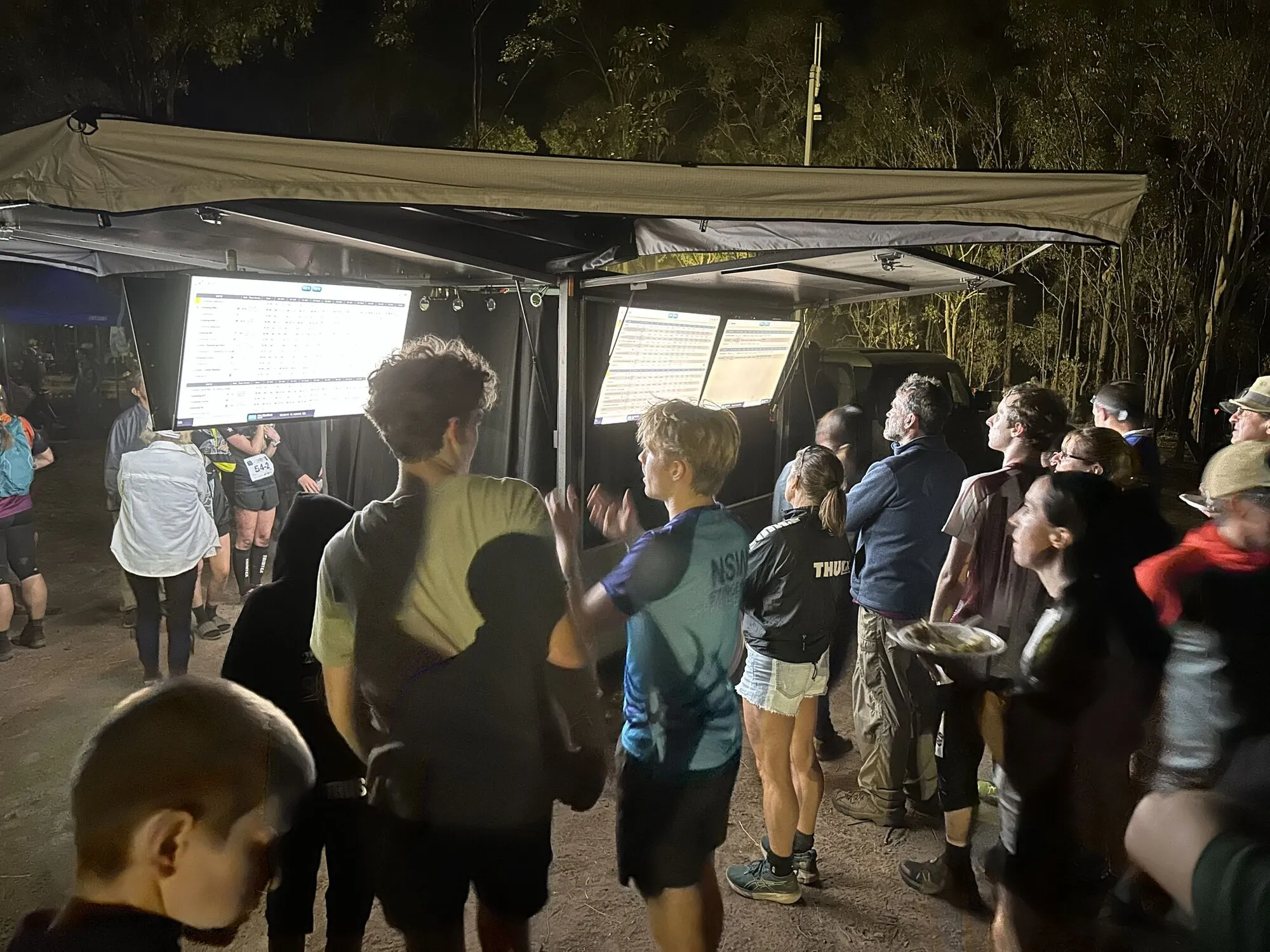
The results screen is where runners go the moment they finish. In meshO Manager, every TV in the arena is a screen with its own link: open the link in the TV’s browser, and it keeps itself up to date as runners download and pass the radio controls.
How it works
- Every screen on the Screens page has its own link, at
/screen/<screen-id>?eventId=<event-id>on your server. On the server, click the screen’s ID to open it; on a smart TV, a media stick or a laptop, open that device’s browser and go to the same address. - Nothing else needs installing. A browser pointed at the link is all a TV needs. Put it full-screen (
F11on most desktop browsers) and turn off Show Header if you want the top strip back. - A Leaderboard screen shows results by class, with the splits at each radio control, while runners are still out on the course. As punches and downloads come in, it updates and re-sorts by itself.
- Several TVs? Click Leaderboard classes and meshO Manager makes one screen per TV, named
tv1,tv2and so on, and splits your classes across them by competitor count. Edit all Leaderboards changes the look of every TV at once. - If a TV’s browser ever gets stuck, the refresh button on its row reloads it remotely, so you don’t have to walk over to it.
One computer can drive several TVs, too: open each screen in its own browser window, drag each window onto a different monitor or HDMI output, and make it full-screen there.
Getting it
It’s in the current version of meshO Manager. The TV screens page of the Manager docs covers setting up a whole hall of TVs, and Creating screens covers everything a single screen can show.