
Safety
Is everyone back? Radio controls and safety at orienteering events
Every event ends with one question that has to be answered before anyone packs up: is everyone back? Radio controls let event teams answer it at any moment of the day, with a live view of who is still out on the course and where each competitor was last seen. Here is how, and everywhere meshO Manager puts that picture in front of the people responsible.

Tate Needham
meshO · · 13 min read
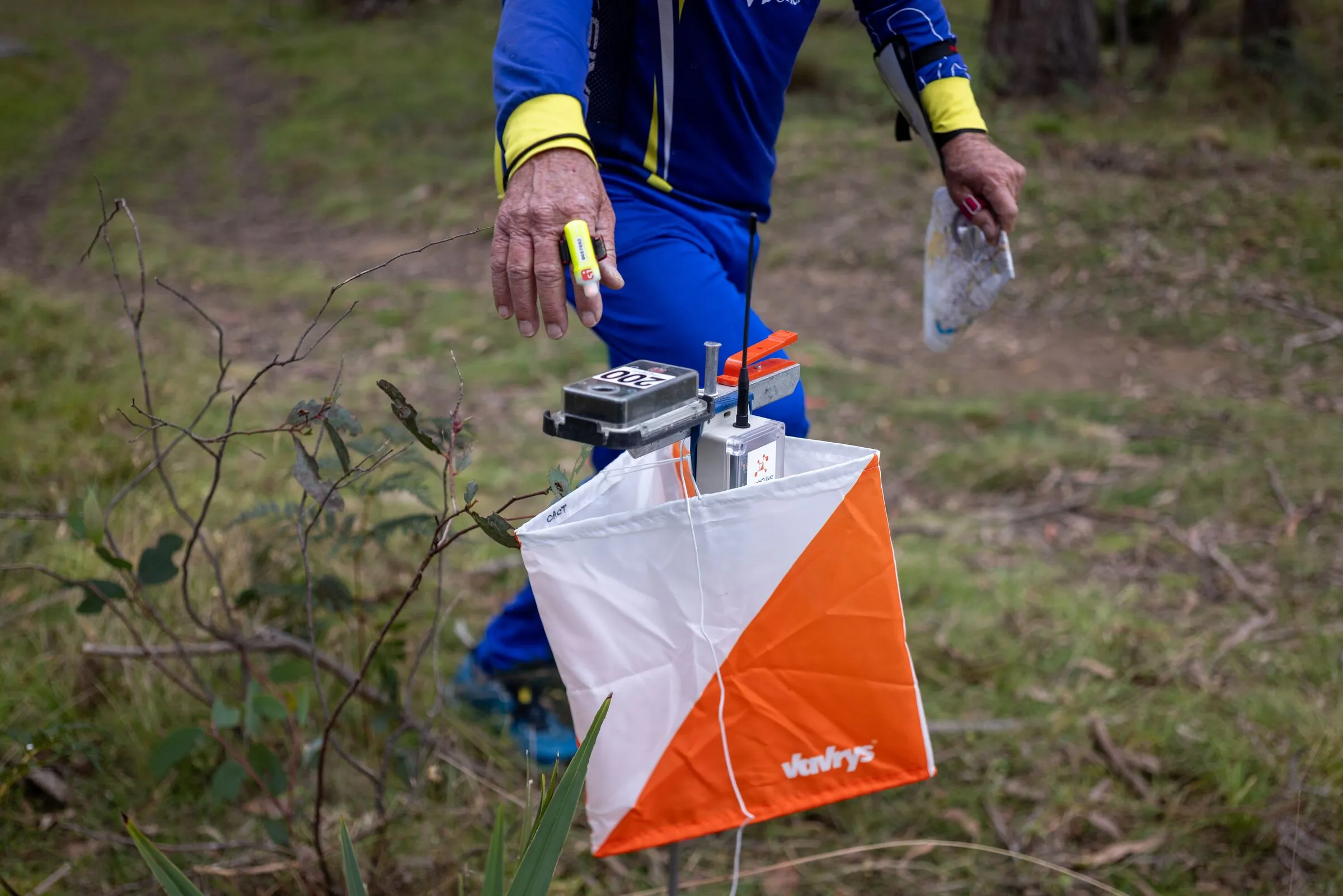
Orienteering asks people to do something most sports never would: go out alone, off the track, into country they have never seen, and find their own way back. That is the sport. It is also why safety sits underneath everything an event team does.
On any course, on any day, someone can turn an ankle on a rock, fall, run short of water in the heat, have a medical emergency, or get lost and tired a long way from the arena. Our fields run from juniors on their first course to veterans in their fortieth year in the sport. Many of our venues are remote, and many have no cellular coverage.
So every event ends with the same question, and it matters more than any result: is everyone back? When the answer is no, two things decide what happens next: how soon you know, and where you start looking.
Without radios, timing software learns that a competitor is back, and where they went, only when their card is downloaded. The full answer to “who is still out?” arrives at the end of the day, when the last card is read. Radio controls change that. With radios at the check or start and at the finish, the event team can see at any moment of the day every competitor who is out on the course. With radios on the course as well, they can see where each of them was last seen.
With radios, “is everyone back?” is a question you can answer at any moment of the day, not only when the last card is downloaded.
This article is for the people who carry that responsibility: event directors, carnival directors, controllers and organisers, and the clubs, schools and associations that run events or send competitors to them. It covers what that live view shows you, how many radios you can have, and every place meshO Manager puts radio punches in front of you.
Who is on the course, live
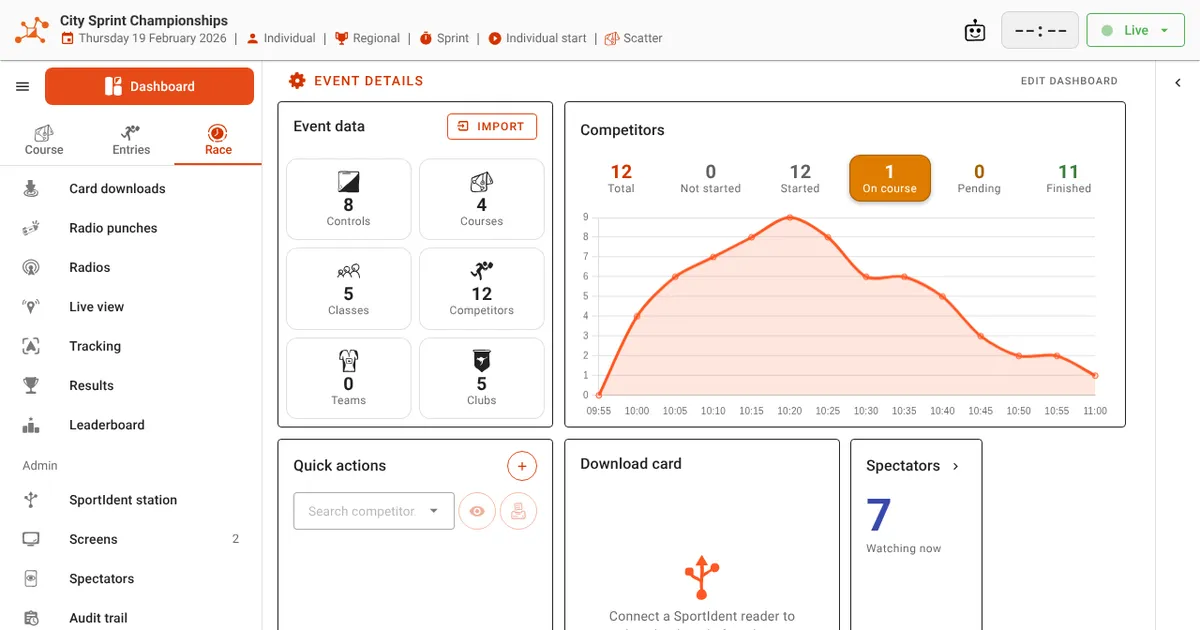
In meshO Manager, the Competitors tile on the event dashboard counts the field all day: total, started, on course, pending and finished, over a graph of how many competitors are on the course. You watch the field go out through the start window and come back in. On course is the safety number, and the one you want at zero at the end of the day.
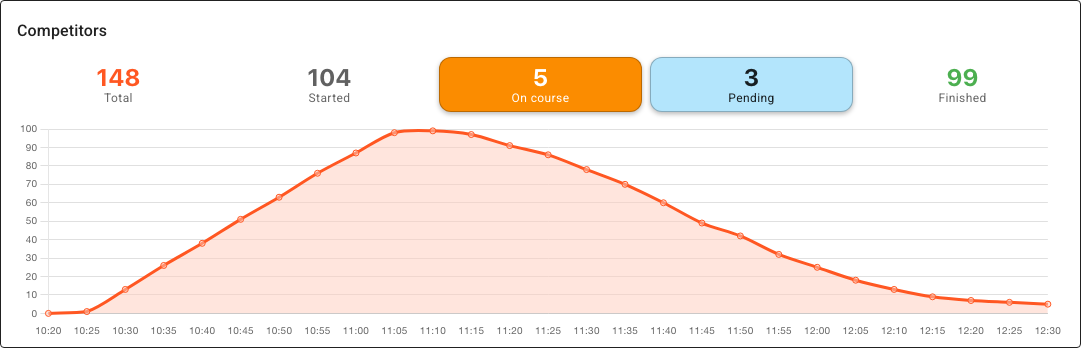
That count is only as live as the punches behind it. Three places for a radio make it so.
Who actually started?
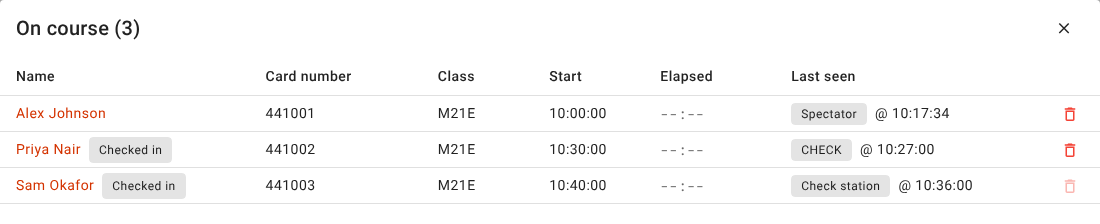
At events with allocated start times, nobody enters the start blocks without punching the check. The check is therefore the list of everyone who actually started. Put a radio beside the check unit, with a BSF8-SRR unit so contact punches are sent as well as SIAC air punches, and you have that list live as the start runs.
Without it, timing software can only assume that everyone whose start time has passed is out on the course, including the people who never turned up. At the end of the day you cannot tell a missing runner from a no-show without collecting the check unit and reading it. At a punching start, a radio on the start unit does the same job.
Who is back?
A radio at the finish shows each competitor back as they cross the line, before they reach the download tent. That is the moment they stop being a safety question. With a BSF8-SRR unit at the finish, both air punches and contact punches are sent.
Where were they last seen?
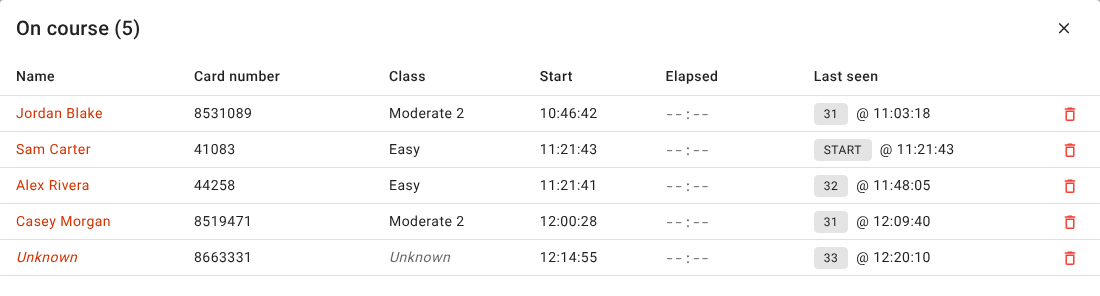
Every radio control a competitor punches is a sighting: a control and a time. If someone hasn’t come back, their last radio punch says where they were and when, and they are somewhere on their course after it. The more radios on the course, the shorter that stretch is.
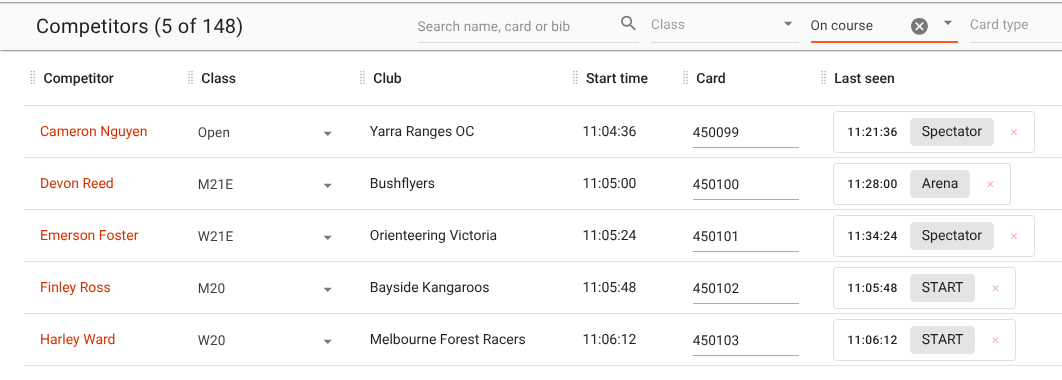
Click On course on the Competitors tile and meshO Manager lists everyone still out: name, card, class, start time, how long they have been out, and the last thing that saw them, which is a radio control and the time it heard them. The list is sorted longest unseen first, so the names that most deserve a look are at the top.
As many radios as you want
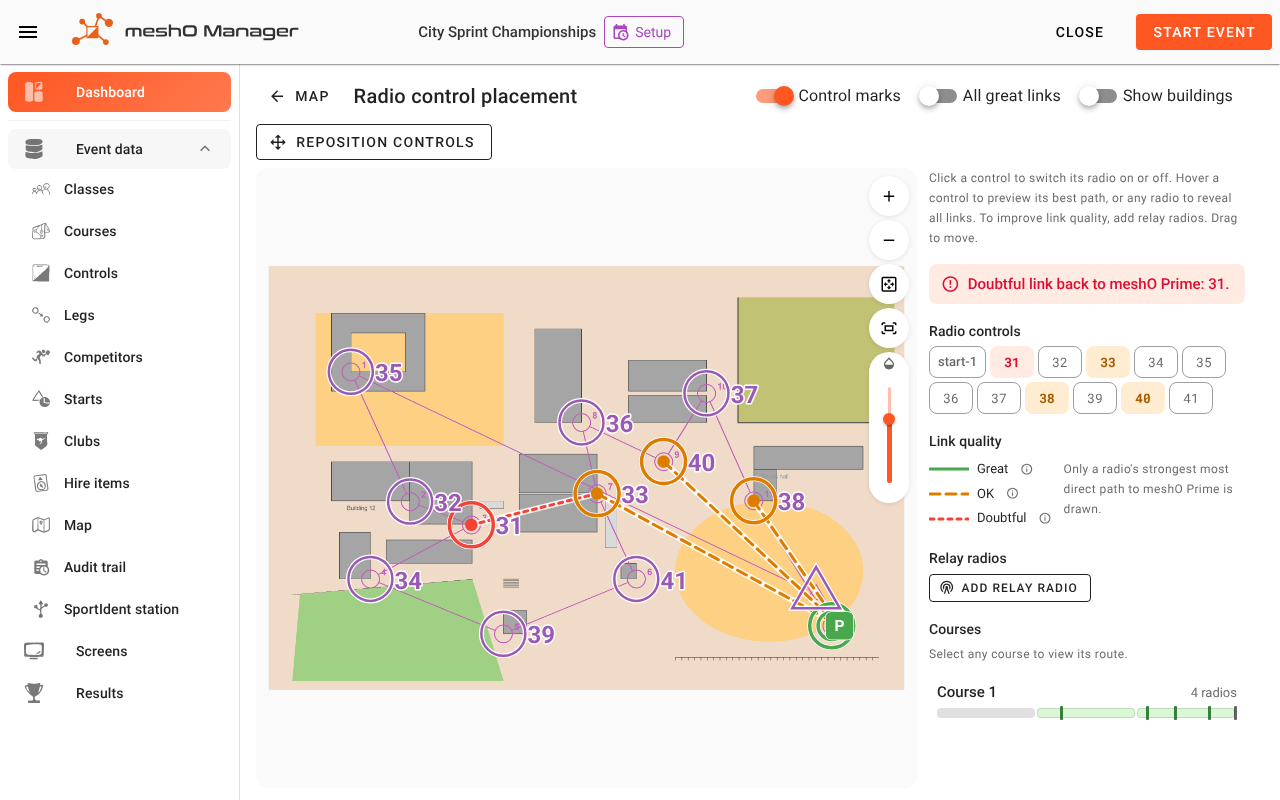
There is no limit to how many radios a meshO network can take. Every meshO Control is also a repeater: it passes on its neighbours’ punches as well as its own, so each radio you add makes the network stronger rather than crowding it. An organisation that wants a radio on every control can have one.
With a radio on every control, a competitor’s last radio punch is the last control they reached. If they are missing, you know which leg they are on and when they started it. That turns a search of a whole course into a search of one leg.
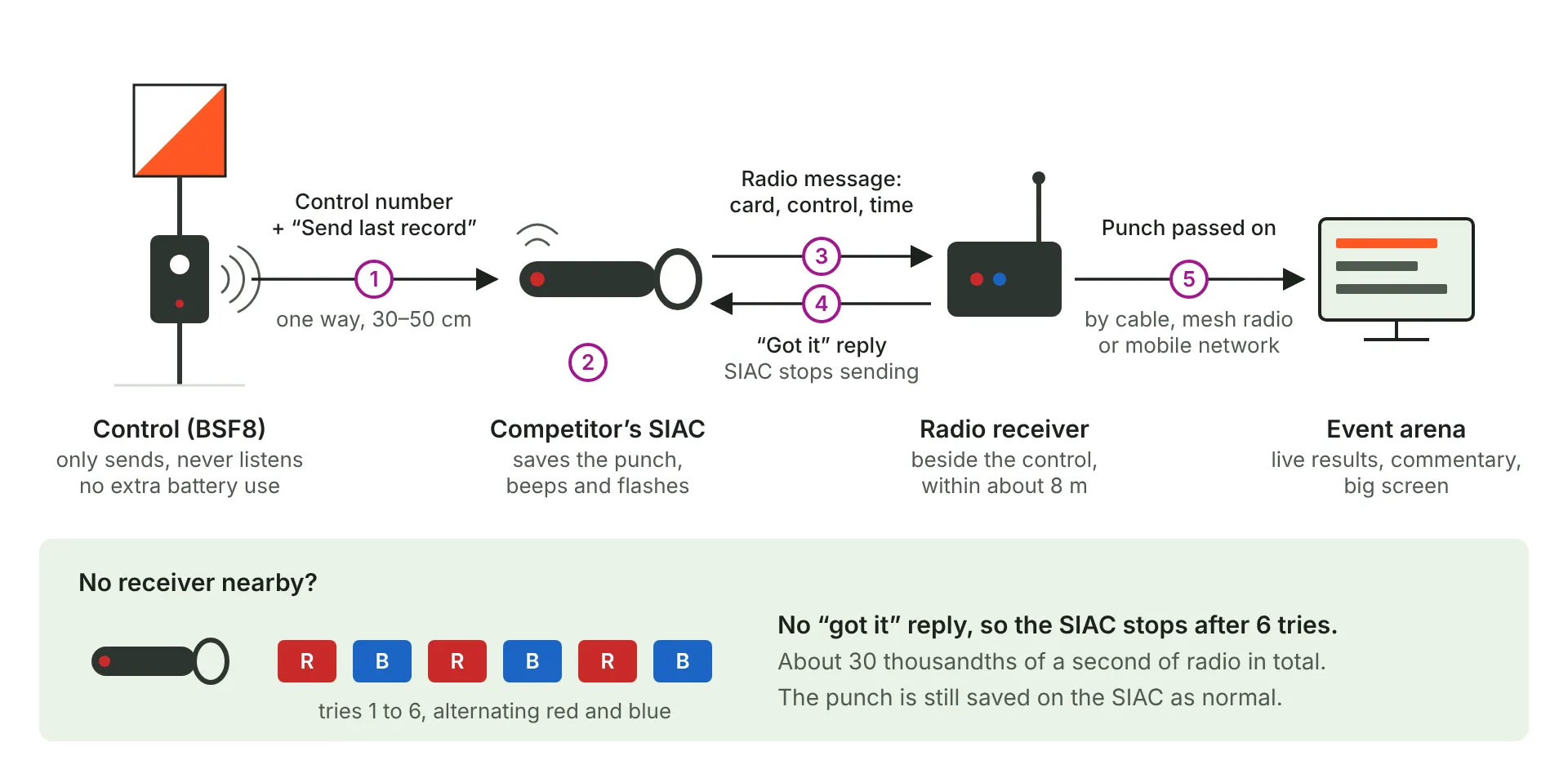
It costs competitors almost nothing. With a receiver at every control, each punch needs one short radio message from the SIAC, and we worked out that this shortens a SIAC’s battery life by about 0.2%. Turn on “Send last record” at every control when you program them, and any control can become a radio control on the day.
Planning starts in meshO Manager, before any radio goes out.
Everywhere meshO Manager shows you radio punches
The Competitors tile and the On course list are where most event teams start. Radio punches reach meshO Manager within seconds and appear in many more places, each answering a different question.
Cards nobody entered
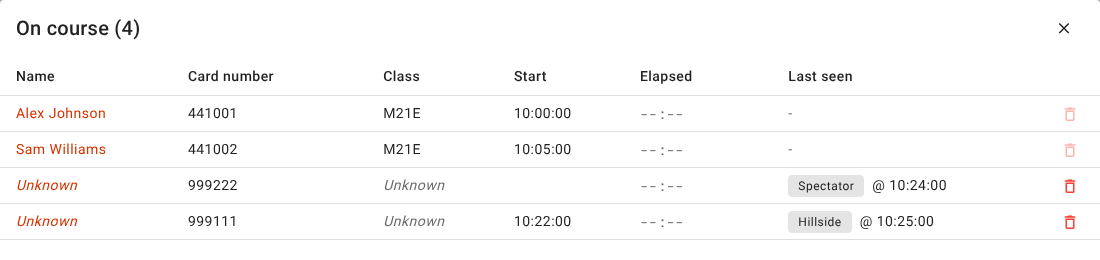
A card that punches at a radio control but belongs to no entry is still somebody on the course: a late entry nobody keyed in, or a borrowed card. meshO Manager counts it as on course and lists it as Unknown, with where it was last seen, until someone accounts for it.
Back, but not downloaded
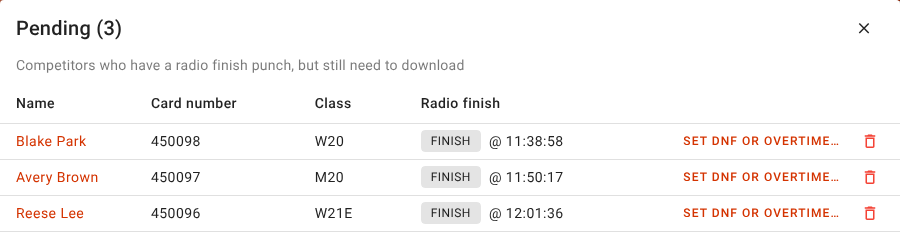
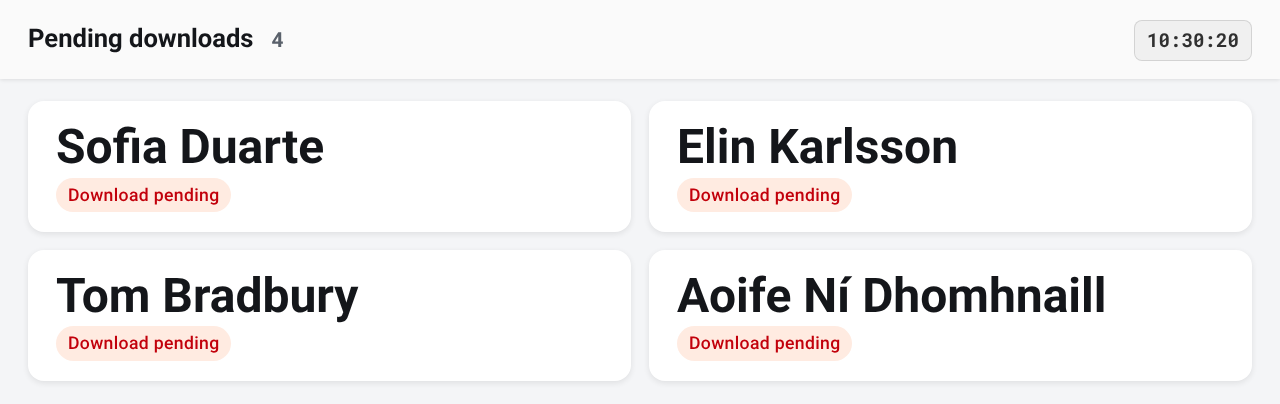
Competitors who have crossed a radio finish but not yet downloaded are Pending: back and safe, with a card still to read. Click Pending for the list, or put the Pending downloads screen up at the download tent, where each name stays until the card is read.
Search, sort and filter
Set the competitor list’s Status filter to On course and you get the same people in a list you can search, sort and edit, with a Last seen column for each.
One competitor’s day
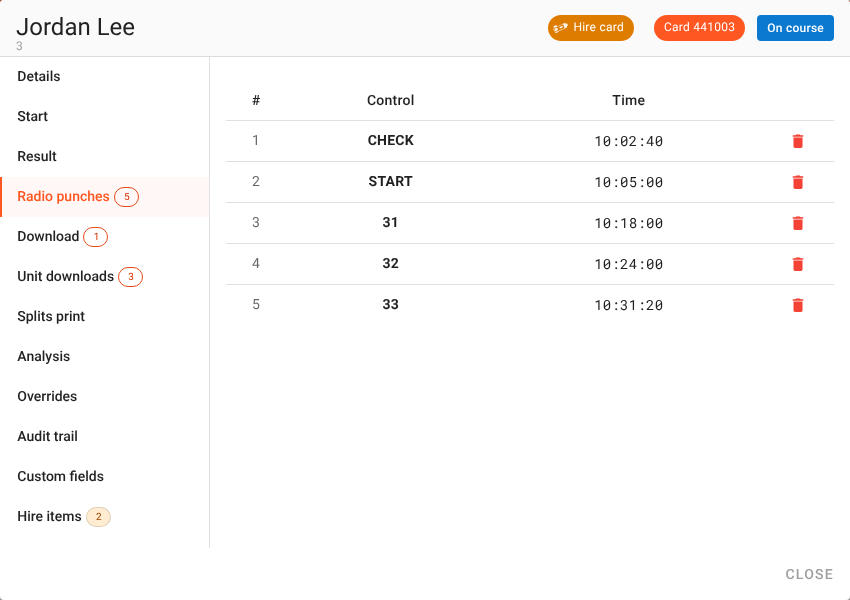
Open any competitor and the Radio punches tab lists every punch the radios heard from their card, in order, with the time of each.
Who went through a control
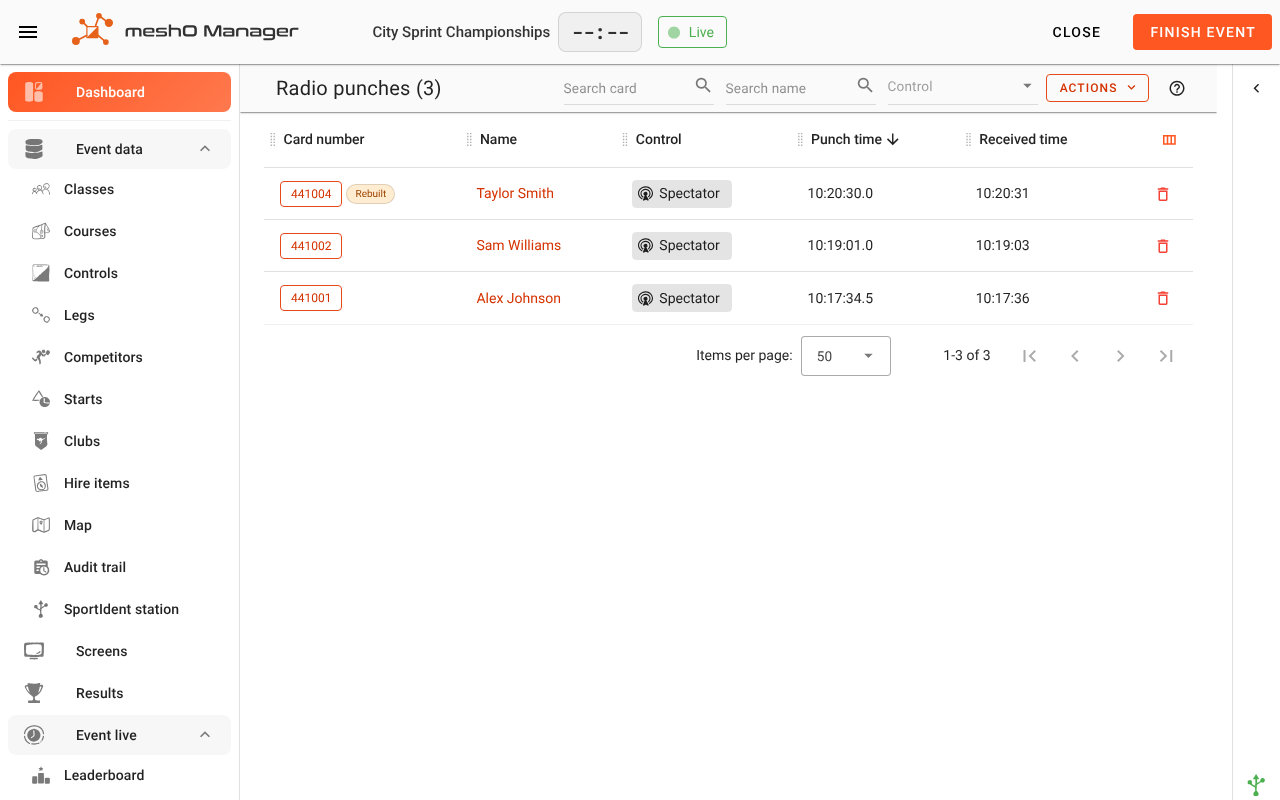
The Radio punches view is the raw feed: every punch from every radio, newest first. Choose a control in its filter and it becomes the list of every card that punched there, with the time. For air punches, it is a record the control itself does not keep.
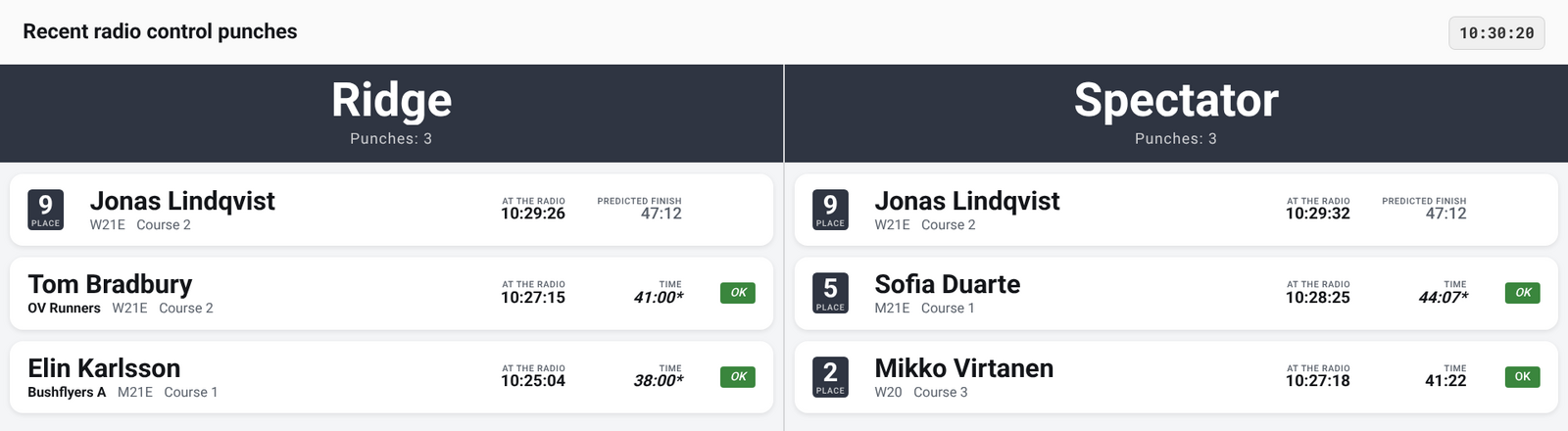
The same punches can go on a screen. The Radio control info screen shows who has just come past the controls you choose, for a marshal, a first aid tent or a commentator.
Where the controls are
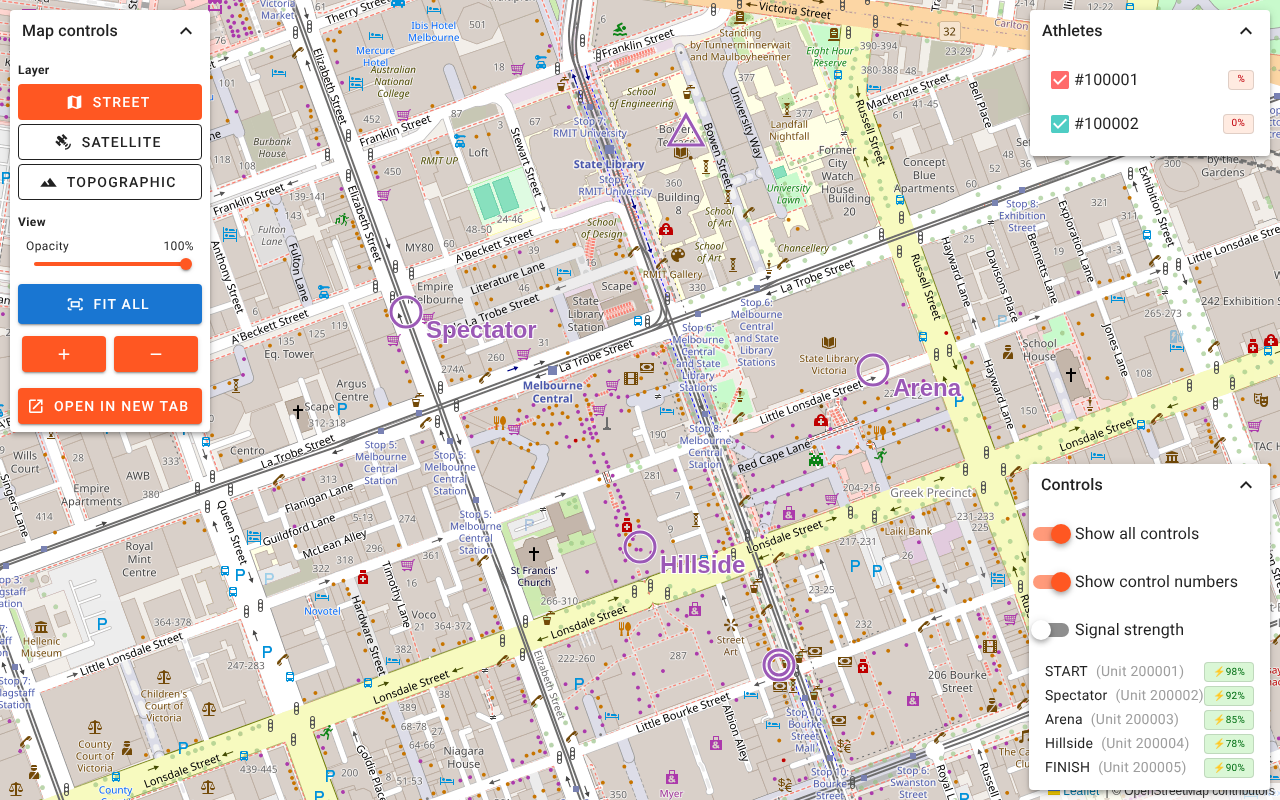
Every meshO Control has GPS built in, so meshO Manager knows where each radio actually is. Live View puts them on a street, satellite or topographic map, named and numbered, with each unit’s battery. When someone has to go out, to a control or to the last place a competitor was heard, Live View shows exactly where that control is. It opens in a tab of its own, for a second screen in the event tent. When competitors carry meshO Athlete GPS trackers, which are coming soon, their positions appear on the same map.
Is the network healthy?
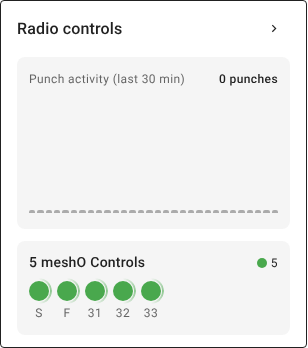
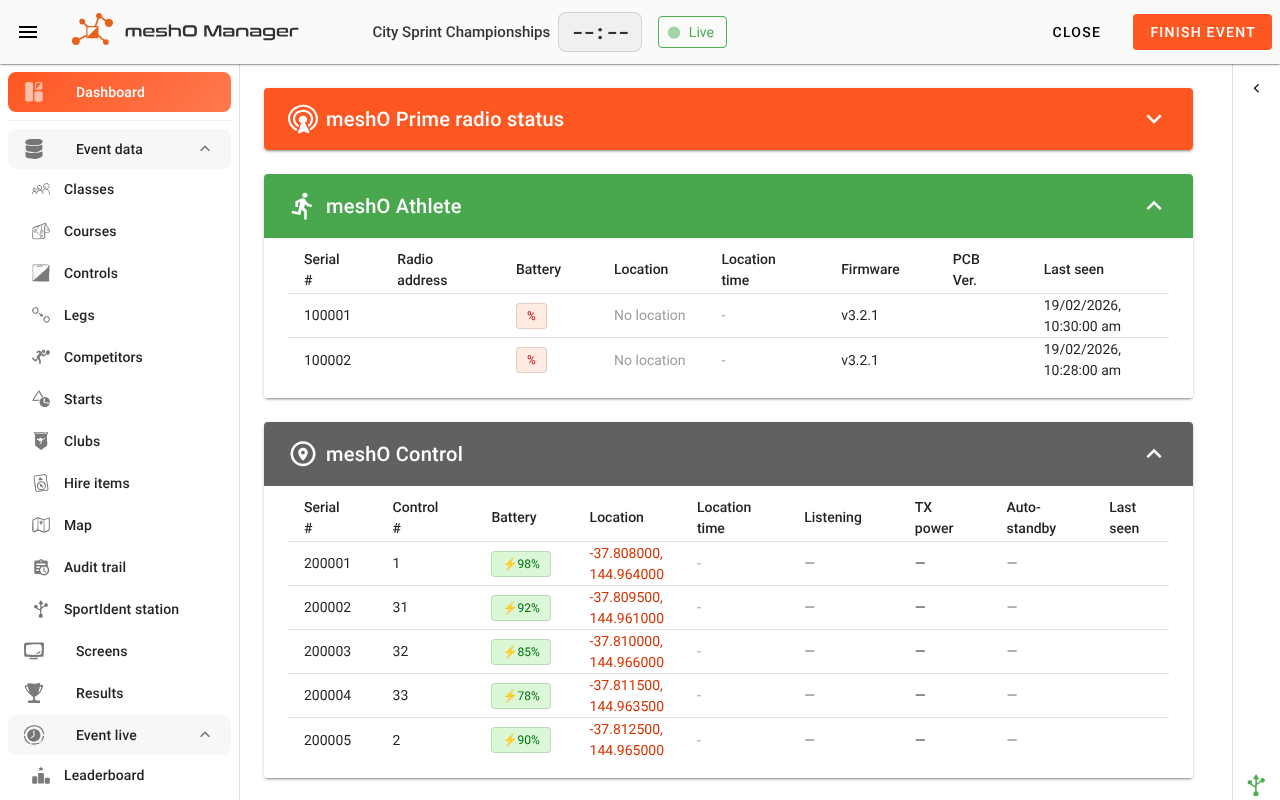
A radio that stops reporting is a gap in your picture, so you need to know at once. The dashboard’s Radio controls card shows a coloured dot for each radio: green while it is reporting, orange when it has gone quiet for a few minutes, red when it is silent. The Radios page lists every unit with its battery, location and when it was last heard, and can blink a radio’s light so whoever is beside it can find it. If a radio does lose the network, it keeps every punch it hears and delivers them when it is back.
Telling meshO Manager which radios matter
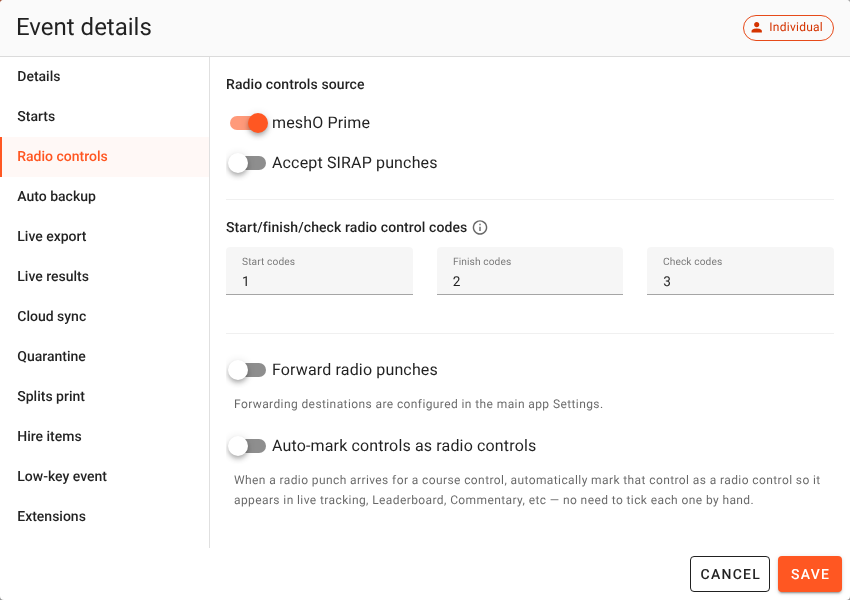
In the event’s details, the Radio controls tab names the start, finish and check units, so meshO Manager knows which punches put a competitor on the course, check them in, or bring them back.
For families, team managers and coaches
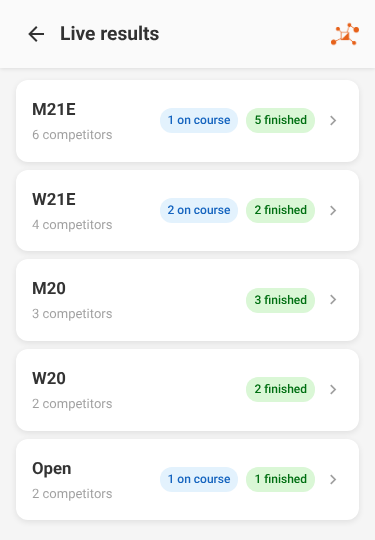
The spectator pages show every class with how many competitors are on course and how many have finished, on people’s own phones.
What the controls themselves can’t tell you
There is one more reason radios matter, and it applies whenever competitors punch with SIACs.
With contact punching, every SportIdent unit keeps a backup memory of each card that punches it, so if someone goes missing you can collect the units, read them and work out which controls they reached. Contactless punching (SportIdent AIR+) works the other way round. A control in beacon mode only sends: it broadcasts its number, and the SIAC saves the punch in its own memory. The control never hears from the SIAC and keeps no record of an air punch. We explained the mechanism in Radio controls won’t flatten your SIAC.
So when a competitor punches in the air, the only record of that punch is on the SIAC they carry. If they don’t come back, reading the units on their course tells you nothing about where they went. A radio beside the unit hears the SIAC’s short radio message as it punches, and is the only way to know, while they are still out, who visited that control and when.
The end-of-day safety check
Radios give you a live picture. They do not replace the safety check, and nothing should be packed up until it is done.
- Open the On course list and work it down to zero.
- Mark the no-shows DNS. With a radio at the check, anyone the check never heard did not start. Read the check unit as well, to be sure.
- Chase the Pending list to the download tent.
- Read the start, check and finish units. They keep every contact punch, which covers anyone a radio missed, and reading the finish unit clears everyone who came back.
- Set a course closure time. When it passes, meshO Manager marks anyone still out Overtime. It never decides they are accounted for.
- Account for every remaining name in person, not only on the screen.
Radios are a live view, not a guarantee. A card does not always send its punch, a radio can be knocked over, and a control without a radio reports nothing until download. The safety check in the meshO Manager documentation works through each step.
If you are entering competitors
Schools, clubs and team managers sending competitors to an event have a part to play too.
- Make sure every competitor knows to punch the check, punch the finish and download, even if they retire. A competitor who retires and goes home without downloading is still on the organisers’ list, and may be searched for.
- Ask the organisers whether there are radios at the check, the finish and on the course.
- Follow your competitors on the event’s live results.
What we recommend
- A radio beside the check at allocated-start events, or on the start unit at punching starts, and a radio at the finish, each with a BSF8-SRR unit.
- Radios on the course: as many as you can, and on every control if your organisation wants that level of cover.
- “Send last record” switched on at every control.
- meshO Manager on the day, which is free, with someone whose job is to watch the On course count.
- A written plan for when that count doesn’t reach zero: who works the list, who goes out, and when you call for help.
Radio controls don’t make orienteering safe. Event teams do. What radios give them is the answer to the question that matters most, all day, instead of only when the last card is downloaded.
To talk about radios for your next event, ask us for a quote. The radio control system and the planning guide have more detail.
Screenshots show meshO Manager with demonstration data. Sources: SportIdent SIAC documentation (docs.sportident.com); meshO Manager documentation, “Safety check: accounting for everyone” and “Seeing who is still on course” (docs.mesho.live); Radio controls won’t flatten your SIAC.