
Software
Templating events: ten events, one setup
A series of ten events with the same controls, courses and classes, each with its own event in Eventor. Set the series up once in meshO Manager as a template, then duplicate it for each round.

Tate Needham
meshO · · 4 min read
An organiser asked us for the best way to set up a series of ten events. Every event uses controls 101 to 130. There are three courses, Long, Medium and Short, each needing a different number of controls. Each course has three classes: Male, Female and Groups. And each event is a separate event in Eventor.
Set it up once, in an event you never run. That event is the template. Then duplicate the template for each round and import the round from Eventor.
Make the template
- Create the event. Create it by hand, call it something like Twilight Series template, and give it a date well after the last event of the series. That keeps it under Upcoming.
- Set the course format. If competitors can visit any controls in any order, open Event details and set Course format to Scatter. The courses you add next are then scatter courses. If your courses are run in order, leave the format as it is.
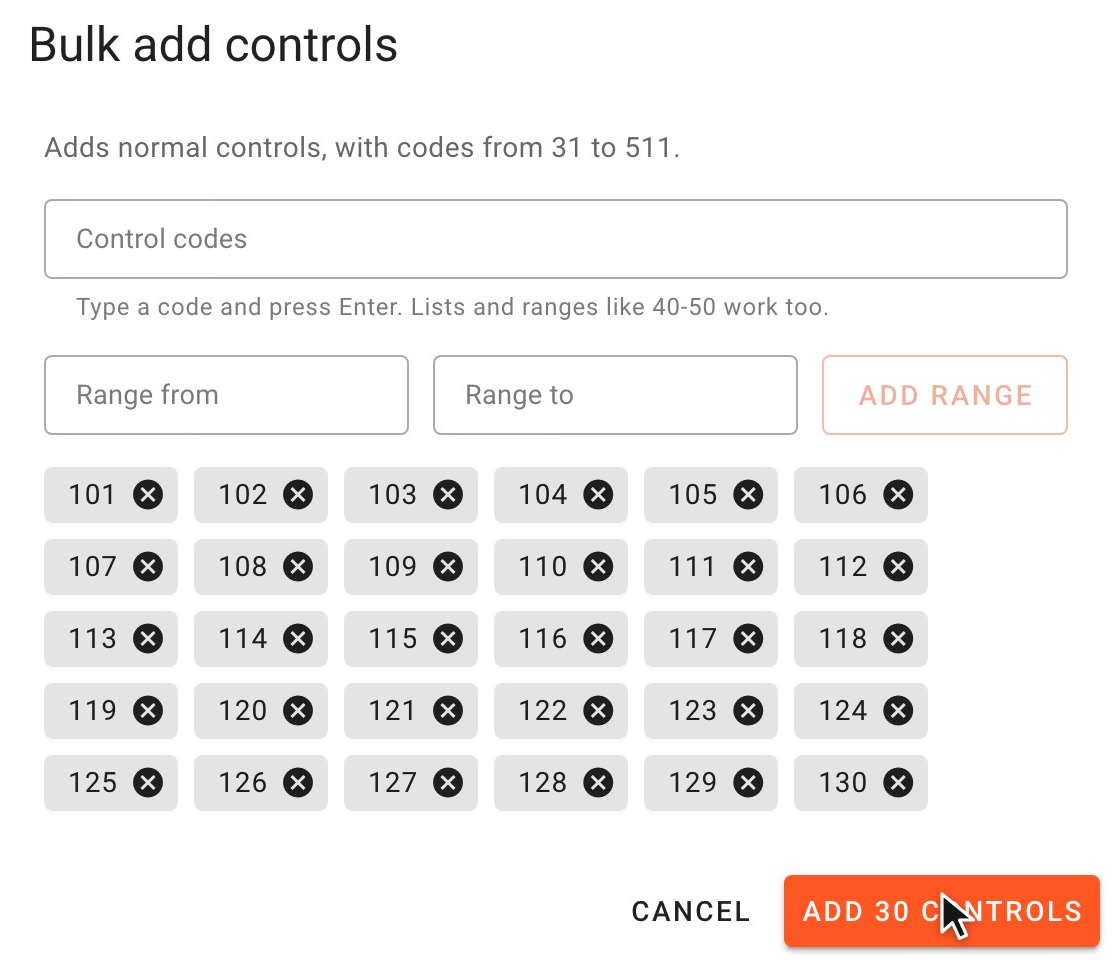
- Add the controls. On the Controls page, choose Actions → Bulk add controls…, type 101 and 130, and click Add range. All thirty go in at once.
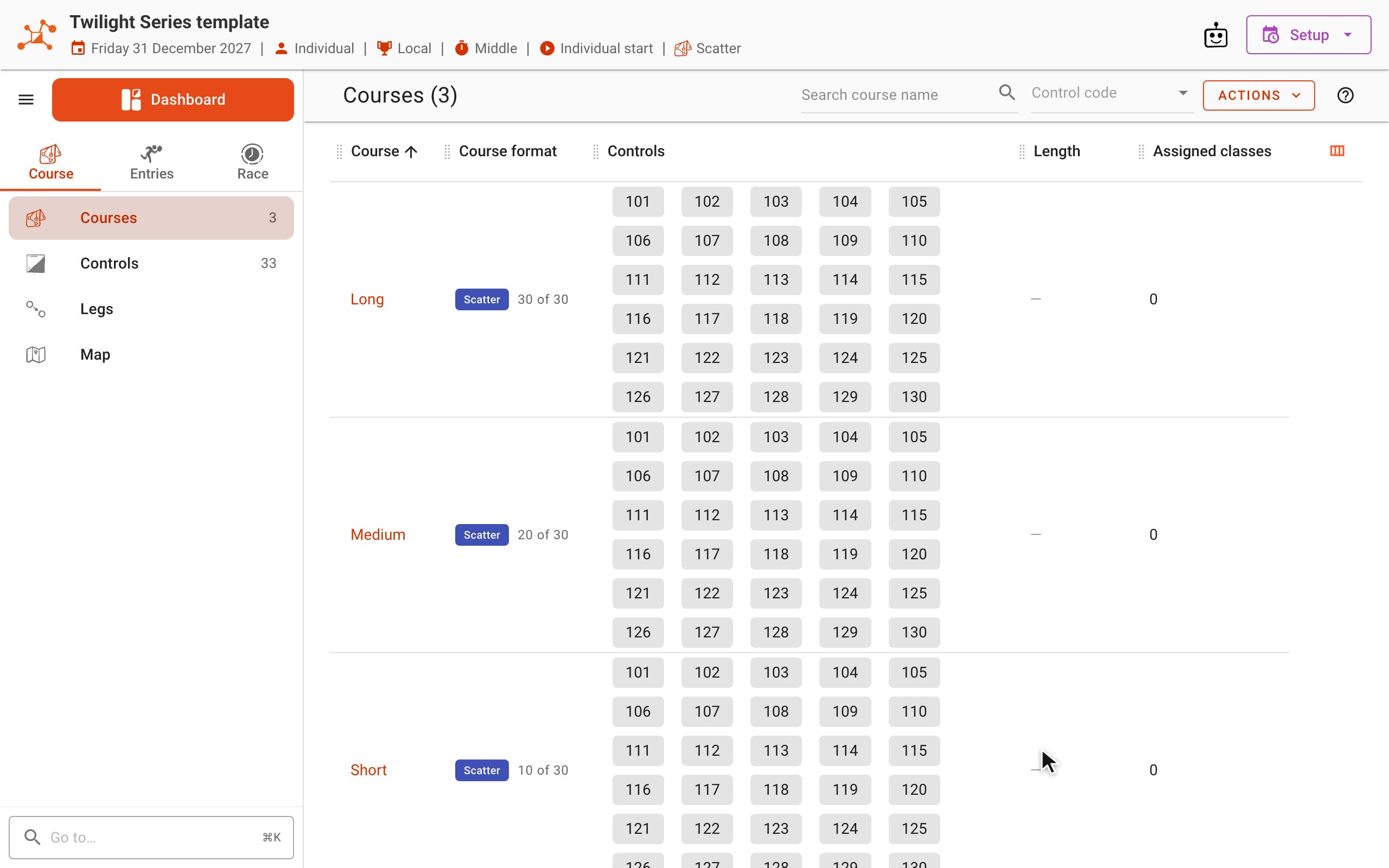
- Add the courses. On the Courses page, choose Actions → Add…. A scatter course starts with every control, so all it needs is a name and Controls required: here 30 for Long, 20 for Medium and 10 for Short. Turn on Keep adding to add them one after another.
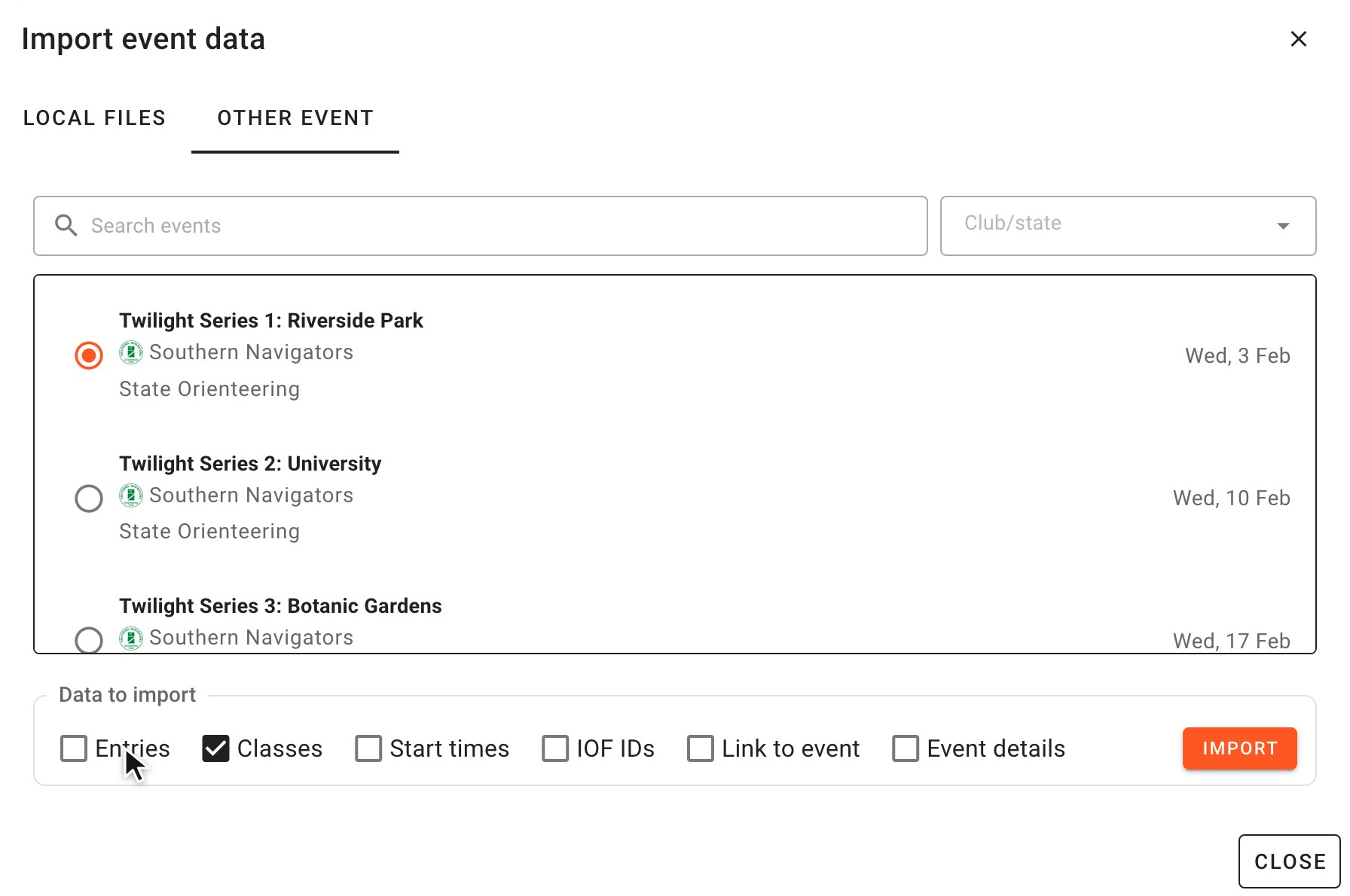
- Import the classes. On the dashboard, choose Import, then Other event, and pick one event of the series. Untick Entries, leave Classes ticked, and leave Link to event and Event details off. The template now has the class names Eventor uses.
- Give each class its course. On the Courses page, choose Actions → Assign to classes…. Auto-assign only matches a class and a course with the same name, so here pick each course yourself.
The template is finished. Don’t start it and don’t import entries into it.
Make each event
For each round of the series:
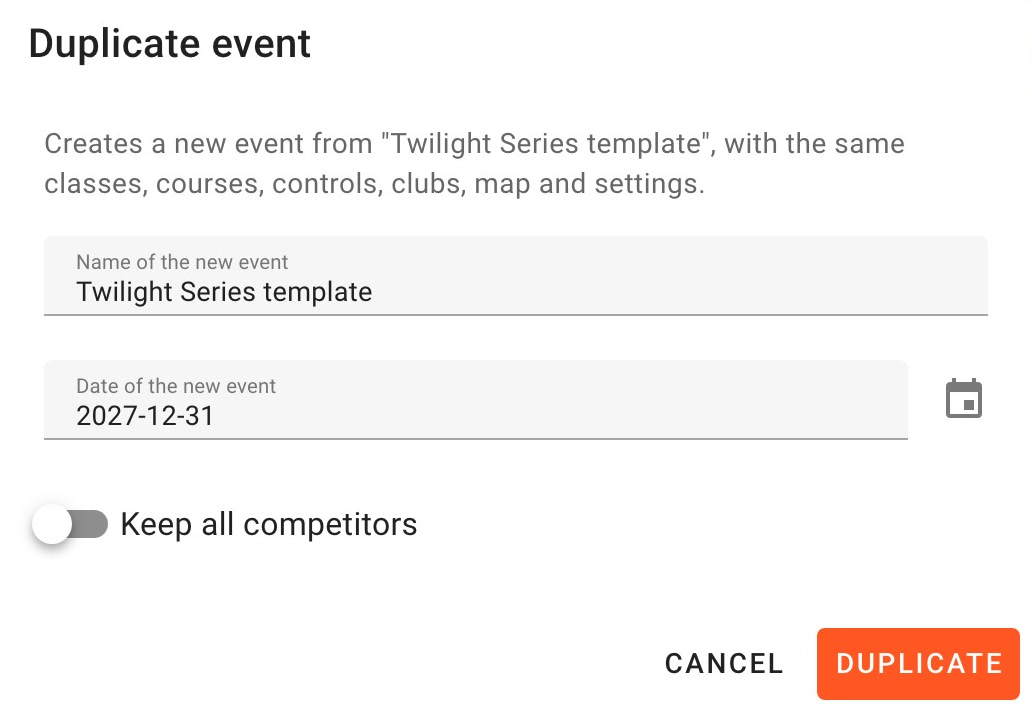
- Duplicate the template. On the event list, click the template’s duplicate icon, then Duplicate. Leave the name and date, and leave Keep all competitors off.
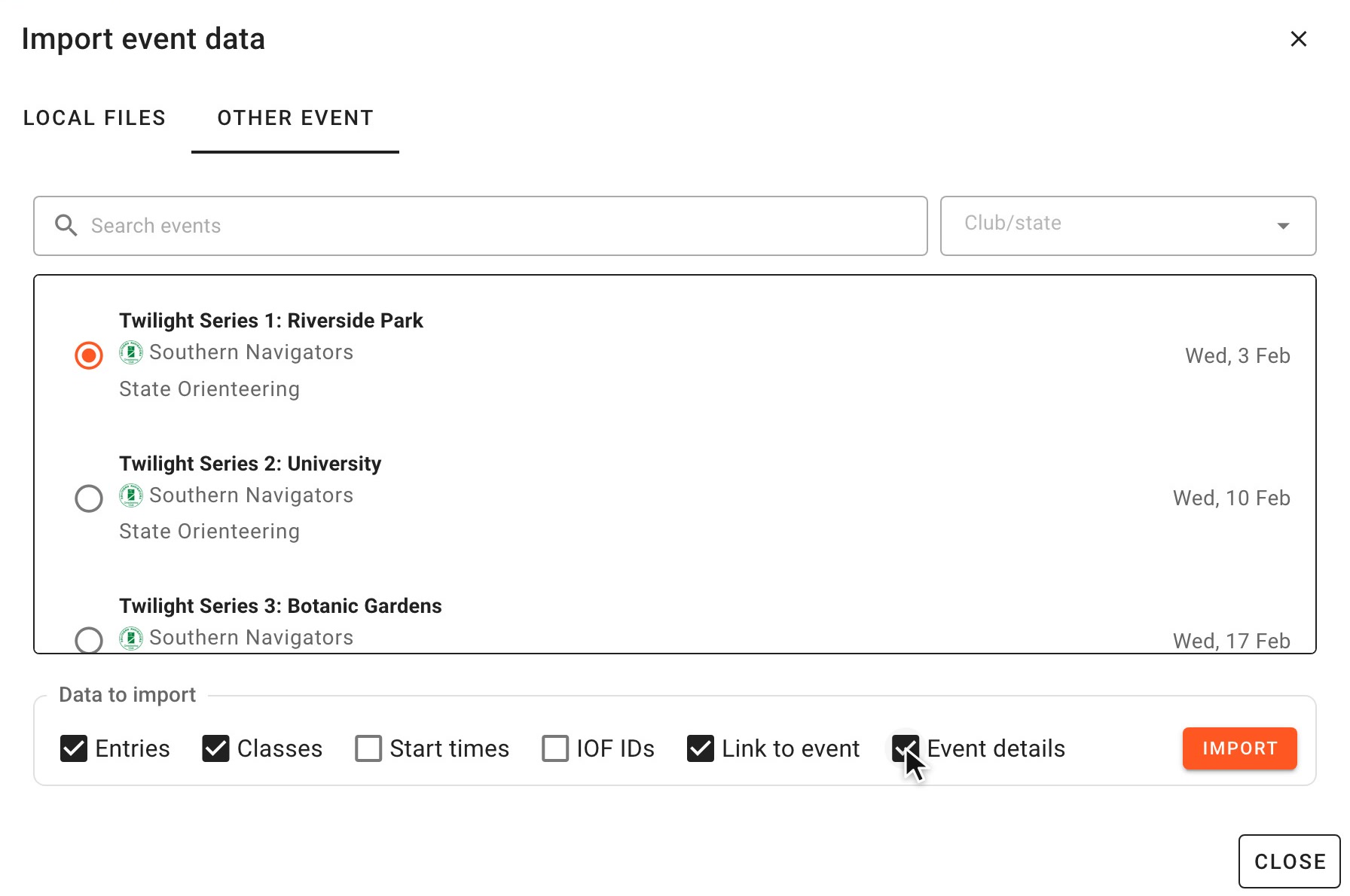
- Import the round. In the copy, choose Import, then Other event, and pick the round. Leave Entries and Classes ticked, tick Link to event and Event details, and click Import.
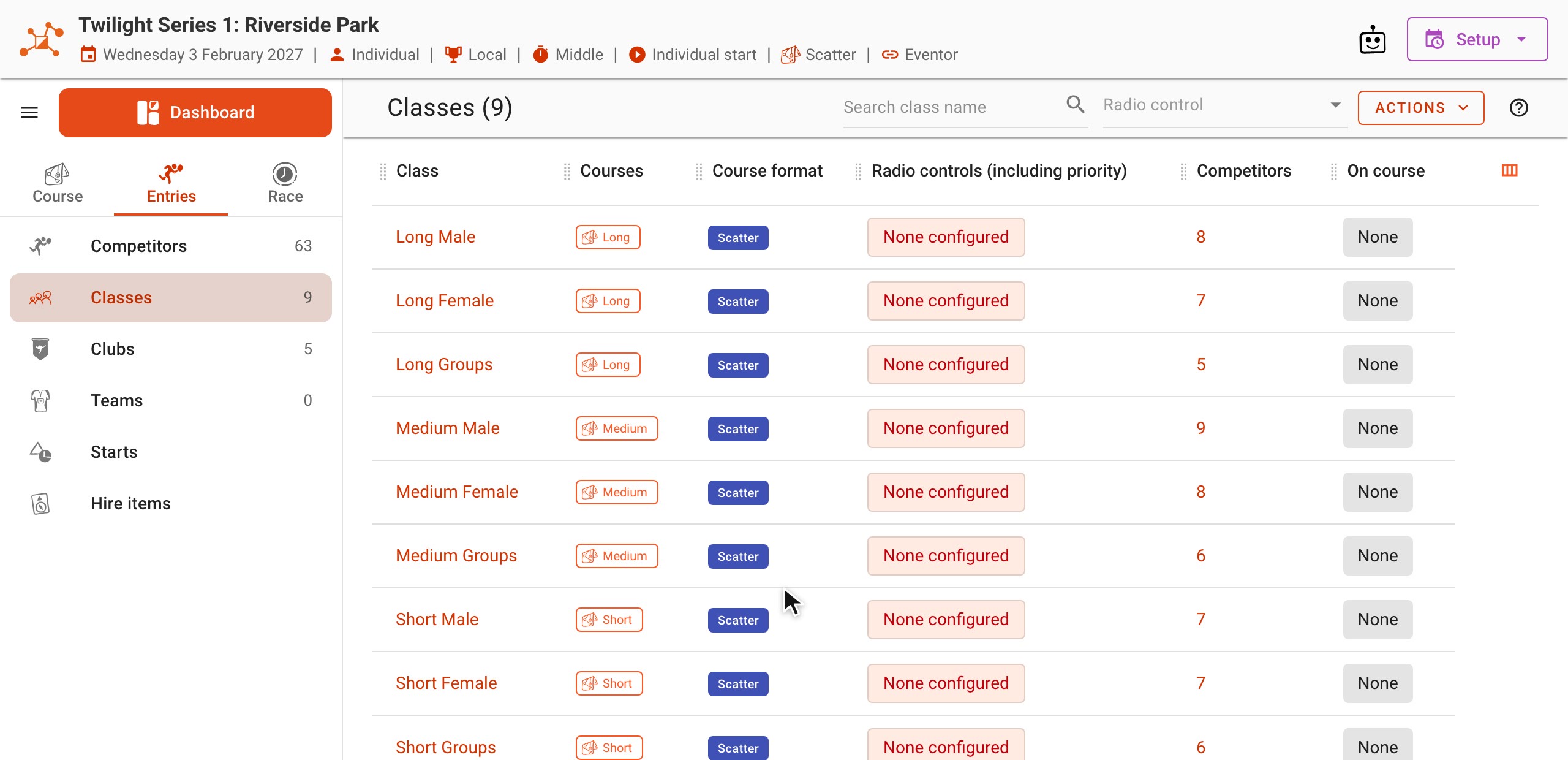
- Check the classes. The import matches classes by name, so every class keeps its course from the template.
Do the same for the other rounds. Each is linked to its own event in Eventor, and the template stays at the bottom of the list.
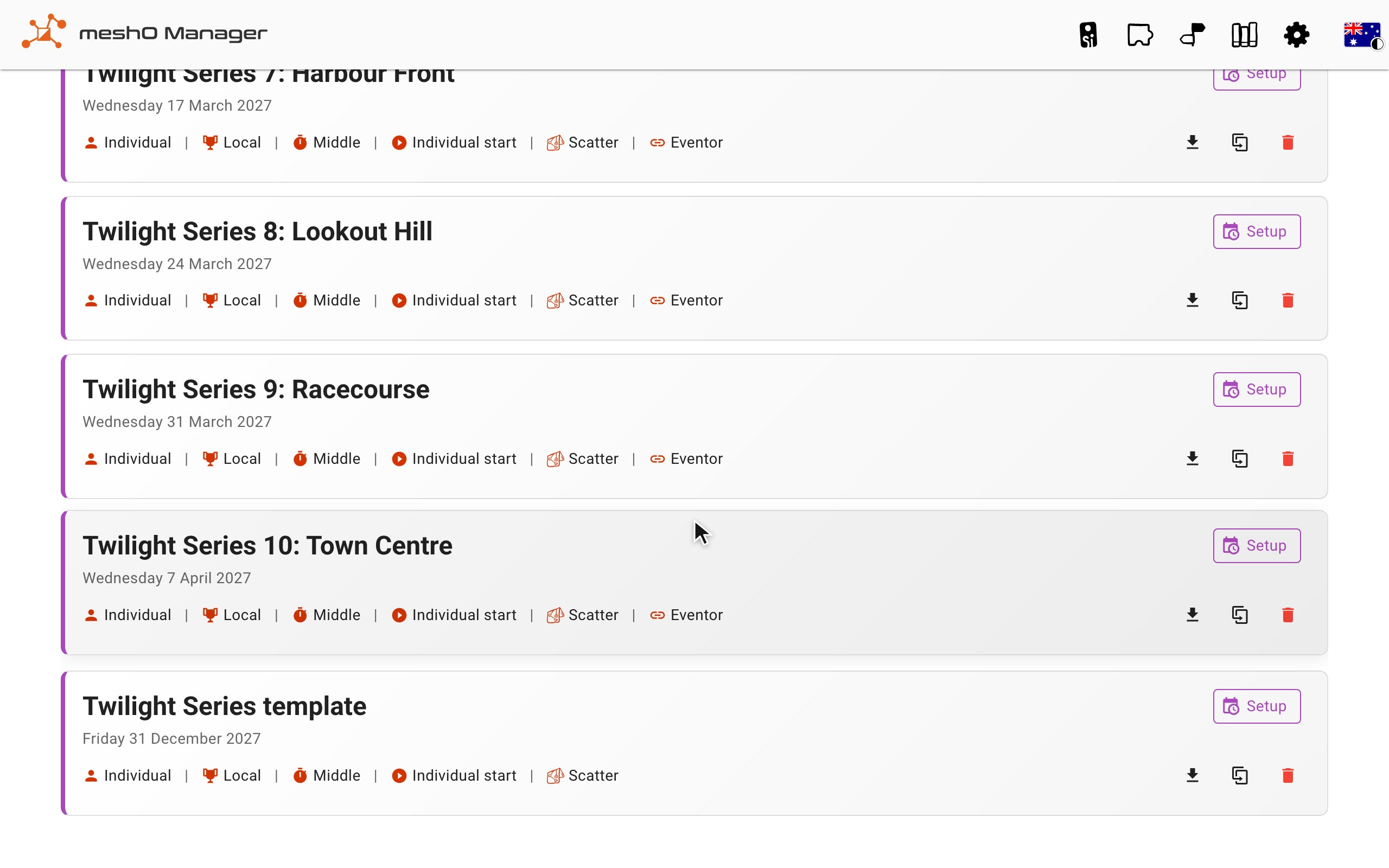
Before and after each event
- Late entries. In Import, open the Linked event tab and click Re-import. New entries are added and the ones already there are refreshed.
- Results. Upload to Eventor, and the linked event is already chosen.
If something is different
- A round isn’t in the list. The Eventor list reaches about 180 days ahead. Make that round’s event when it comes closer.
- A round has an extra class. The import adds it without a course. Give it one on the Courses page of that event.
- A class has a different name in one round. Use the same class names in every round in Eventor. If one differs, check that event’s Classes page after the import and give the class its course.
- You need to change the template. Change it before you duplicate it. Events already made from it don’t change.
- Next season. Duplicate the template again and import the new rounds. A duplicate never carries downloads, results or links to other events. If the template’s date has come close, move it further ahead.
Getting it
It’s in the current version of meshO Manager. Set up Eventor in Settings first. The docs have more on duplicating an event, adding several controls at once, score and scatter courses and importing into an existing event.