
Software
Live standby: a second computer, ready to take over your event
meshO Manager's live standby keeps a second computer up to date with every change to your event, so if the main computer dies, you press one button and carry on. Setup, how the copy works, why it never takes over by itself, a takeover step by step, and a rehearsal for before the day.

Tate Needham
meshO · · 12 min read
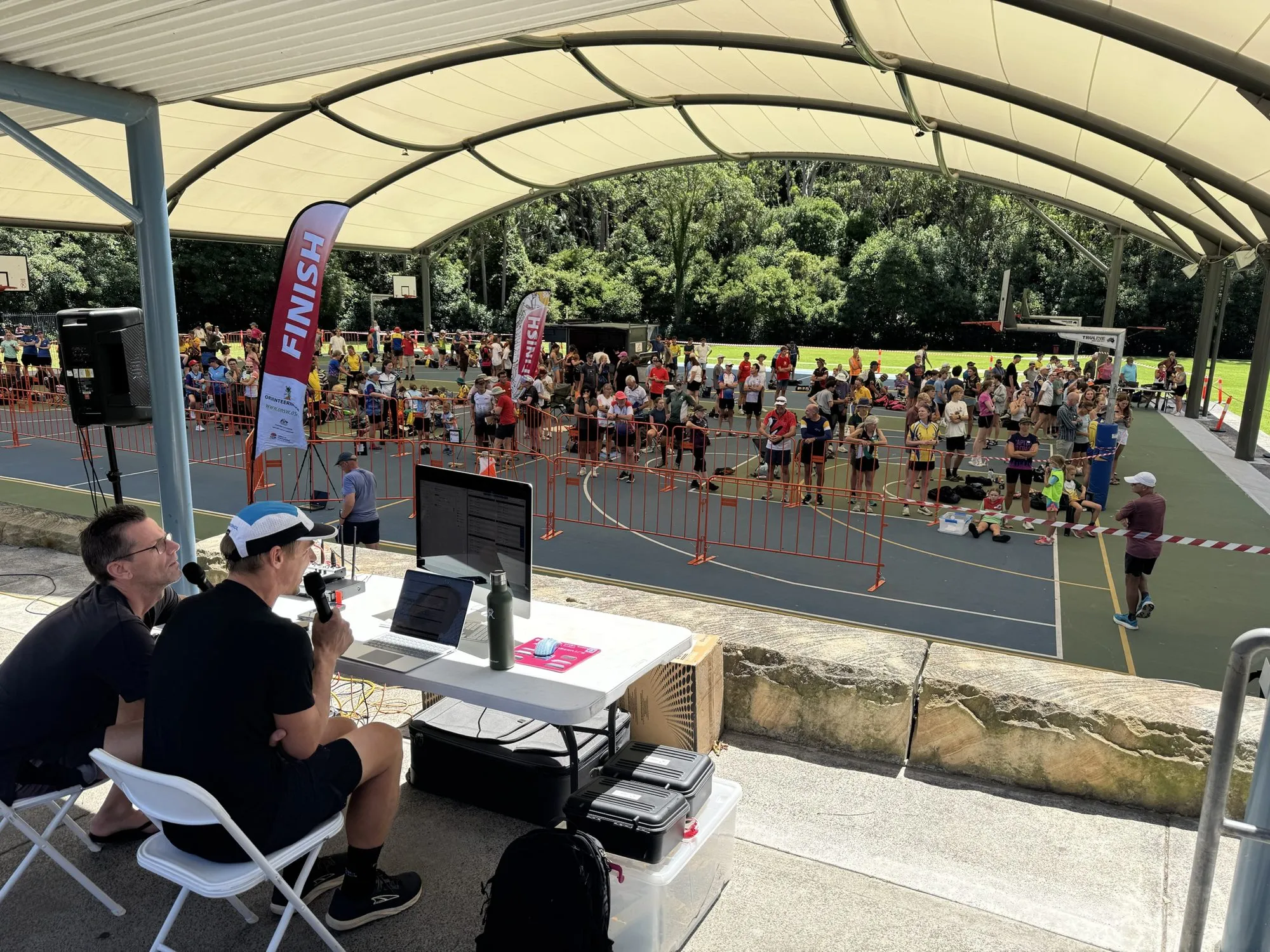
Every entry, card download, radio punch and result at an event lives on one computer. When it fails, the event stops. The usual way back is to restore the latest backup on another computer, then re-read cards and recover radio punches for the minutes the backup missed. At a championship, that is the worst ten minutes of the day.
Live standby (elsewhere a hot standby, failover or live replication; see other names) removes most of them. A second computer running meshO Manager keeps its own copy of the event, updated with every change as it is made. If the main computer fails, press Take over the event on the standby and it carries on from the last second the main computer recorded. You still move the meshO Prime and point the download laptops at the new address, and Manager gives you a list.
The standby never takes over by itself. Switching computers is always your decision.
Two computers, one event
The main computer runs the event as it always has: the stations open it in their browsers and the meshO Prime is plugged into it. Adding a standby changes nothing about it.
The standby computer is a second computer on the same network, paired with the main computer and following one event. Every change the main computer writes for that event (a card download, a radio punch, a class change, an override, an audit entry) reaches it within a second or so.
While it follows, the standby only copies. It does not print, publish or take radio punches, and the copy is not one of its events: it is not in its event list and cannot be opened. Two computers that each think they are running the event would be worse than one dead one.
What you need
- Two computers running meshO Manager on the event network. The standby needs no reader, printer or Prime, but must stay powered and awake.
- The same version on both. A different version that stores events the same way is allowed, with a warning. One that stores them differently is refused, with the version to install.
- A standby without the event already. Event ids come from the date (the first event for 14 March is
2026-03-14.01on every computer), so a computer that has its own copy of the event, set up or restored there, cannot follow it. Remove that copy or use another computer. - Ideally, a router you control. See stations below.
Setting up the main computer
On the main computer, open Settings → Live standby. It is off until you turn it on.
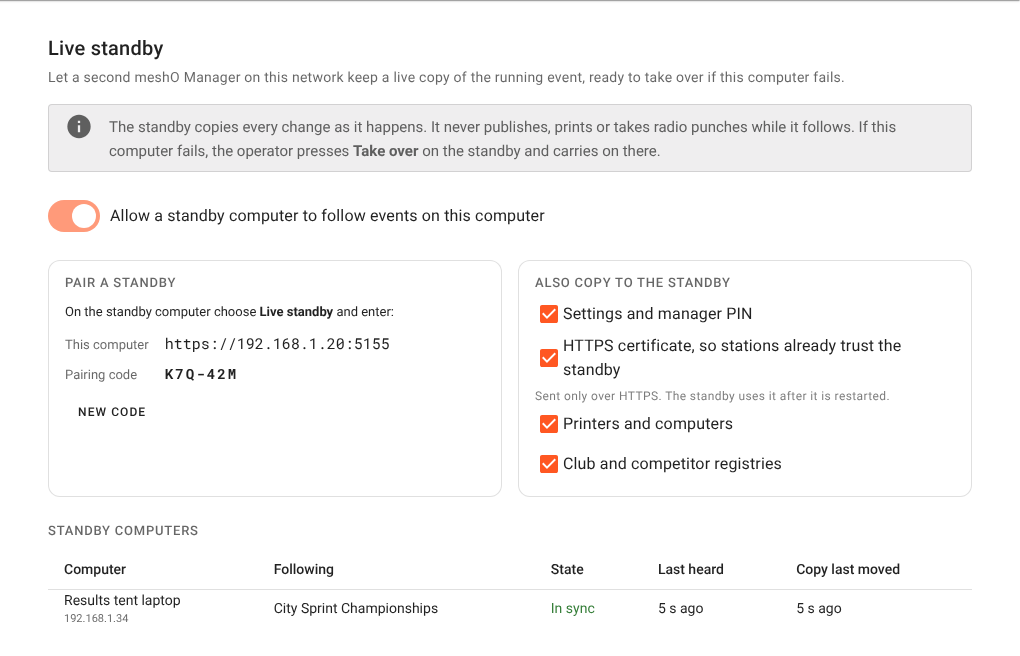
- Turn on Allow a standby computer to follow events on this computer.
- Note This computer (the address) and the Pairing code. The code avoids easily confused characters (no O and 0, no I, L and 1).
- Choose what else the standby should copy (below).
Treat the pairing code like the manager PIN: anyone on the network with it can copy the whole event. An address that gets ten codes wrong in five minutes has to wait. New code disconnects every standby paired with the old one, which is also how you un-pair a computer.
What else the standby copies
The event always goes across. You choose whether the standby also takes four things that belong to the computer:
- Settings and manager PIN, so the event runs the same way and stations are asked for the same PIN. The standby keeps its own address, logs, updates and camera recordings.
- HTTPS certificate, so download laptops that trust the main computer (they need https to read cards) trust the standby too. It is sent only over https and used after Manager restarts on the standby, which reminds you.
- Printers and computers, so a download laptop that opens the standby picks its old name and gets its printing back.
- Club and competitor registries, so late entries on the standby find the same clubs and people.
These are sent with the first copy and every ten minutes after.
Pairing the standby
On the standby computer, open the event list and choose Live standby.

Enter the main computer’s address and pairing code and choose Connect. The dialog shows which computer answered and its version, and lists the events you can follow. Pick one and choose Start.
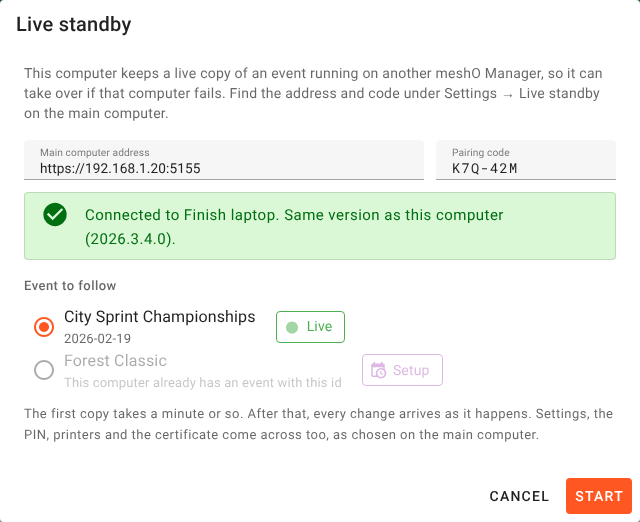
The first copy takes a minute or so. After that the standby is In sync, and every change arrives within a second or two.
Pairing is also when the standby learns the main computer’s certificate. It trusts that one from then on, and if the certificate changes it asks you to pair again rather than trusting whoever answers at that address.
Pair before the first start and leave it following all day. Pairing mid-event works too; the first copy just has more to carry.
How the copy works
The main computer numbers every change it writes to the event and sends them to the standby in order. The standby applies them exactly as written and recalculates nothing, so its competitors, results and splits are the main computer’s, and there is nothing to reconcile at takeover.
A standby starts with a snapshot of the event, taken while the event keeps running, then applies every change after it. If it falls far behind or the main computer restarts, it takes a fresh snapshot by itself. Files such as the map are checked every few seconds and copied when they change.
Watching it during the event
On the main computer
A chip beside Live in the event’s top bar shows the standby’s state:
- Standby in sync: it has every change.
- Standby N behind: changes are on their way, as after a burst of downloads.
- Standby lost: see below.
- No standby: nothing follows this live event.
Click it to see which computer is following, when it was last heard, when its copy last moved, and the address stations would use after a takeover.
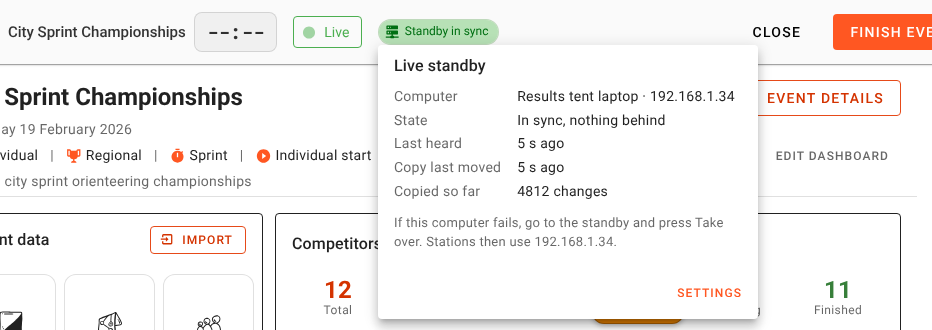
A standby is lost after 45 seconds unheard, or 45 seconds heard but with its copy not moving. On a bad link a standby can keep asking and never receive, so what counts is how far its copy has got, not what was sent. Manager also raises an alert naming the computer.
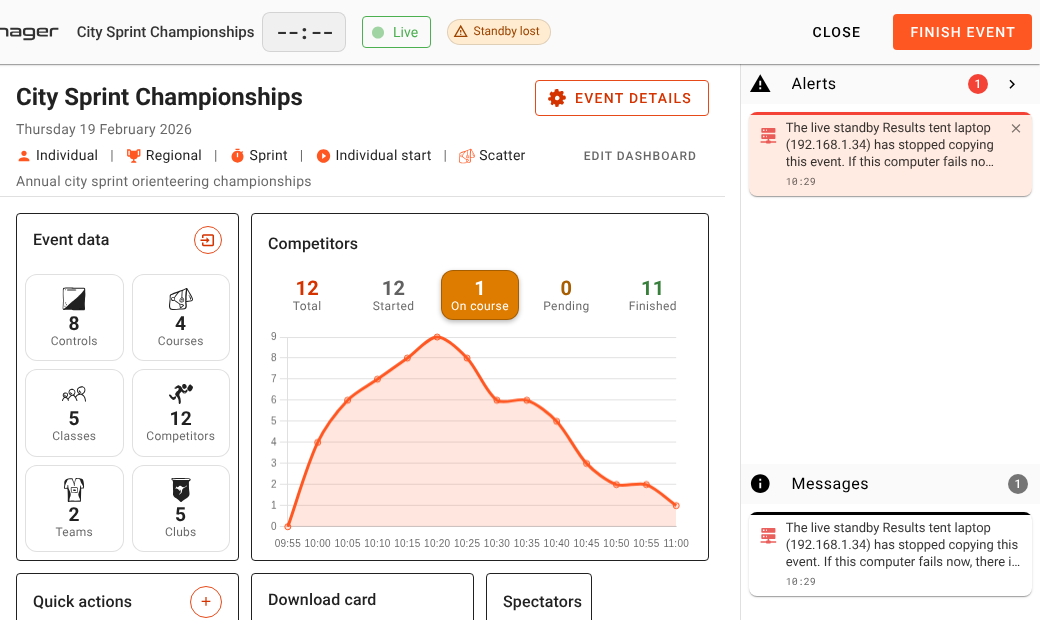
The event carries on as before: a lost standby costs you your spare, not your event. Check whether the standby has gone to sleep or lost the network. When it is copying again, the alert is withdrawn.
No alert is raised for a standby stopped on purpose or a finished event. The main computer remembers its standby across a restart, so one that does not return within 45 seconds is shown as lost.
On the standby computer
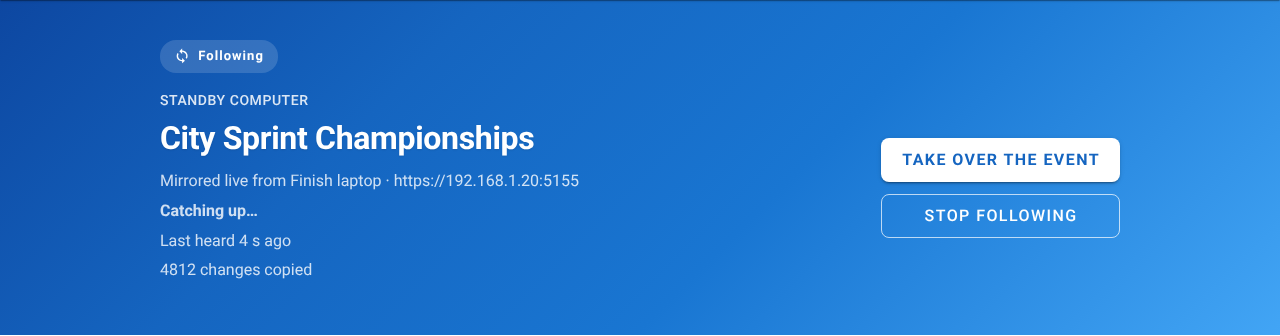
While it follows, the standby’s event list carries a blue banner with its state.
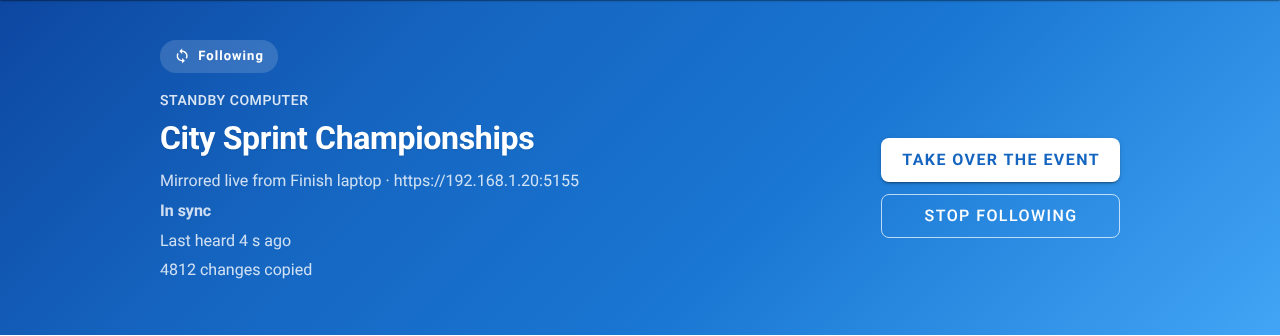
Catching up means changes or files are still arriving. The standby is not in sync until every file has arrived.
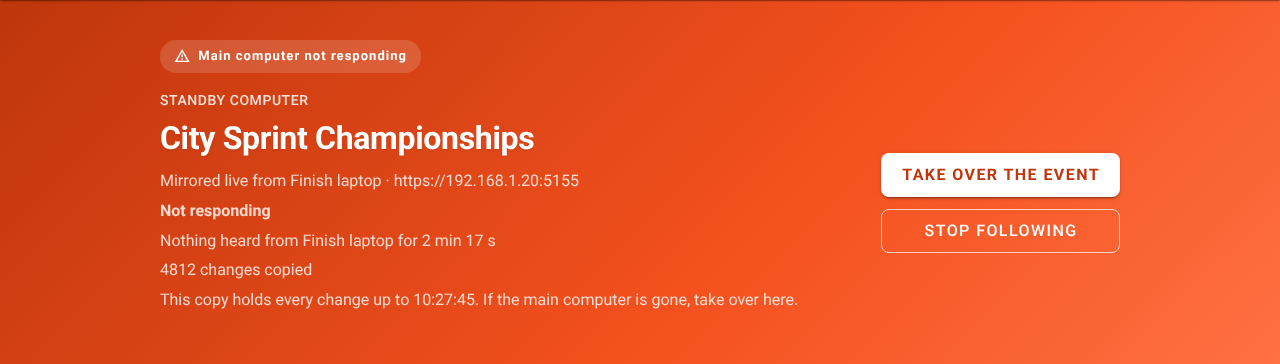
If the main computer goes quiet, the banner turns orange and shows the time of the last change the copy holds. Everything recorded up to then is safe.
On a slow or patchy network
The standby is tested over deliberately bad links. It asks for less at a time when the network is struggling, fetches large files in pieces, and only puts a file in place once it is complete, so a takeover never finds half a file. None of this needs anything from you: on a poor network it just spends longer catching up.
Why it never takes over by itself
From the standby, a main computer that has died and one that has only dropped off the network look the same: nothing arrives. In the second case the main computer is still recording cards and punches, and a standby that took over would leave two computers each recording half the event.
You can tell them apart by looking at the main computer. The software cannot, so the standby tells you what it knows and leaves the decision to you.
Taking over
When the main computer has failed and is not coming back, choose Take over the event on the standby.
The dialog shows when the main computer was last heard and what the copy holds, and lists what to do afterwards. If the standby can still hear the main computer, it warns you that taking over will stop the event there. Tick The main computer cannot carry on with this event and choose Take over and resume. Events that do not use meshO Prime never mention it.
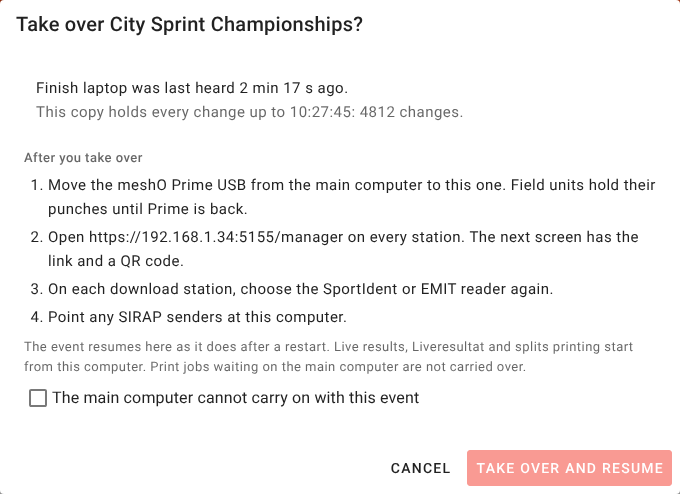
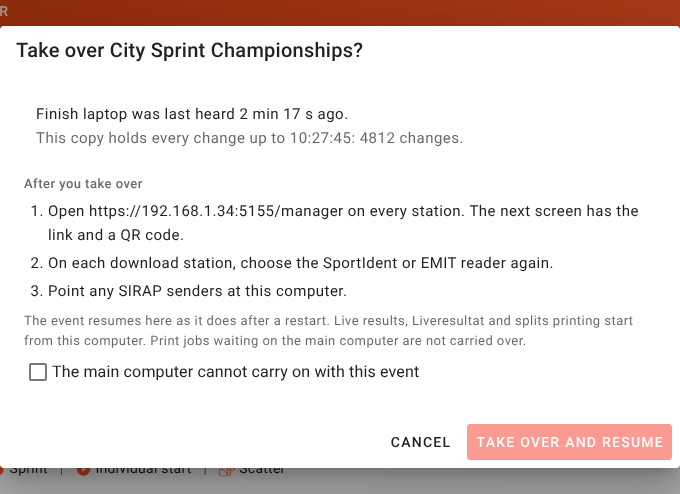
Then the standby does this, in order:
- Stops copying.
- Tells the main computer to stop, if it answers within fifteen seconds. It marks the event taken over and stops it.
- Brings in its last changes and compares files one last time, within thirty seconds. That is everything the main computer will ever write for this event.
- Makes the copy an event on the standby.
- Resumes it, as after a restart: live results, Liveresultat and printing now run from here. An event still being set up is taken over as it is, not started.
- Asks Prime to resend everything it holds once it is connected. See below.
If the main computer did not answer, the standby keeps telling it every five seconds, even across its own restart, so the first thing it hears when it comes back is that the event has moved.
You cannot take over while another event is live on the standby.
After the takeover: the handover list
The standby is now the main computer, and its dashboard opens with a Handover panel listing what is left to do by hand.
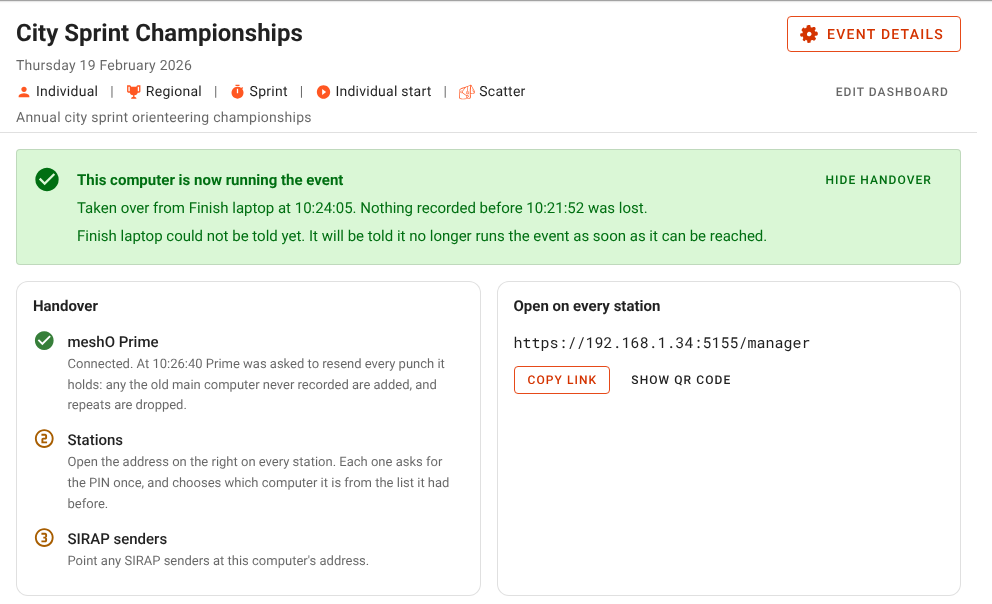
meshO Prime
Move the Prime to the new main computer, or plug in a spare gateway, but never two gateways at once on the same field units. Radio controls hold their punches until a gateway is back, so a few minutes without Prime only delays the radio screens.
Stations
Open the new address on every station. The panel shows it, with Copy link and a QR code. Each station asks for the PIN once and which computer it is: pick the same name as before, and with Printers and computers copied it gets its printer back. On each download laptop, choose the card reader again.
The quickest handover has no new address. If you control the router, give the server a name (results.event, say) and point stations at it. After a takeover, point the name at the standby, and stations find it on reload. See Reaching the server: name or IP.
SIRAP senders
Point anything sending punches over SIRAP at the new address.
When the list is done, choose Hide handover.
Punches that never reached the old computer
The old main computer may have died with punches that reached Prime but not its database, and more arrived while Prime was unplugged. So once Prime is connected after a takeover, the new main computer asks it to resend every punch it holds. Ones it already has (same card, control and time) are dropped, the rest are added. It happens once, automatically, and the handover panel says when.
Resent punches arrive minutes late, which would make every control’s clock look slow, so a resend opens a two-minute window in which late arrivals are not treated as clock evidence. The Resend button on the Radios page now does the same.
The old main computer
Once the old main computer hears of the takeover, the event is closed to it. It shows where the event runs now, will not start or resume it, and refuses every change, so a card read at a station still on the old address is refused rather than lost. Its event list shows Taken over by the standby.
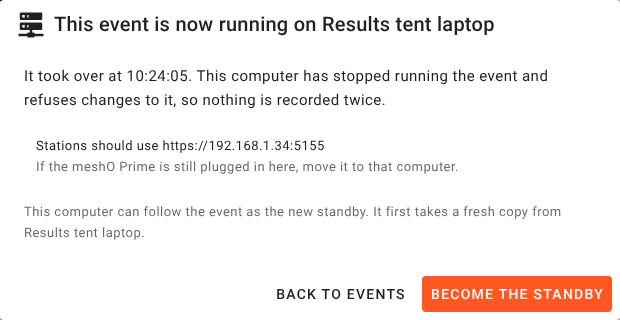
There is no button to take the event back, because that would be a second running copy waiting to happen. Instead, choose Become the standby: the old copy is moved to removed events, and the computer takes a fresh copy from the new main computer and follows it. To move the event back, take over again from there.
If someone resumes the event on the old computer before the takeover message reaches it, it runs for those few seconds, and the message stops it again when it lands.
What is not carried over
- Waiting print jobs and splits held back over a mis-punch. Reprint them from the competitor.
- A card download in progress when the main computer failed. Read it again.
- About a second of changes written just before the failure.
Liveresultat needs nothing: the new main computer reads the competition back and sends only what differs.
Stopping following
Choose Stop following on the standby’s banner. The main computer knows it was on purpose, so no alert is raised.
The copy is discarded by default, which loses nothing. To keep it, tick Keep this computer’s copy as an event: it becomes an ordinary event on the standby, as it stood when you stopped.
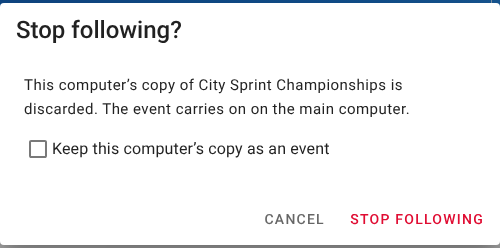
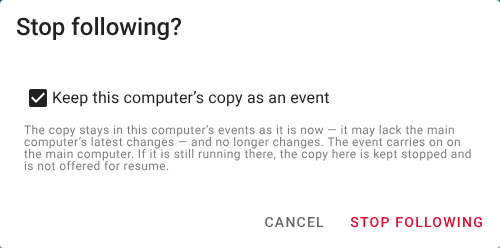
A copy kept while the event is still running on the main computer is kept stopped and not offered for resume, so it cannot become a second running copy by accident. You can still resume it from its dashboard.
A rehearsal before the day
Rehearse a takeover once, on the computers and network you will use. It takes ten minutes.
- On the main computer, start a practice event with a few competitors.
- Turn on Settings → Live standby and pair the standby. Wait for Standby in sync.
- Make some changes and watch the standby’s count go up.
- Turn the standby’s Wi-Fi off for a minute. See Standby lost and the alert, then turn it back on.
- Disconnect the main computer from the network. The standby’s banner turns orange.
- Take over, and work through the handover panel on a download laptop, ending with a card read.
- Reconnect the old main computer and choose Become the standby.
- Delete the practice event on both computers.
Step 5 is the network failure from Figure 13, not a dead computer. Notice that the standby cannot tell the difference.
A checklist for event day
- Both computers on the same version, powered and set not to sleep.
- The standby has no copy of the event.
- Settings → Live standby on, with what to copy chosen.
- The standby following before the first start, showing Standby in sync.
- The certificate copied and the standby restarted, if stations use https.
- The standby’s address written down, or a router name that can be moved.
- A plan for the Prime: the cable to move it, or a spare gateway.
- Somebody who has rehearsed it at the event.
Screens are from meshO Manager with demonstration data. The diagrams are drawn for this guide. Further reading in the meshO Manager documentation: Live standby, Backup and restore, Reaching the server: name or IP and HTTPS and certificates. meshO Manager is free to download and use.