
Software
Teams that run together: several people, one card, one result
A family on one card, a pair at a school lesson, a rogaine team. meshO Manager can now enter them as a team: one entry with one card and one result, with every person in it named on the results.

Tate Needham
meshO · · 4 min read
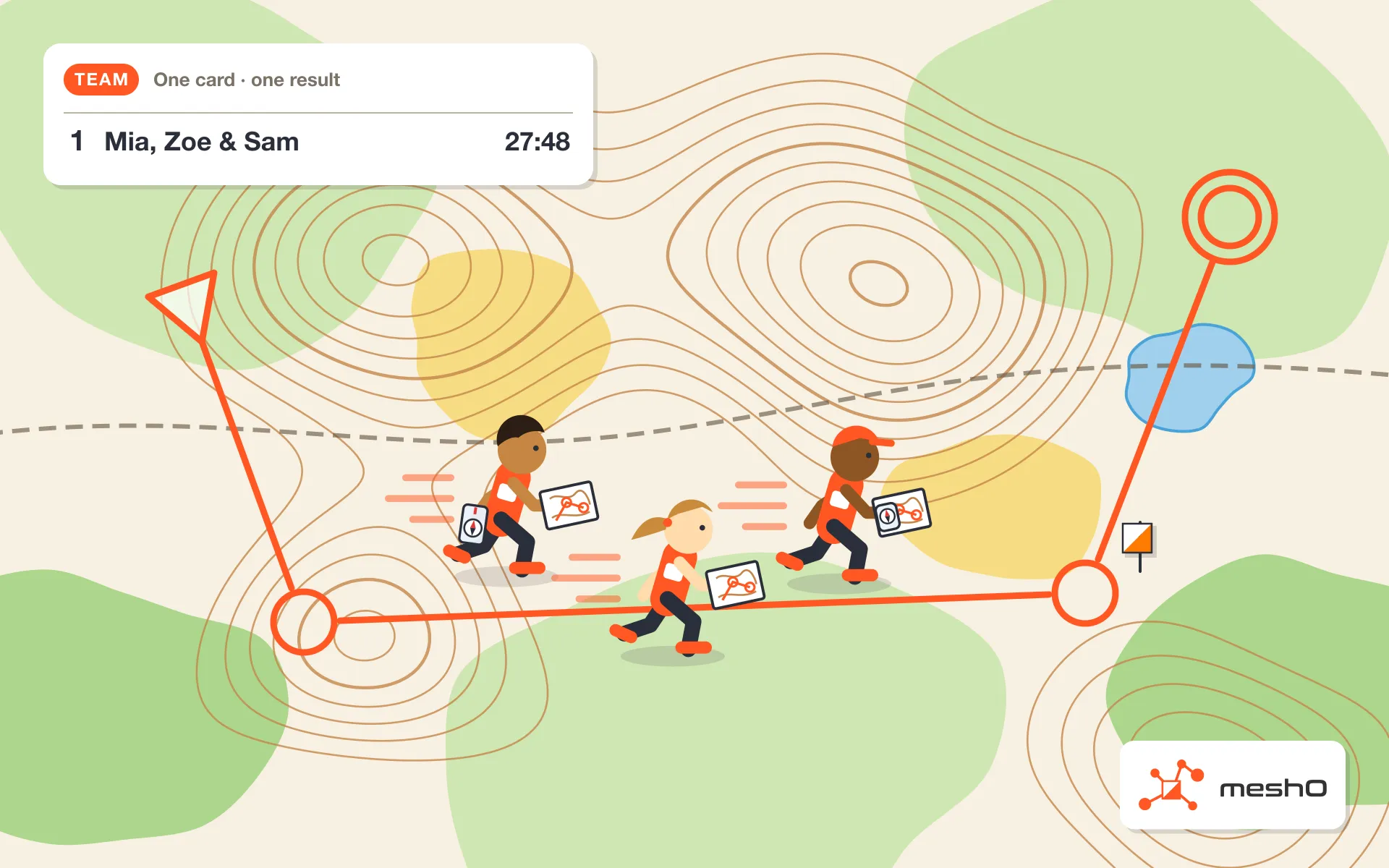
Every club event has a few of them. A parent going round the beginners’ course with two kids. A pair of Year 8s at a school lesson. Three friends doing their first rogaine. A scout patrol. They share one card, they get one time, and they all want to see their names on the results.
Until now you would enter them as one competitor with a made-up name, Smith family or Mia + Zoe, typed into the first and last name boxes. It worked, but nobody else in the entry had a name of their own, and an export or an Eventor upload had no idea there was more than one person.
As of meshO Manager v2026.11.22.1, a competitor can be a team. It’s still one entry, with one class, club, card, bib, start and result, and it counts as one everywhere. What it adds is the people in it.
Not a relay team
This is different from a relay. In a relay, each competitor runs their own leg and has a result of their own. A team that runs together goes round as one, on one course, at the same time, so it enters an individual class. Relay events carry on exactly as before. In a relay event, Entries → Teams still lists relay teams; in any other event it lists teams that run together.
Entering a team
On Entries → Teams, click Add team…. It’s also in the Actions menu on the Competitors page.
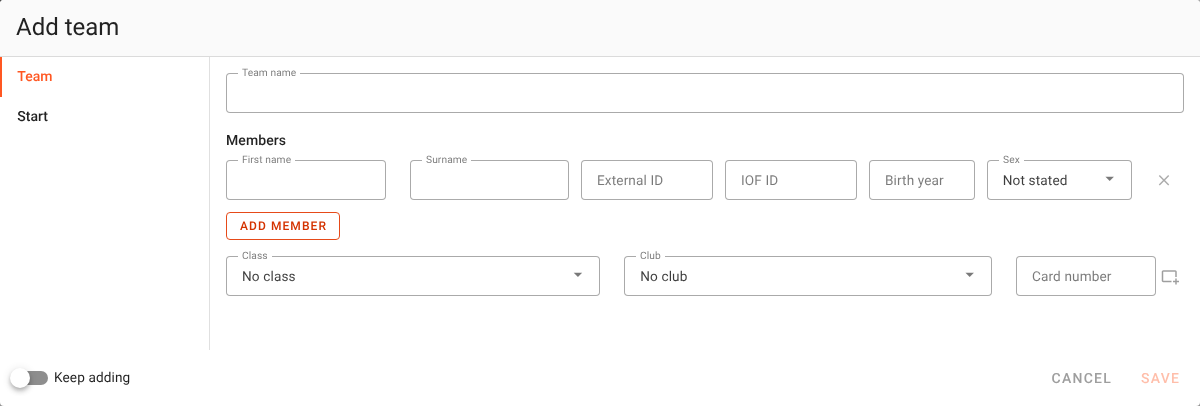
Type each person’s name, one line each, and give the team its class, club and card as you would anyone’s. A team name is optional. Leave it blank and meshO names the team after the people in it:
| Members | Shown as |
|---|---|
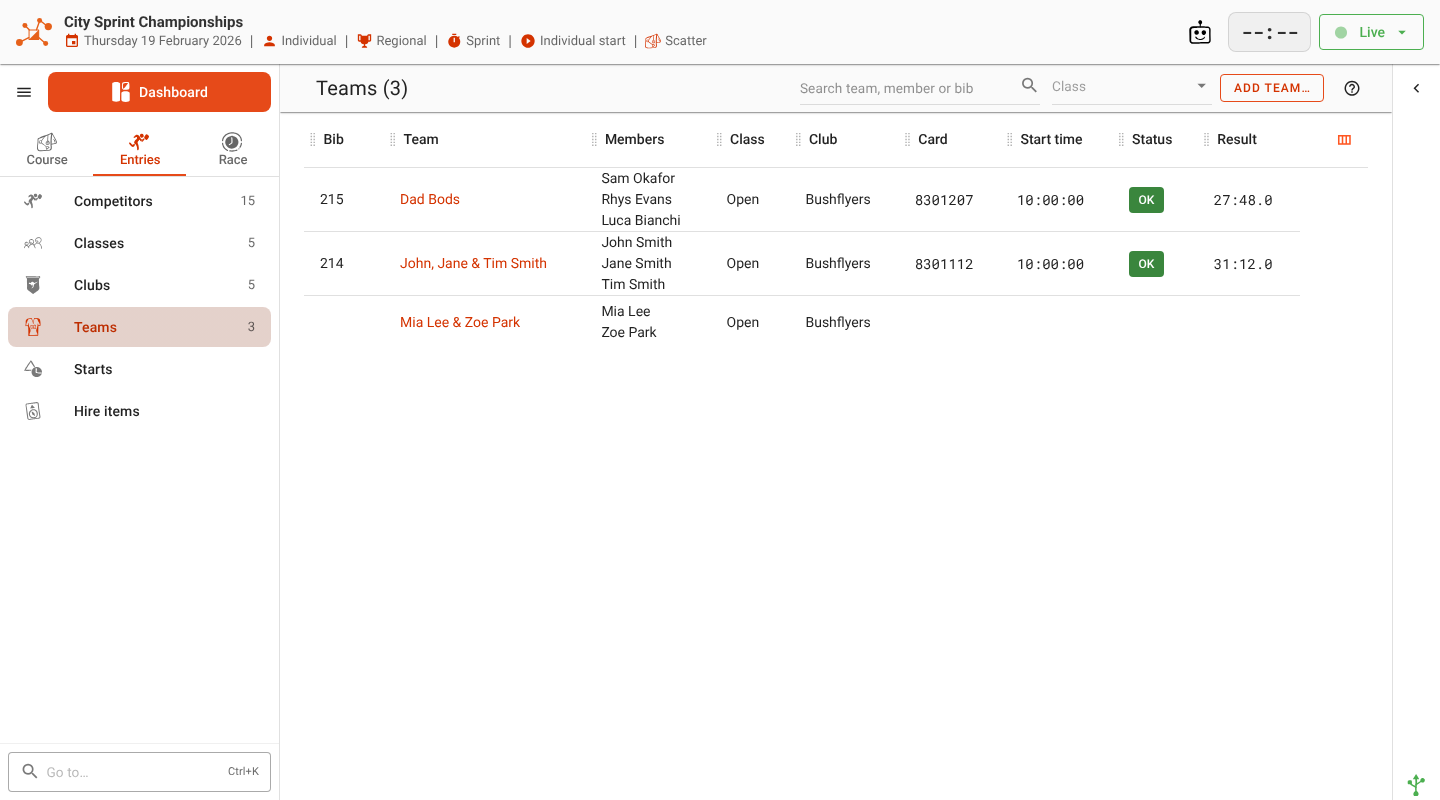
| John and Jane Smith | John & Jane Smith |
| Mia Lee and Zoe Park | Mia Lee & Zoe Park |
| Four friends from different families | Mia, Zoe, Sam & Ava |
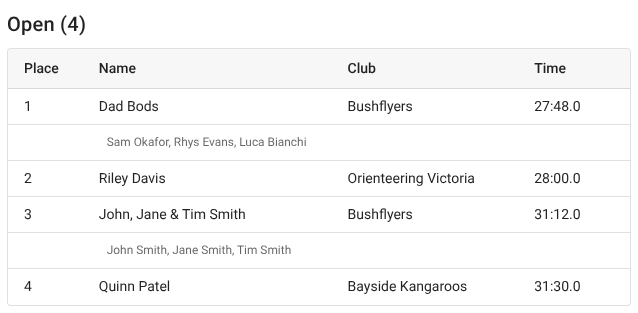
| A team that calls itself something | Dad Bods |
That name is what appears wherever a competitor’s name does: the leaderboard, the arena screens, commentary, the splits print and every export. Change a member and the name follows.
At the finish, the team’s card is read like anybody’s. Nothing about the download desk changes.
When plans change on the day
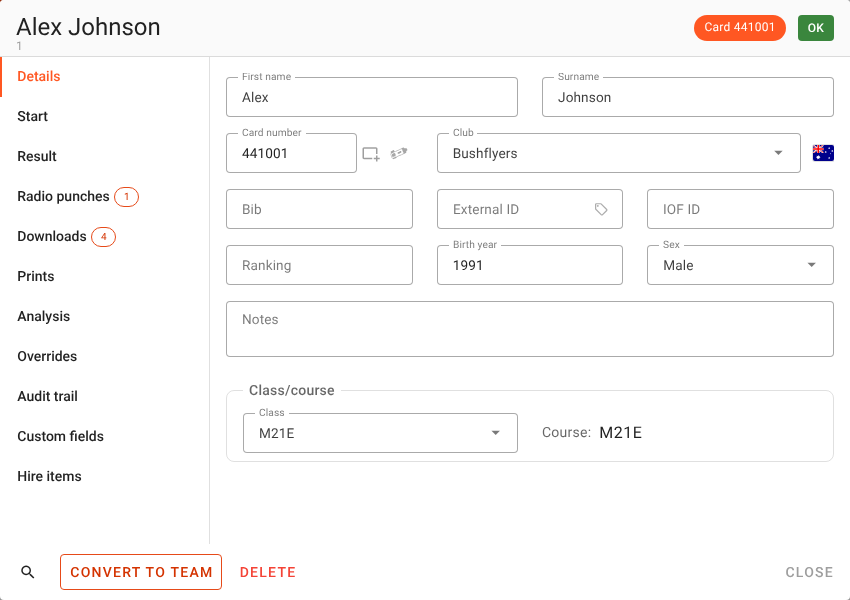
Somebody entered on their own turns up with a friend, or a parent decides at the start to go round with their child. Open the entry and click Convert to team. The person becomes the team’s first member, and the entry keeps its card, bib, start and any result it already has. Add the others on the Team tab.
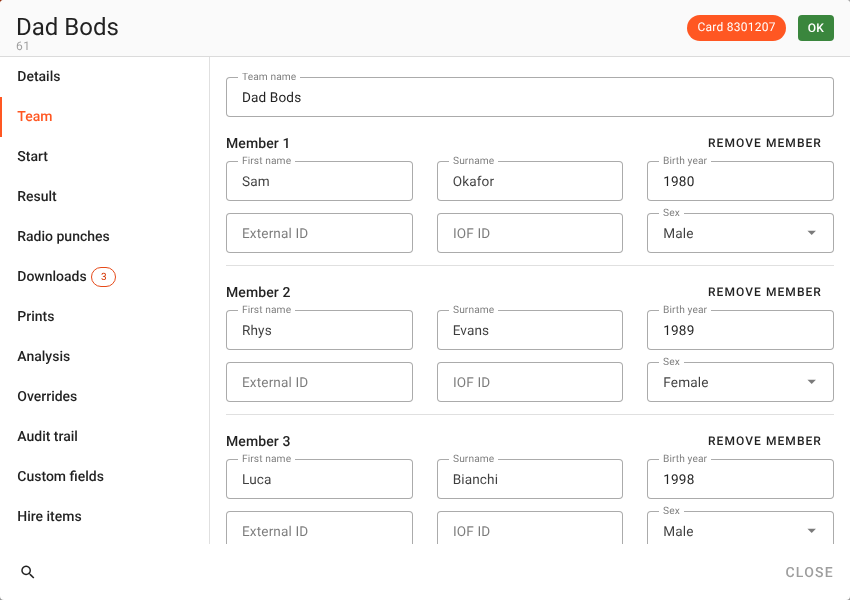
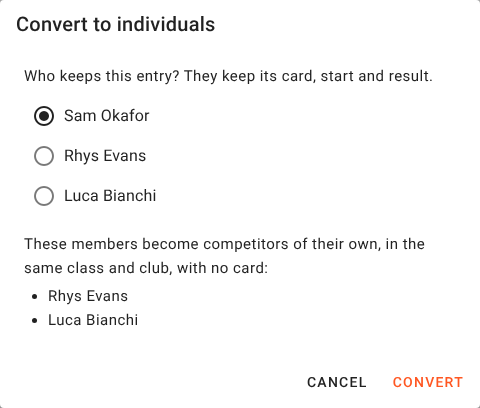
It works the other way too. If a pair decides to split up and run separately, Convert to individuals asks who keeps the entry. That person keeps the card, bib, start and result, and everyone else becomes a competitor of their own in the same class and club, ready for a card of their own.
Files in, files out
A team survives the round trip through every format Manager reads and writes:
- IOF XML carries it as a team entry whose members all run leg 1 together, which is how the standard describes people running a leg side by side. A team in another system’s IOF XML file comes in as a team. A relay team with only its first-leg competitor entered stays a relay team.
- Orienteering JSON (version 1.10) adds the team name and its members to the entry. Older readers still see one entry under the team’s name.
- CSV has one row per member, with a Team bib and Team name column to tie them together.
- Eventor has no result for a team in an individual class, so the upload sends one result named for the team, rather than filing it under one member and crediting them alone.
Getting it
Teams are in meshO Manager v2026.11.22.1 and later. The Teams that run together page in the Manager docs goes through every screen, including what to do when a CSV import warns about a team.
Usually a team goes in a class of its own, such as Family or Groups, so it’s placed against other teams. Nothing makes you do that, though. If you run school events, rogaines or come-and-try days and find something that gets in the way, let us know.