
Releases
What’s new in meshO Manager 2026.11.13
Reading the start box is one click, results go on your club’s website as a web page, and the commentary feed is kept all day for every screen. This post covers 2026.11.11 as well.

Tate Needham
meshO · · 5 min read
meshO Manager 2026.11.13.1 is out. It comes two days after 2026.11.11.1, which didn’t get a post of its own, so this one covers both. Updating to 2026.11.13.1 gets you everything here.
1. The start box in one click
Once everyone has started, the start or check unit’s memory is the record of who went out. On the SportIdent station screen, put the unit on the reader with the coupling rod and click Read and apply. Manager reads the whole memory, applies every punch from today, and tells you what it did in a few sentences. Every runner it names is a link.
A card that nobody was entered on used to be added as “Unknown”, so the name had to be typed again when they downloaded. Now, if the competitor registry knows the card belongs to one person, they’re added with their name, club and Eventor ID. A hire card, or a card the registry doesn’t know, is still added as Unknown. Click it when they come in and pick their name.
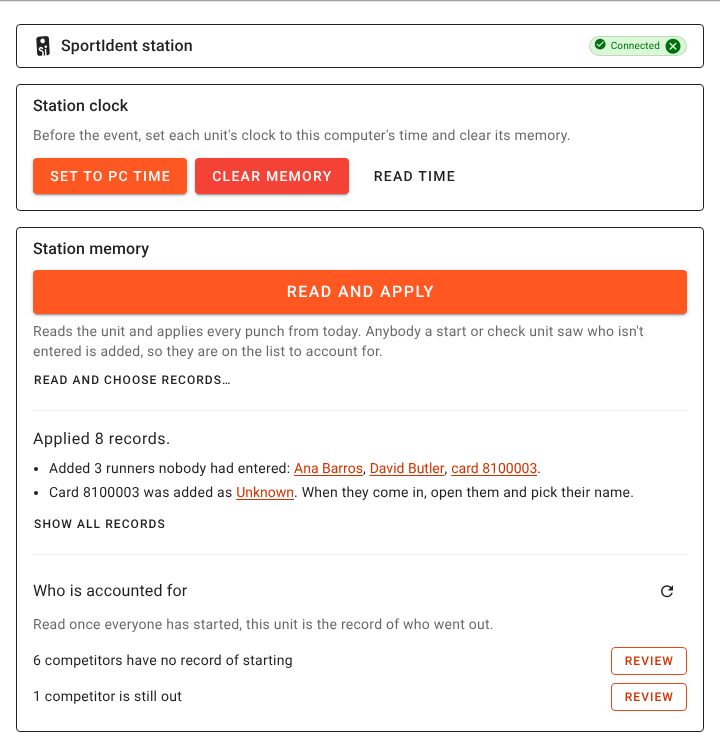
Then, under Who is accounted for, click Review beside the competitors with no record of starting, and mark them DNS. If you’d rather pick the records yourself, Read and choose records… is still there.
When a card is used for two runs, each run now gets its own start and check record, so a start punch for the second run no longer lands on the first.
2. Results as a web page
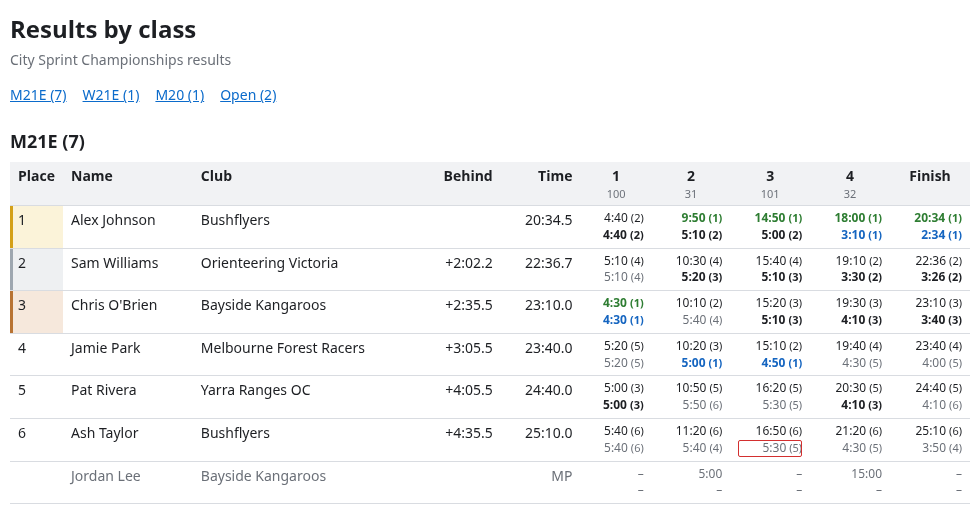
Results → Publish → Export HTML… downloads the results as a single web page that you can upload to your club’s website. You get the same choices as for the PDF, plus two more:
- Include splits adds a column for each control. Each cell has the time since the start over the leg time, with the runner’s rank for each. A green time means they were leading at that control, a blue leg is the fastest, and a red outline marks a costly mistake.
- Your own style sheet links your website’s styles instead of meshO’s. All of meshO’s styles are in one block at the top of the page, so you can copy them as a starting point.
The page switches to dark colours on a phone or computer set to dark mode.
3. Commentary kept all day, on every screen
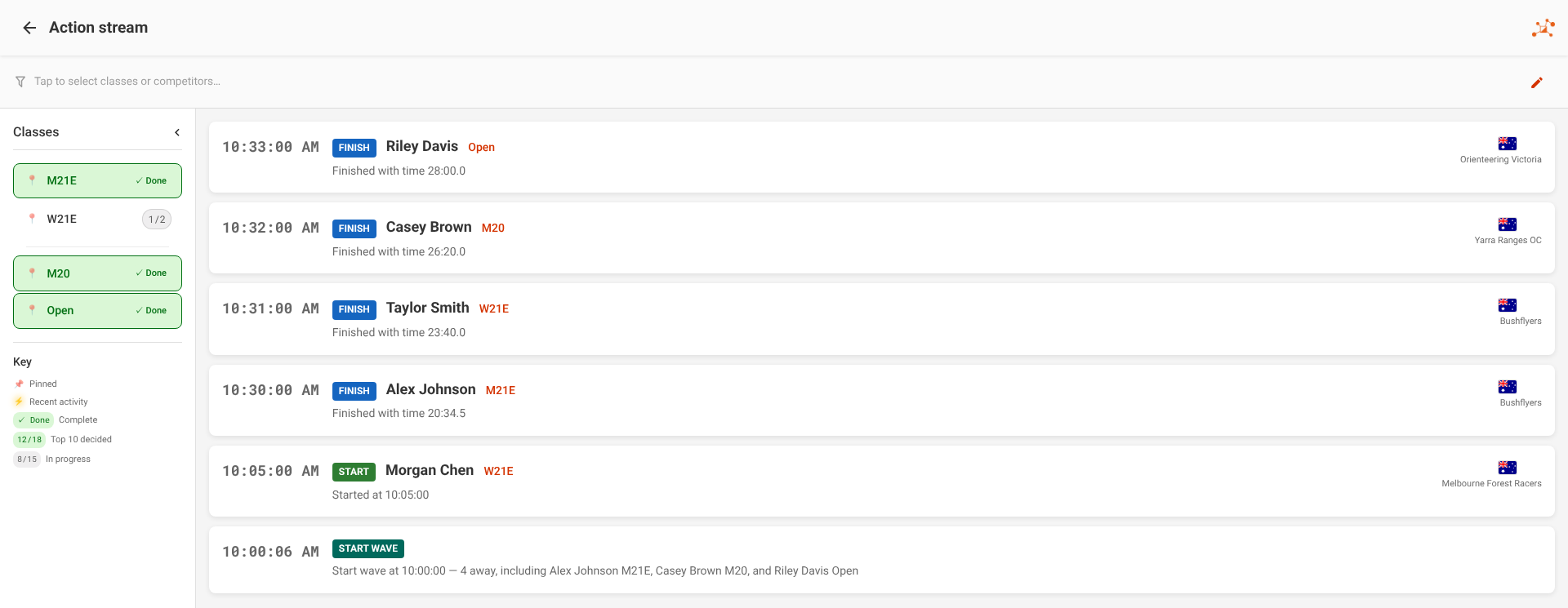
Each Commentary screen used to build its feed in the browser, so a screen opened halfway through the event started empty. Now Manager keeps the feed for every live event, whether or not a Commentary screen is open. You can open the screen late, reload it, or move to another computer, and the whole feed so far is there. Click Show earlier to read further back. The feed stays with the event, so you can read the whole day back afterwards.
The Action stream on the spectator site and the kiosk now shows Commentary’s own cards, with the runner’s flag, club logo, club and bib. Runners who start together show as one start wave card. On the kiosk, Commentary’s class list runs down the left, and the kiosk no longer goes back to its home screen after the idle timeout while it’s showing the Action stream.
4. Punches from ROC radio controls
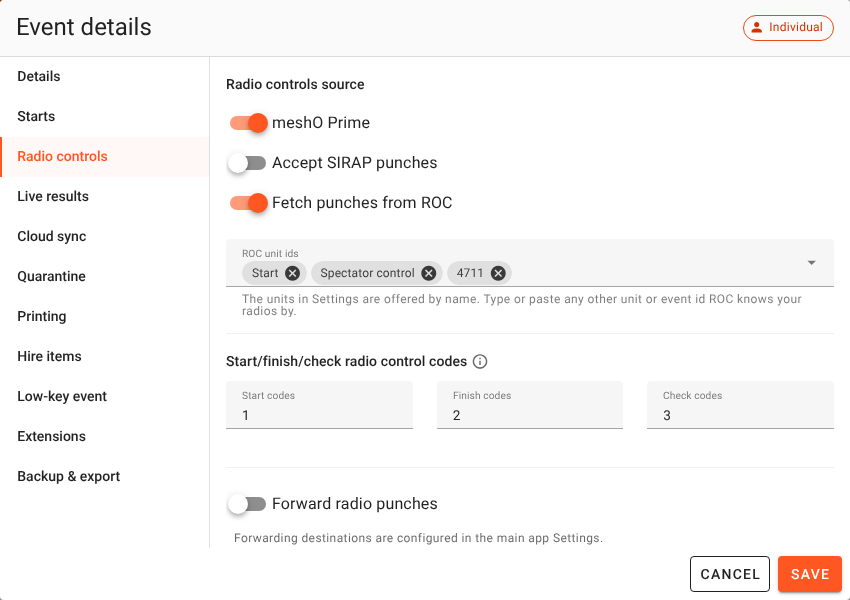
Some radio controls send their punches to a server on the internet rather than to a computer at the event. Manager can now fetch them from ROC (Radio Online Control) and from OResults’ Bluebox radios, which work the same way.
Add your units once, in Settings → Radio punches → ROC radio controls. Switch on Use ROC radio controls there if your events usually use them, and each new event starts with all your units. For each event, check that Fetch punches from ROC is on under Event details → Radio controls.
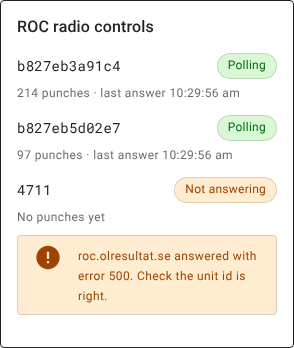
While the event is live, Manager asks the server for new punches every ten seconds, so the computer running it needs an internet connection. ROC punches appear on the Radio punches page and count exactly like Prime’s. The dashboard’s ROC radio controls tile shows each unit, and says why if one isn’t answering.
5. A skip allowance for each part of a course
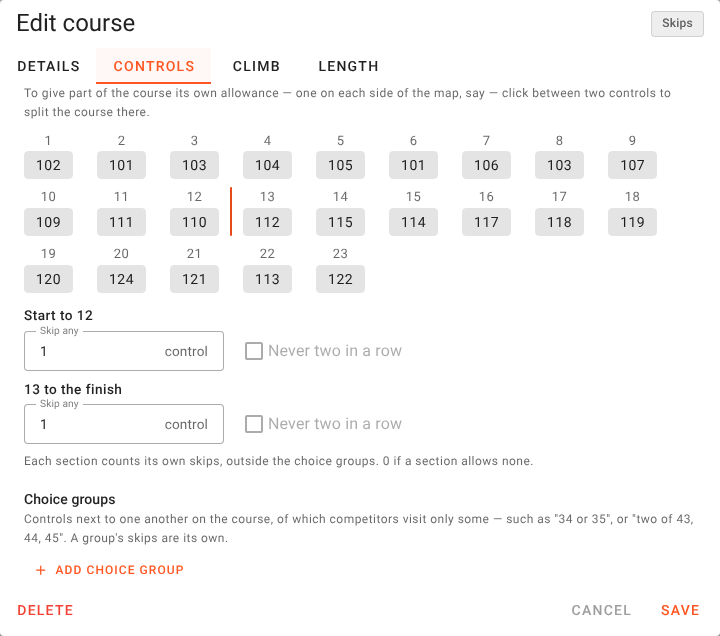
Some courses let you miss one control on each side of the map. On the Controls tab of Edit course, click between two controls in the strip to split the course there. Each section then has its own Skip any and Never two in a row, so a runner can’t use both sides’ skips on one side. Click the same place again to join the sections.
Sections go by position on the course, not by control code. To start the second section at the 13th control, click between 12 and 13. A control marked faulty, or marked as visited on the Overrides tab, doesn’t use up a skip.
Also in this release
- A hire card for one event. Add and Edit Competitor have a hire-card switch beside Card number, for a card borrowed for the day without adding it to your hire-card pool. Hire cards now travel with the event, too: restore a backup on another computer and they’re still marked.
- Class pickers. Every class picker and class list follows the order set in Classes → Sort order. On Card downloads, clicking into a class box selects the class already in it, so what you type replaces it. That’s why a class sometimes seemed to be missing from the list. Class for this run lists Classes that fit this card above All classes.
- Link to this person. When Add competitor warns of a possible duplicate on the same card that isn’t linked to anyone, such as an Unknown from the start box, Link to this person puts the registry person on that entry instead of adding them twice.
- SRR Auto-send. Station configuration’s batch mode can now set Auto-send. A BSF8-SRR sends ordinary card punches over its radio only with Auto-send on. Send the last punch is for SIAC air punches. The docs now have a table of what to turn on.
- ANNE. Organisers in Austria can create an event from ANNE, the Austrian federation’s entry portal, import its classes and entries, and upload start lists and results. Eventor and ANNE are now together under Settings → Event providers.
- Extensions keep running. A dashboard-tile extension, such as an on-the-day entries sheet, now keeps working while you’re on other pages, not just on the dashboard.
- Fixes. An event dated today could show as past in western time zones, and couldn’t be started. Events created from Eventor, as a stage of a multi-stage event or as a knock-out round now take their auto-backup settings from Settings. Event screens other than the dashboard no longer have a blank strip down the right edge. A missed control’s chip is now in the same colour as MP.
Getting it
Manager tells you when a new version is out: press Update now on the notice in the bottom-right corner. The notice waits while an event is live, so it won’t interrupt a race. If you’re new to Manager, it’s on the downloads page. Updating in the docs covers automatic updates too. The details of each change are in the Manager docs: