
Software
Printing at your event with meshO Manager: from one printer to a carnival
Splits for the runner, a label for the results board, a sheet of results for the prize table. This guide sets up printing in meshO Manager step by step. It starts with the setup most events need, one printer plugged into the server, and builds up to carnivals with several download lanes, a rego desk, a label printer of its own and radio download stations, on Windows, on a Mac, or on both at once.

Tate Needham
meshO · · 45 min read
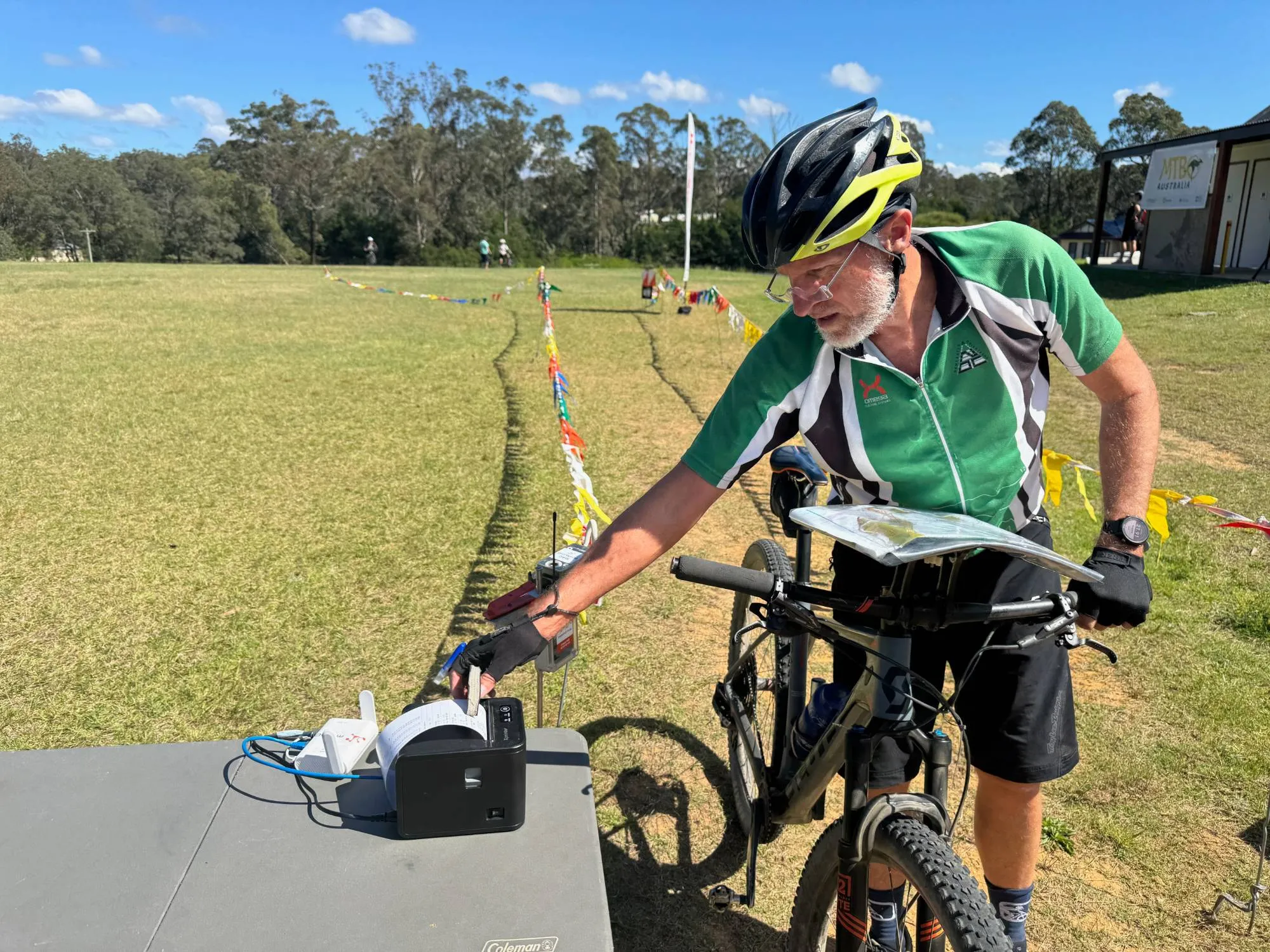
A runner comes through the finish, reads their card at the download tent, and a slip of paper comes out: their time, their splits, where they lost time and where they ran well, and who is leading their class. It is the first thing most competitors want after a run, so when printing goes wrong on the morning of an event, it is the first thing anyone notices: a printer that prints nothing, prints in the wrong tent, or prints every slip twice.
meshO Manager prints three things. The splits print goes into the runner’s hand. A result label goes on the results board. A results sheet goes to the prize-giving table or to whoever is reading out the places. They can come out of one printer or of a dozen, plugged into the server, into download laptops, or into the network.
This guide is for the people who set that up: timing operators, event directors and club volunteers. It starts with the setup we recommend for most events, one printer plugged into the computer running meshO Manager, and spends a long time on it, because an event that gets the simple setup right rarely has a printing problem on the day. Then it builds up, one step at a time, to the setups a big carnival needs: a printer at every download lane, a label printer of its own, cards read over the radio at the finish, a rego desk and an enquiries desk, and a mix of Windows and Mac computers.
Get the one-printer setup right first. Every bigger setup is the same few steps, done again for each printer and each computer.
What meshO Manager prints
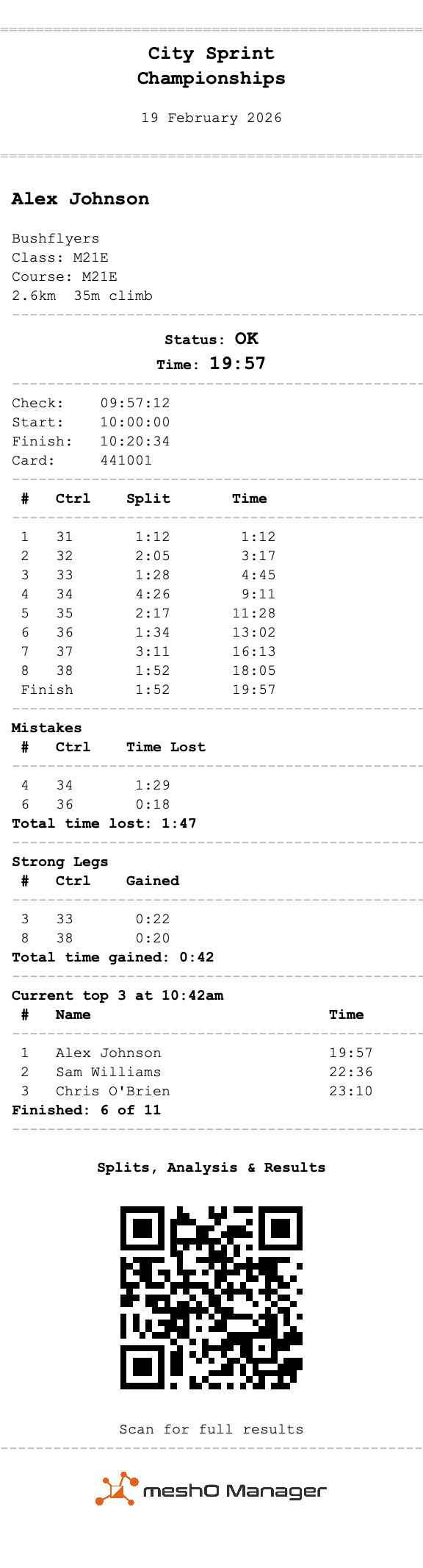
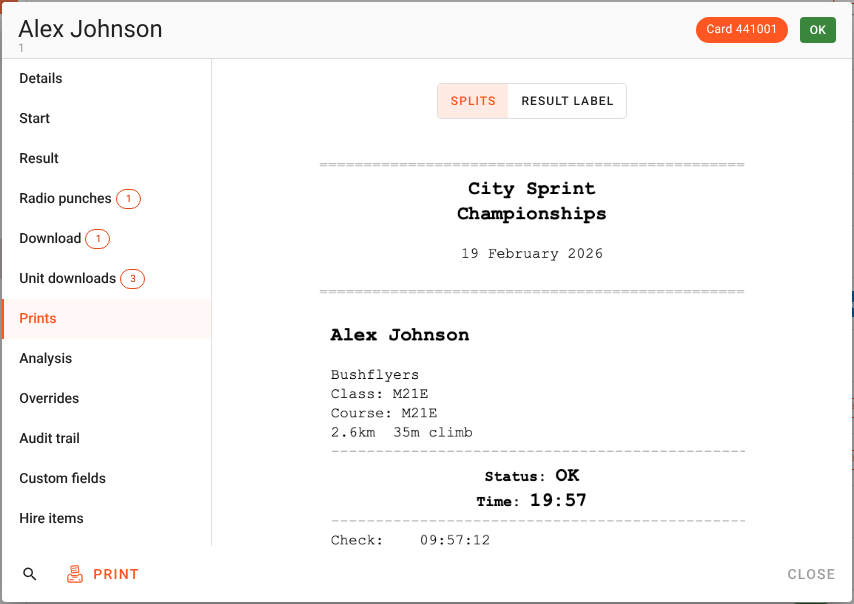
The splits print. One slip per competitor, printed when their card is read. It carries the event, the runner, their status and race time in large type, their check, start and finish times, a row for every control with the leg time and the time so far, and then three sections that answer the questions a download desk would otherwise be asked. Mistakes lists the legs where they lost time. Strong legs lists the legs where they gained the most against their own pace. Current top 3 shows who is leading their class right now, with their own place if they are outside it. A QR code at the foot can take them straight to their result on their phone.
The result label. A small printout for the physical results board: the runner’s name, class and time, and whatever else you choose to put on it. It has its own switch, its own printer and its own settings, so an event can print labels and no splits, splits and no labels, or both.
The results sheet. Class by class, on the same thermal paper: the top three of every class for the prize-giving table, or the whole field. It is printed by hand from the Results page, on whichever printer you choose.
Every one of them is laid out by the meshO Manager server, for the paper in the printer it is going to. A slip printed on a laptop’s own printer is the same slip as one printed on a network printer across the tent, and every setting that decides what is on it lives in one place.

How printing works: printers, computers and the server
Four ideas explain everything else in this guide. They are worth five minutes before you plug anything in.
Every browser running Manager is a computer
meshO Manager runs on one computer, the server, and everyone else uses it in a web browser: the download laptops, the rego desk, the enquiries desk, a tablet at the results tent. Manager calls each of these a computer. It knows each one by name, and it remembers each one from one event to the next.
The first time you open Manager on a laptop, it asks you to name it. Name it for its job: Download lane A, Rego, Enquiries. That name is how you will point its prints at a printer, and how everyone else will recognise it on the map. The browser on the server’s own computer is never asked; it is called localhost until you rename it.
Every printer is in one list
Every printer Manager can print on is listed once, in Settings → Printing → Printers, however it is connected. There are three ways:
| A printer… | is sent its prints by… | and needs… |
|---|---|---|
| On the network, with an IP address of its own | the server, over the network | to be on the same network as the server, at an address that does not change |
| Plugged into the server, installed in its print system | the server, through Windows or, on a Mac or Linux, CUPS | to be installed on the server’s computer |
| Plugged into a computer, by USB | that computer’s browser | Chrome or Edge, a secure (https) link, and Manager open on that computer |
Once a printer is in the list, any computer can print on it. That includes a USB printer plugged into a laptop: it is shared with every computer by default, and other computers’ prints for it are printed by its laptop, while Manager is open there.
Each computer says where its prints go
Every computer has two choices, and only two:
- where the splits of cards read at it print, and
- where their result labels print.
Each choice is either a printer, Don’t print, or The default. The defaults are set once for the whole installation: the Default splits printer on the Splits print page, and the Label printer on the Result labels page. A computer that has never been told otherwise prints on the defaults, which is why a small event only ever has to set the defaults.
A card read at the download desk in one tent can have its slip printed beside that desk and its label printed in the results tent on the other side of the arena. Cards read by a radio download station at the finish have no computer behind them, so they have two choices of their own, on their own page. We come to them later.
The server decides every print
When a card is read, the server works out the result, decides whether a slip and a label are due, finds the printers that computer’s choices lead to, lays each document out for its printer’s paper, and sends it. The download laptop decides nothing. That is why a slip prints once: never twice because two machines both thought it was their job, and never not at all because each thought it was the other’s.
It also means the settings belong to the server, not to the laptops. A laptop set up at this event is set up at the next one: all it remembers is which of the server’s computers it is.
Choosing printers
Almost any thermal printer will do. A few things are worth knowing before you buy or borrow one.
- Thermal, and ESC/POS. The small printers used for shop dockets almost all understand a command language called ESC/POS, and that is what Manager speaks to them. Ink-jet and laser printers can be used too, plugged into the server and printed through their own driver, but a thermal printer is faster, costs less to run, and cuts each slip for you.
- 80 mm paper is the standard width. 58 mm works, with more wrapped lines and a longer slip. Paper width is set per printer, so a lane with a borrowed 58 mm printer is no trouble.
- An automatic cutter. A slip that is cut for you is one less thing for the desk to do. Most cutters can do a partial cut, which leaves the slip hanging by a thread so it does not fall on the floor.
- A network port, if you can. A printer with an Ethernet port can stand anywhere the network reaches and be printed on by any computer, whatever it runs. A USB-only printer is simplest plugged into the server.
- Spare rolls, beside each printer. The most common call of the day, “the printer has stopped”, is an empty roll.
For labels on sticky die-cut stock, such as a Brother QL label printer, see Result labels for the results board: those print through their own driver, plugged into the server.
Setup 1: one printer plugged into the server
This is the setup we recommend for a first event, a club event, and any event with one download desk: one thermal printer, plugged by USB into the computer running meshO Manager, with the download done on that same computer.
It needs no network, no certificates and no particular browser. The server prints on the printer through the computer’s own print system, so it prints even when no Manager page is open, which matters later for cards read over the radio. And there is one printer to feed with paper and one place to look when something is wrong.
Step 1: install the printer on the server’s computer
Manager prints on a printer plugged into the server through that computer’s print system, so the computer has to know about the printer first, exactly as it would for any other program.
On Windows, plug the printer in and switch it on. Windows usually installs it by itself within a minute. If the printer came with a Windows driver, install that. Check it is there in Settings → Bluetooth & devices → Printers & scanners. Leave Windows’ own driver on it: the Zadig driver change you may read about later in this guide is only for USB printers on laptops, and doing it to the server’s printer stops the server printing on it.
On a Mac, plug the printer in, open System Settings → Printers & Scanners, click Add Printer and choose it. Use the maker’s macOS driver if it has one. When Manager prints a slip in the printer’s own ESC/POS commands, it hands them to macOS to pass to the printer untouched, so for ESC/POS the driver matters less than you might expect. It matters if you later choose to have the page drawn for the driver.
On Linux, add it to CUPS in the usual way. Manager uses CUPS’s own command-line tools, so CUPS has to be installed.
Step 2: open Manager on the server, at localhost
On the server, open Manager from the tray or menu-bar icon, or type http://localhost:5154/manager into the browser. Use localhost here rather than the computer’s IP address: it is the address at which this browser can also read a SportIdent USB reader without any certificate set-up.
Step 3: add the printer
Go to Settings → Printing → Printers and press Add a printer. The first question is the one that decides everything after it: Where is it plugged in?
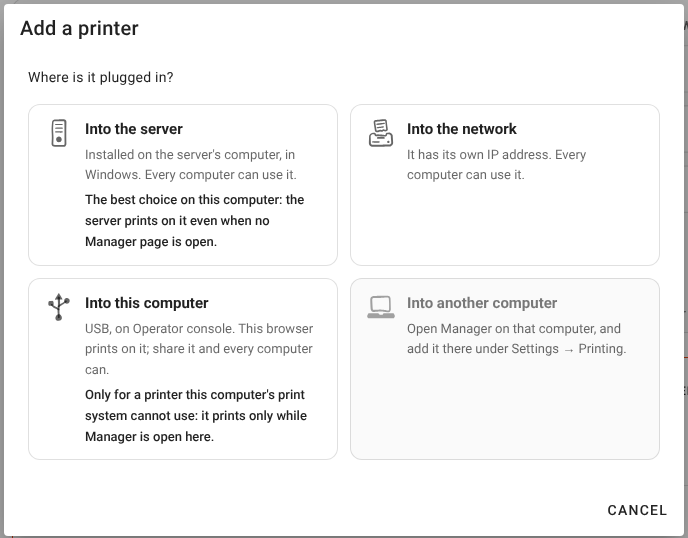
Choose Into the server. On the server’s own computer it comes first, marked as the best choice there. Into this computer is also offered, because the printer is plugged into the computer you are sitting at, but that would have the browser print on it instead of the server: it would print only while a Manager page is open, and on Windows the browser usually cannot open a USB printer at all. Use it on the server only for a printer its print system cannot use.
Then:
- Printer — choose it from the printers installed on the server’s computer. If it is not listed, press the refresh button beside the list. If the dialog says there are no printers installed on the server’s computer, go back to step 1.
- Name — name it for where it stands, not what it is: Download desk, Splits printer. Everyone else will choose it by this name.
- How to print — choose Send it ESC/POS (thermal printers) for a thermal printer. The other two choices are explained in Getting the slip right; start with ESC/POS.
- Paper width — 80 mm (standard width) or 58 mm: the roll in this printer.
- Leave Characters per line on Standard for this paper and Paper cut on 1 · Partial cut for now. The next step finds the right values.
- Press Add printer.
Step 4: print the printer setup test
Two things depend on the printer itself, and no printer can tell Manager what they are: how many characters fit across its paper, and which cut command its cutter obeys. The printer setup test finds both in one slip. On the Printers page, open the ⋮ menu on the printer’s row and choose Printer setup test. (The printer’s dialog has the same choice under Test print.)
- Characters per line. The slip prints a column of numbered rulers, widest first:
48 ---- 48,46 ---- 46, and so on down to 28. A ruler too wide for this printer wraps, and its second number lands on a line of its own. Choose the largest number whose ruler printed on one line, with the number at both ends. - Paper cut. The slip then tries the four cut commands one after another, each printed under its number and name. The paper is cut just below the name of each cut this printer obeys, so you end up with a few pieces. Choose the number at the foot of the piece you like. 1 · Partial cut is the best if it worked. If nothing was cut at all, choose No cut — tear off.
- Open the printer with Change…, set both, save, and choose Test print. It prints a ruler exactly as wide as you set, numbered at both ends, and ends with the cut you chose.
Most 80 mm printers fit 48 characters. Printers with a 180 dpi print head, including the Epson TM-T88 family and the Bixolon SRP-350 and SRP-F310, fit 42. Set 48 on one of those and every long line of every slip wraps onto a second line.
Step 5: make it the default splits printer
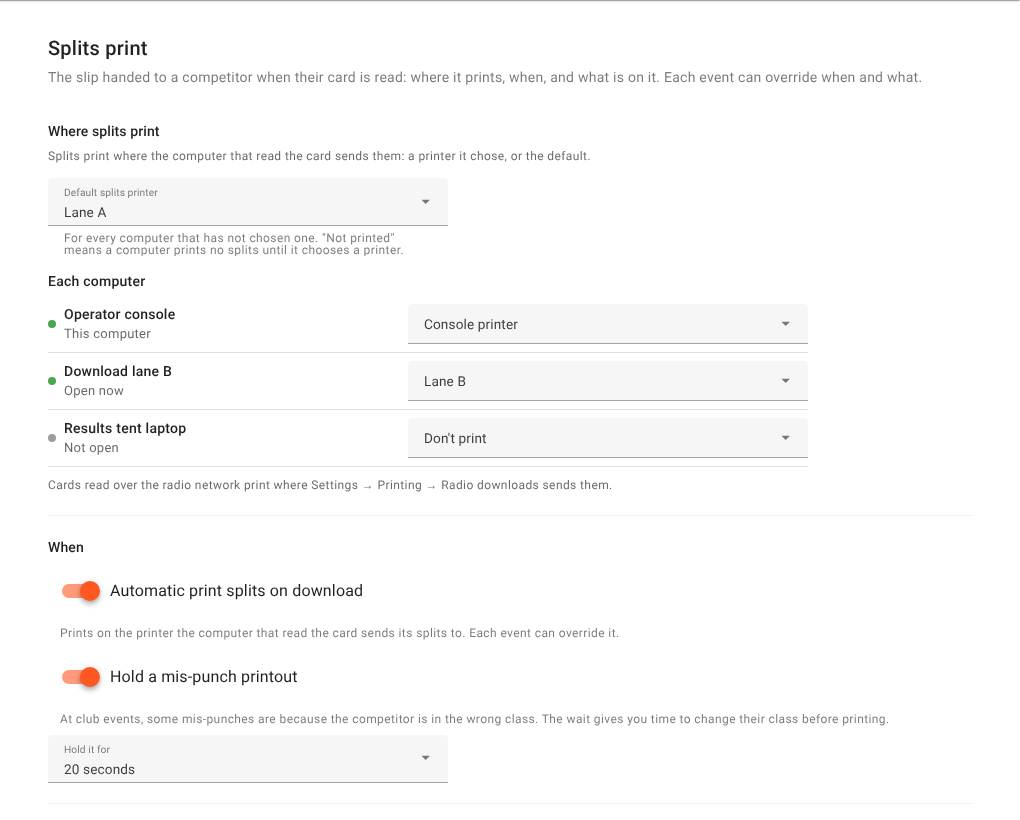
Go to Settings → Printing → Splits print. Under Where splits print, set Default splits printer to your printer.
On a new installation the default is Not printed, so nothing prints until you choose one. Set the default rather than only this computer’s own choice: then every computer prints there unless it is told otherwise, including the laptop someone brings along later and the rego desk, and so do cards read over the radio network.
Step 6: turn on automatic printing
On the same page, under When, switch on Automatic print splits on download. On a new installation it is off, and with it off a card read prints nothing by itself: slips are printed only when someone asks for one.
Leave Hold a mis-punch printout on, at 20 seconds. A mis-punch slip then waits for 20 seconds before it prints, so that if you correct the runner’s class in that time, the corrected slip prints instead of the wrong one. Mis-punches wait before they print explains it in full.
Step 7: check it with a real card
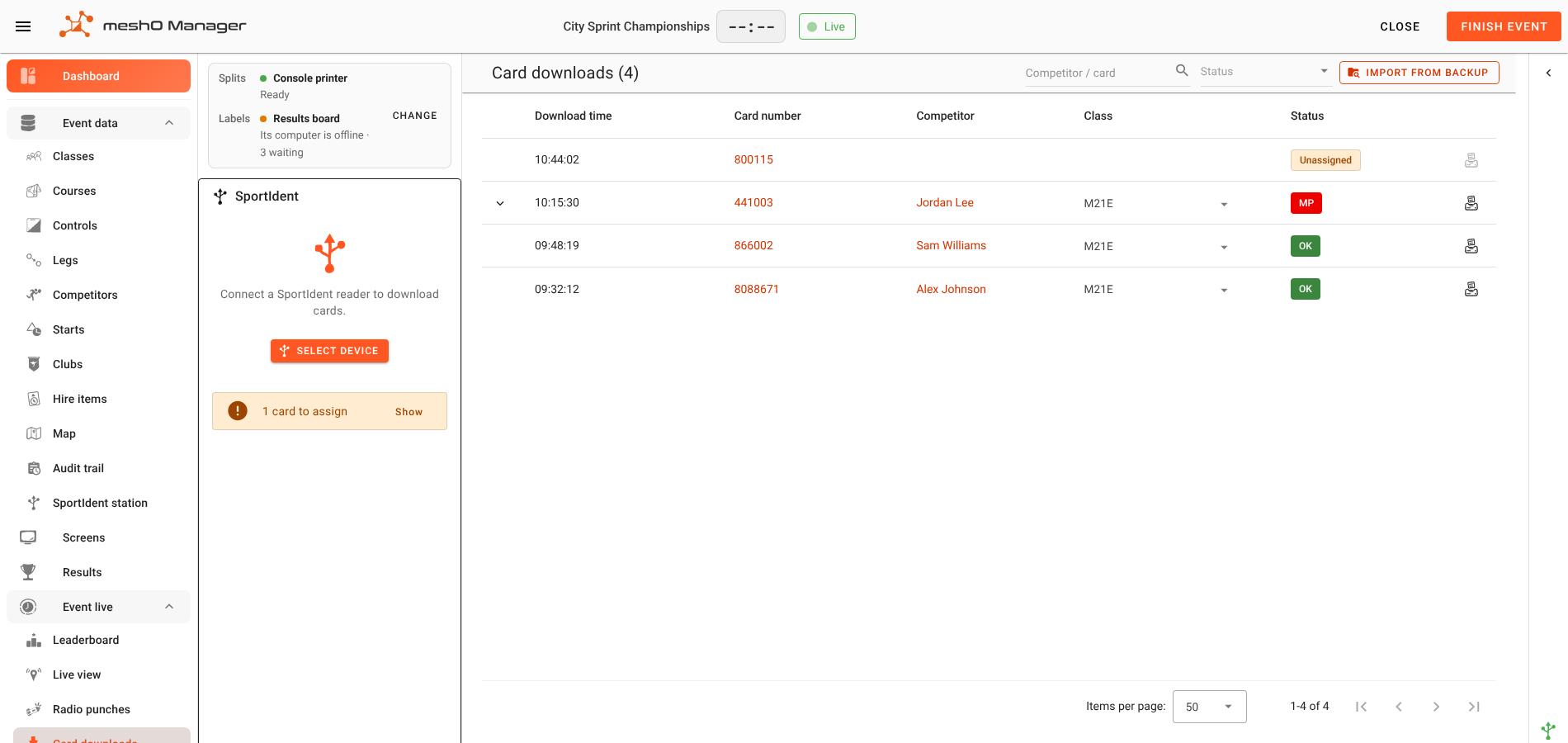
Open the event, go to Card downloads, and look at the strip at the top of the left-hand panel. Before any card is read, it says where a card read on this computer will print, and whether that printer is ready: Splits — Download desk, Ready.
Read a card. The slip should come out within a second or two. If you need another copy, the printer button at the end of that download’s row in the history table prints it again.
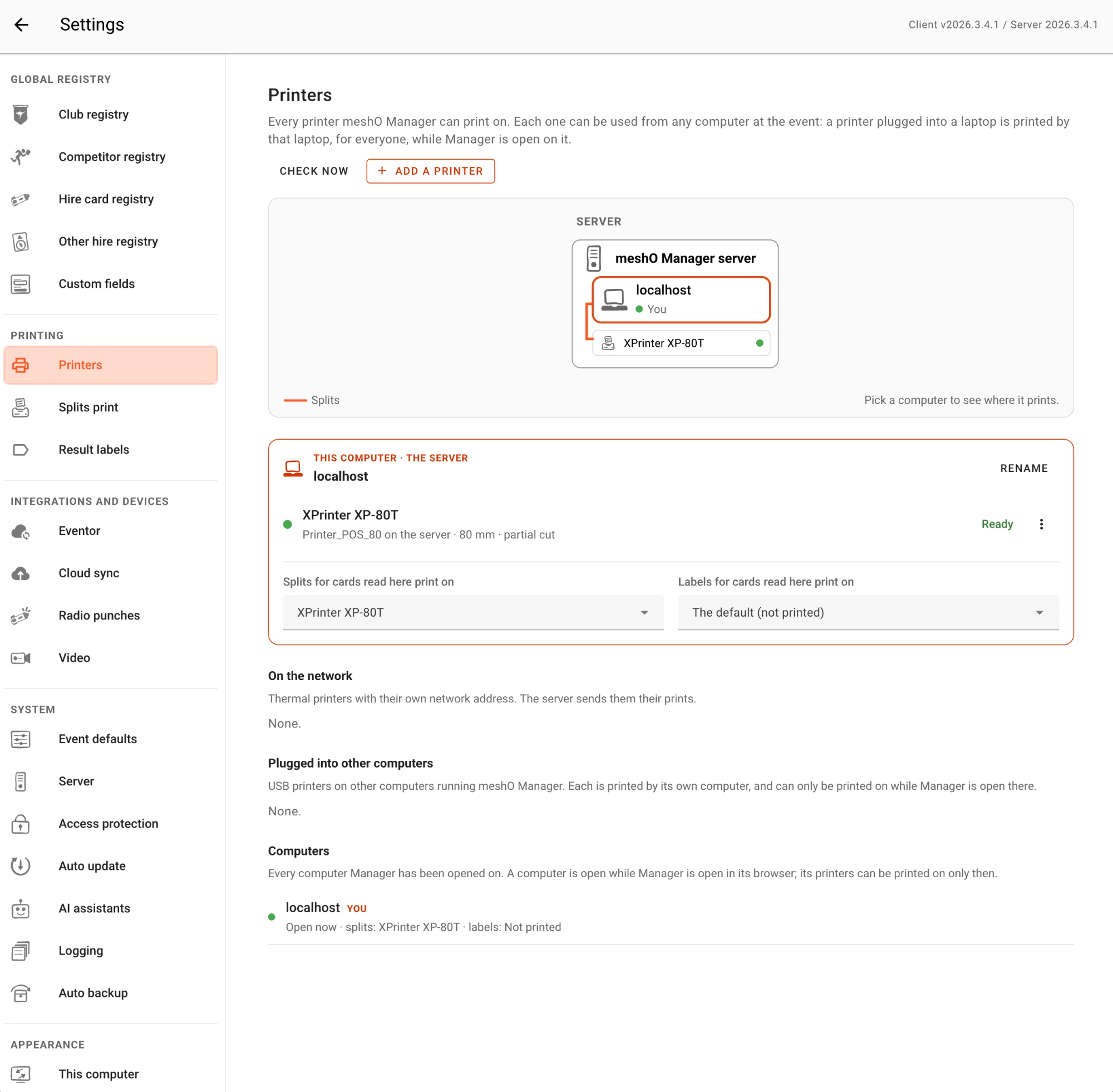
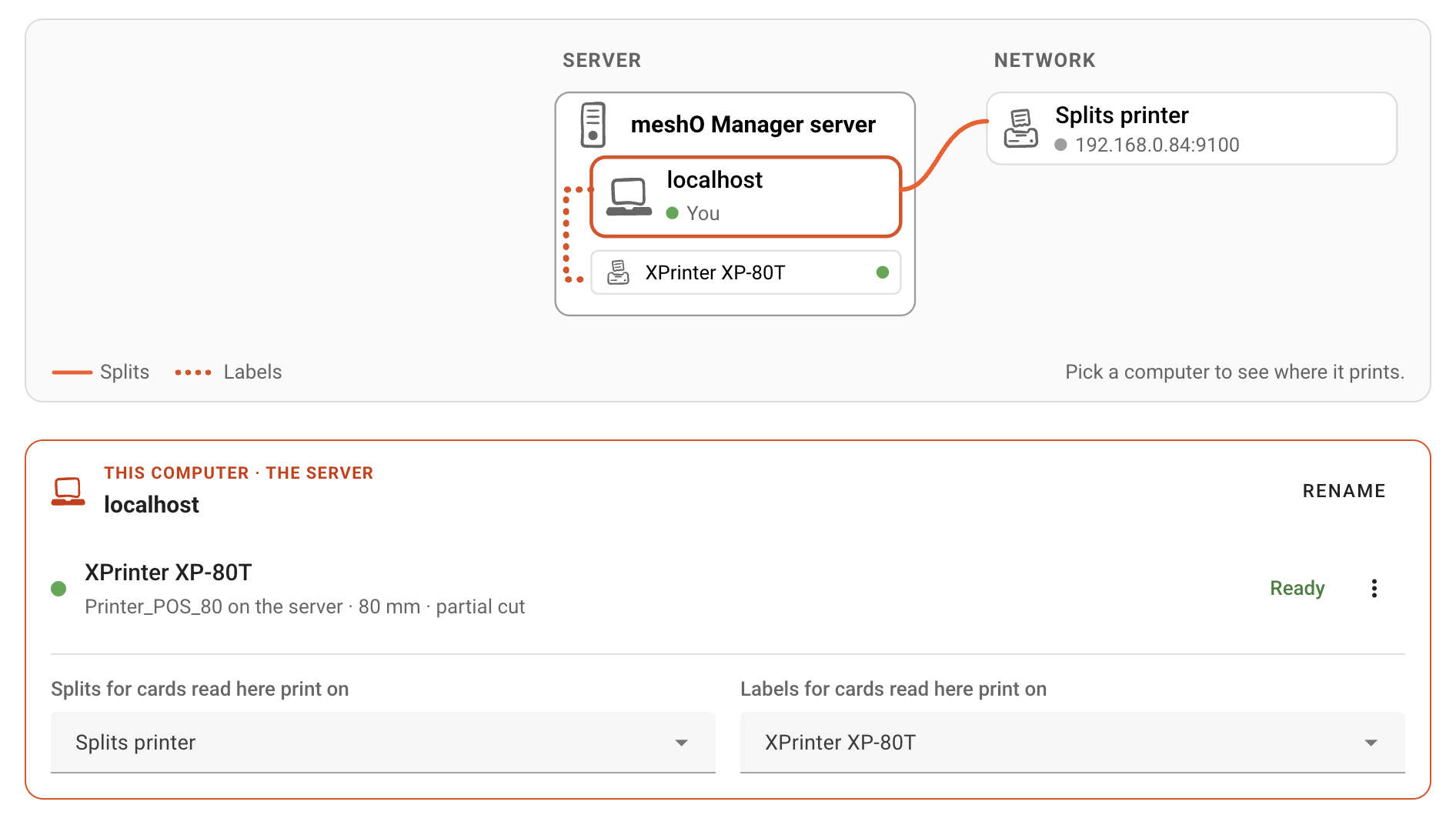
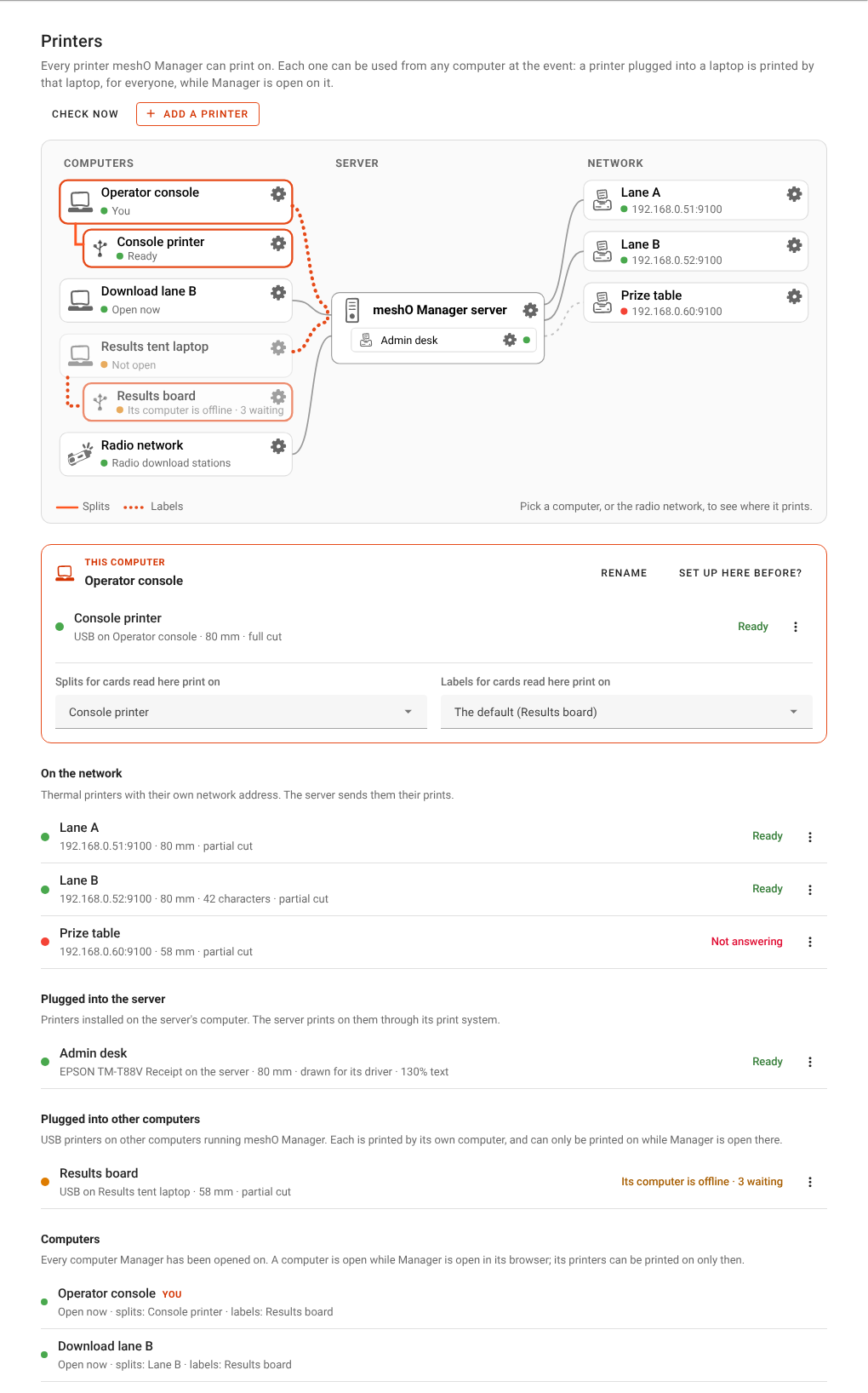
That is the whole of Setup 1. Below is what the Printers page looks like when it is done: a server, its browser, and one printer installed on it.
The mistakes we see with Setup 1
- Nothing prints when a card is read, but the printer button prints. Automatic print splits on download is off. It starts off on a new installation, and an event can also turn it off for itself under Event details → Printing.
- The print buttons are greyed out. This computer’s splits go nowhere: the Default splits printer is still Not printed, or this computer’s own choice is Don’t print.
- The printer was added as Into this computer on the server. It then prints only while a Manager page is open in that browser, and on Windows it usually refuses the browser altogether. Remove it and add it again Into the server.
- Every long line wraps onto a second line. Characters per line is set higher than the printer fits. Print the setup test and choose again. Don’t “fix” it by switching to the 58 mm setting: that wastes a quarter of every roll.
- The slip prints but is never cut. The printer ignores the cut it was sent, silently. Choose another from the setup test; 1 · Partial cut works on almost every cutter.
- The print is faint. Raise the print density in the printer’s own settings, or switch the printer to Draw the slip and send it as a picture and choose bigger or bolder text. See Getting the slip right.
Setup 2: one network printer
A printer with its own network address is the most flexible printer you can have. The server sends it its prints over the network, so it works whatever the server runs on, any computer can print on it, and it can stand anywhere the network reaches: on the download desk, or at a table at the other end of the tent.
Step 1: put it on the event network
Connect the printer to the same router or switch as the server, by cable if it has an Ethernet port. A Wi-Fi printer works too, once it has joined the event’s Wi-Fi.
Step 2: find its address, and keep it
Most thermal printers print their settings, including their IP address, if you hold the feed button down while you switch them on. Note the address.
Then make sure it stays the same. A printer given an address by the router can get a different one tomorrow, and on the day Manager will report that the connection to the old address timed out. Either give it a fixed address in the printer’s own settings utility, or add a DHCP reservation for it in the event router, so the router always gives it the same address. The same goes for the server’s own address, which every laptop uses.
Step 3: add it
Go to Settings → Printing → Printers → Add a printer and choose Into the network.
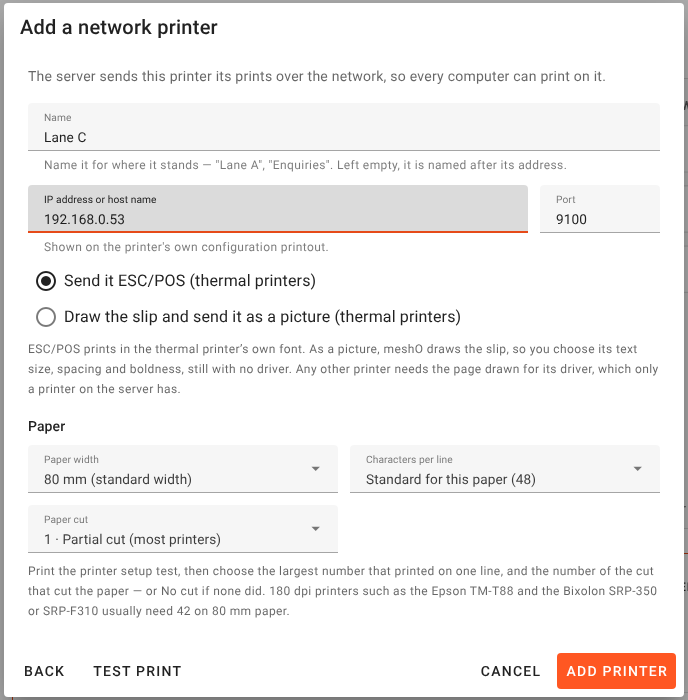
Fill in its Name, its IP address or host name, and the Port, which is 9100 for almost every thermal printer. Choose Send it ESC/POS, the paper width, and press Test print before you press Add printer. A test that comes out proves the address, the port and the network in one go.
Step 4: finish as for Setup 1
Print the printer setup test and set the characters per line and the cut (Setup 1, step 4), make it the Default splits printer, and switch on Automatic print splits on download (steps 5 and 6).
On the Printers page, every network printer has a dot: green when it answered, red when it did not. The page asks each printer once as it opens, and again when you press Check now. It never asks while a printer is printing.
Why a collection table works so well
Because a network printer does not have to sit at the download desk, downloading and collecting can become two separate queues. A card reads in a couple of seconds, so the runner downloads and moves on at once, and picks up their slip from a table at the far end of the tent, where they can read it and compare times without holding anyone up. The download lanes need less room and less gear: a laptop and a reader, with no printer, no cable and no spare rolls under the table.
The cost is that the slip comes out where the printer is, not where the runner is, so the table needs a volunteer or a rack. And at the peak, every lane’s slips queue behind one printer.
Setup 3: several download laptops, one printer
When one download desk is not enough, add laptops and leave the printing alone. Every laptop that has not been told otherwise prints on the Default splits printer, so two or three lanes can share the printer from Setup 1 or Setup 2 with nothing to set up on the laptops at all.
What each laptop needs
A download laptop reads cards in its browser, so it needs what card reading needs, whatever the printing:
- The server’s address. Settings → Server on the server lists its Access links. Use the IP link on download laptops: Chrome on a laptop often cannot find the server by its name.
- HTTPS, and meshO’s certificate trusted on the laptop. A browser lets a web page talk to a USB card reader only over a secure connection, and
localhostis secure only on the server itself. Turn HTTPS on once on the server, trust its certificate once on each laptop, and open the laptop at the HTTPS access link. The documentation’s HTTPS and certificates page has the steps for every system. - A name. The first time Manager opens on the laptop it asks you to name it. Call it Download lane A.
Printing on a printer plugged into the server, or on a network printer, needs nothing more on the laptop: any browser will do, because the server does the printing.
Check it on the map
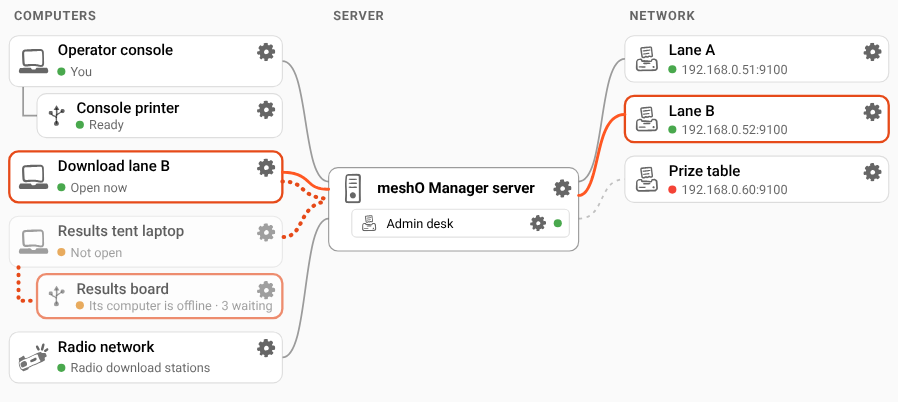
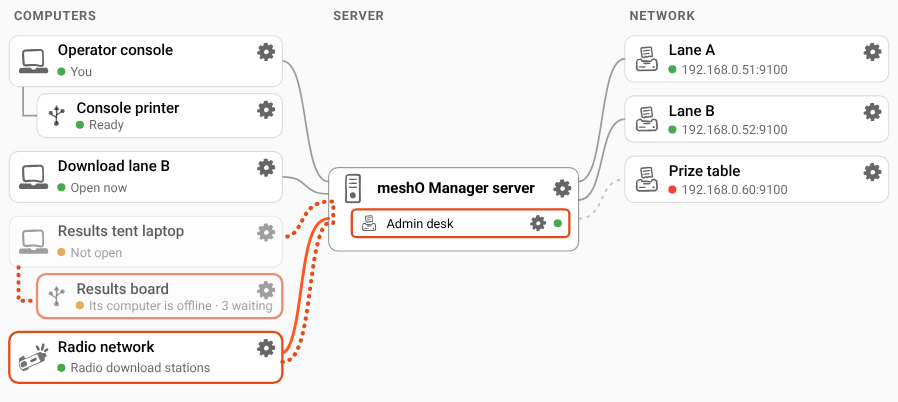
Open Settings → Printing → Printers on any of them. The map shows every computer Manager has been opened on, with a green dot on each one open now. Click a computer and its routes light up: a solid line to where its splits go, and a dotted line to where its labels go. Every lane should lead to the one printer.
The tables on the Splits print and Result labels pages show the same thing as a list, under Each computer: every lane on The default.
Tablets and other browsers
A tablet or phone can be a computer too: a rego desk on an iPad, say. An iPad can’t drive a USB printer of its own, but it prints on any network printer, any printer plugged into the server, and any laptop’s shared USB printer, wherever its splits choice points.
Setup 4: a printer at every download desk
At a bigger event, the runner usually expects their slip handed over at the desk where they downloaded. That means a printer per lane, and each lane pointed at its own. There are two ways to give a desk a printer: a network printer standing beside it, or a USB printer plugged into its laptop.
A network printer beside each desk
This is Setup 2 done once per desk. Add each printer Into the network and name it for its desk: Lane A printer, Lane B printer. Then point each lane at its own, in any of three places:
- on that laptop, in Settings → Printing → Printers, under This computer: Splits for cards read here print on;
- from any computer, in Settings → Printing → Splits print, under Each computer, then Save;
- on that laptop, from the strip at the top of the Card downloads page: Change.
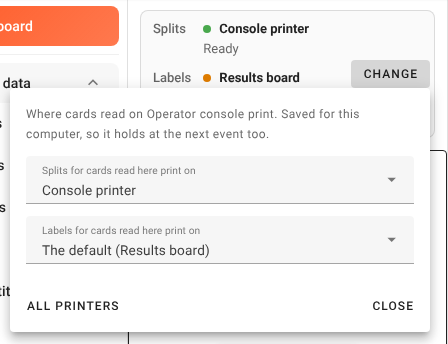
A network printer per desk avoids every requirement the USB printer brings, below. It works with any laptop and any browser, and a laptop can be swapped for another in a minute.
A USB printer plugged into each laptop
A USB printer on a download laptop is printed by that laptop’s browser. Manager uses a browser feature called WebUSB for it, and that brings four requirements:
- Chrome or Edge. Firefox and Safari can’t drive a USB printer. (Firefox 151 and later can read SportIdent cards, but still can’t print on a USB printer.)
- A secure link. The laptop has to open Manager through its
https://link with meshO’s certificate trusted, exactly as card reading on it already needs. - Manager open on that laptop. The laptop’s browser is what prints. If the laptop is closed, asleep or has no Manager tab open, its prints wait, and a slip waits only five minutes before it gives up: the runner has gone by then.
- On Windows, a one-off driver change. Windows attaches its own printer driver to almost every USB printer the moment it is plugged in, and while it holds the printer, the browser is refused. Switch the printer to the WinUSB driver once per laptop with the free tool Zadig. See Windows, Mac and Linux together. A Mac needs nothing.
Then, on that laptop:
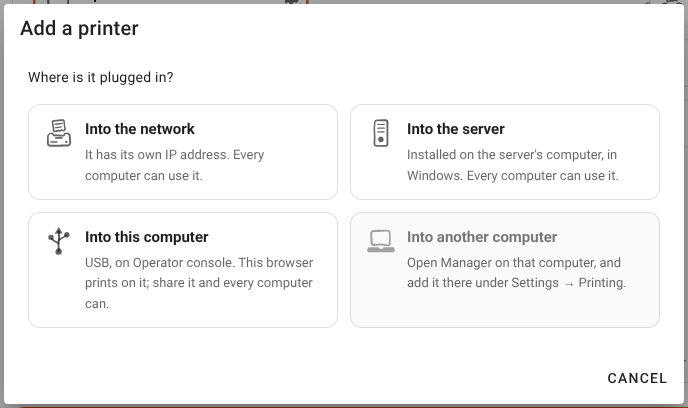
- Plug the printer in and switch it on.
- Open Settings → Printing → Printers → Add a printer and choose Into this computer.
- Press Choose the USB printer, and pick it from the list the browser shows.
- Name it for the desk: Lane A printer.
- Leave Share with every computer on unless you have a reason. Shared, other computers can print on it too, while Manager is open on this laptop: the enquiries desk can reprint a slip on it, for example. Turned off, only this laptop can.
- Tick Print the splits of cards read here on it, which points this laptop’s splits at the printer in the same step.
- Choose how to print, the paper width, characters per line and cut, as in Setup 1. Test print prints on it straight away.
- Press Add printer.
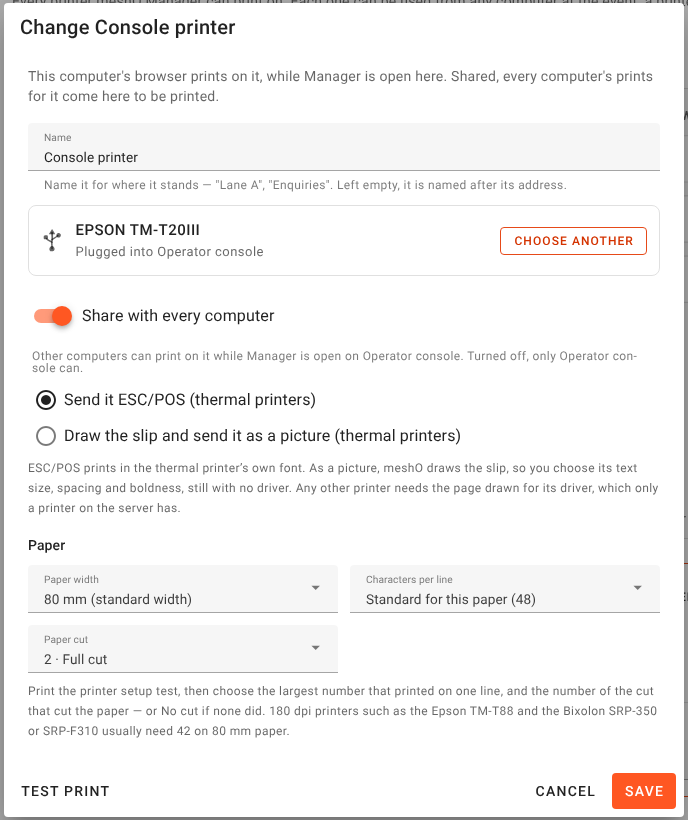
The laptop finds its printer again by itself after a reload, when it is plugged back in, and at the next event.
A different venue, a different address. A browser keeps what it knows per web address, so if the venue’s network gives the server a new IP address, the laptop opens as a stranger. When Manager asks for its name, or on the Printers page under Set up here before?, it lists the computers it already knows: pick yours, and its name, its printer and its choices come back. The browser may ask you to choose the USB printer once more.
Which to choose
| Network printer per desk | USB printer per laptop | |
|---|---|---|
| Works with | any laptop, any browser | Chrome or Edge, over https |
| On Windows | nothing to do | a one-off driver change with Zadig |
| Prints when | the server is running | Manager is open on that laptop |
| If the laptop dies | swap the laptop, the printer carries on | the printer goes with it |
| Cabling | a network cable or Wi-Fi per printer | a USB cable per laptop |
Either way, a printer per desk hands the slip over beside the runner who just downloaded, and four desks print four slips at once. A printer failing takes out one lane, not the whole tent. The cost is a printer, a cable and a supply of paper per lane, and a lane that moves at the speed of its printer.
Result labels for the results board
A result label is a small printout per competitor, stuck or pinned onto a physical results board: the runner’s name, class and time, in type large enough to read across a board. Labels are off until you turn them on, and they are decided entirely separately from the splits: their own switch, their own printer and their own mis-punch hold. An event that hands out slips only on request can still put every result on the board, and a club that only does labels never has to read a splits setting.
Turn them on and lay them out
Open Settings → Printing → Result labels and switch on Print a label automatically when a card is read.
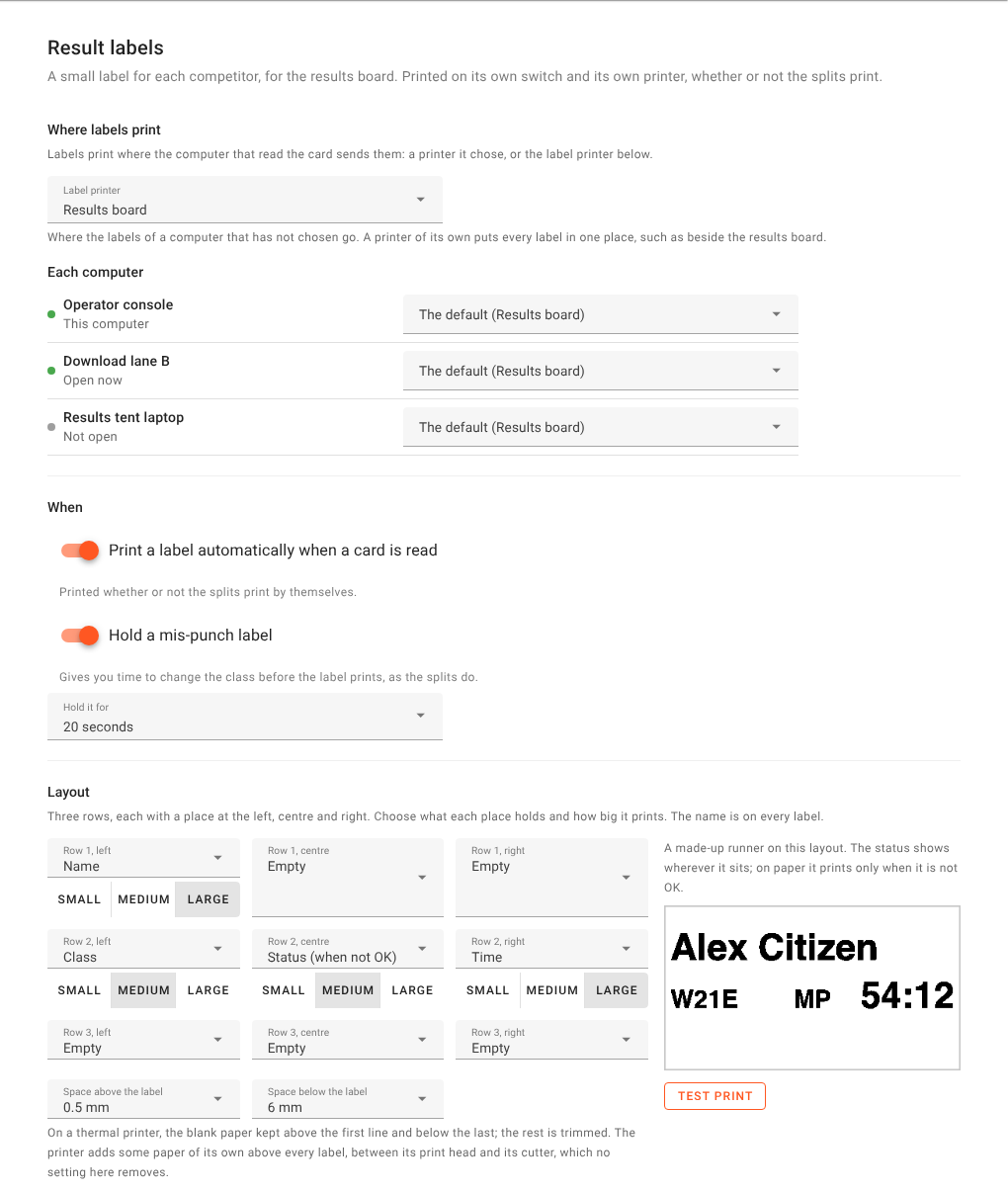
A label has three rows, each with a place at the left, the centre and the right. Choose what each place holds and how big it prints: Small, Medium or Large. The fields are Name, Time, Class, Status (when not OK), Club name, Club abbreviation, Club logo, Country and Course.
- The name is on every label. Its place can’t be emptied; put another field over it and the two swap.
- The status prints only when it is not OK, and the time only for a valid run. A mis-punch label reads
MPwhere the time would be. - The place is not offered. A label prints the moment the runner downloads, and their place is true only until the next runner does. The order of the labels on the board shows it instead.
- Space above the label and Space below the label keep that much blank paper around the label on a thermal roll and trim the rest. Turn them down to save paper, or up for room to pin it.
The preview is the label itself, drawn by the server for a made-up runner. Test print under it prints that label, with the settings as they are on screen, saved or not.
Where labels print
Label printer on the same page is the labels’ default, for every computer that has not chosen. It has three kinds of answer:
- The splits printer, straight after the splits — the label comes out of whichever printer that computer’s splits come out of, directly after the slip.
- A printer by name — every label in one place, such as beside the results board, whichever desk read the card.
- Not printed — a computer that has not chosen prints no labels.
Each computer can also choose for itself under Each computer: The default, The same printer as its splits, any printer, or Don’t print. On the computer itself, the This computer card on the Printers page shows both of its choices side by side.
Setup 5: splits and labels on one printer
The simplest label setup is Setup 1 with labels turned on. The Label printer starts on The splits printer, straight after the splits, so there is nothing else to choose. Each runner’s label comes out right after their slip. Tear the label off and put it on the board, and hand over the slip.
The order is guaranteed. The server sends the slip first and the label second into that printer’s one queue, so the label always follows the slip it belongs to. When a mis-punch slip is held back, the label on the same printer is held with it, so a label never comes out ahead of its slip.
Setup 6: a printer at each lane, and one label printer for the board
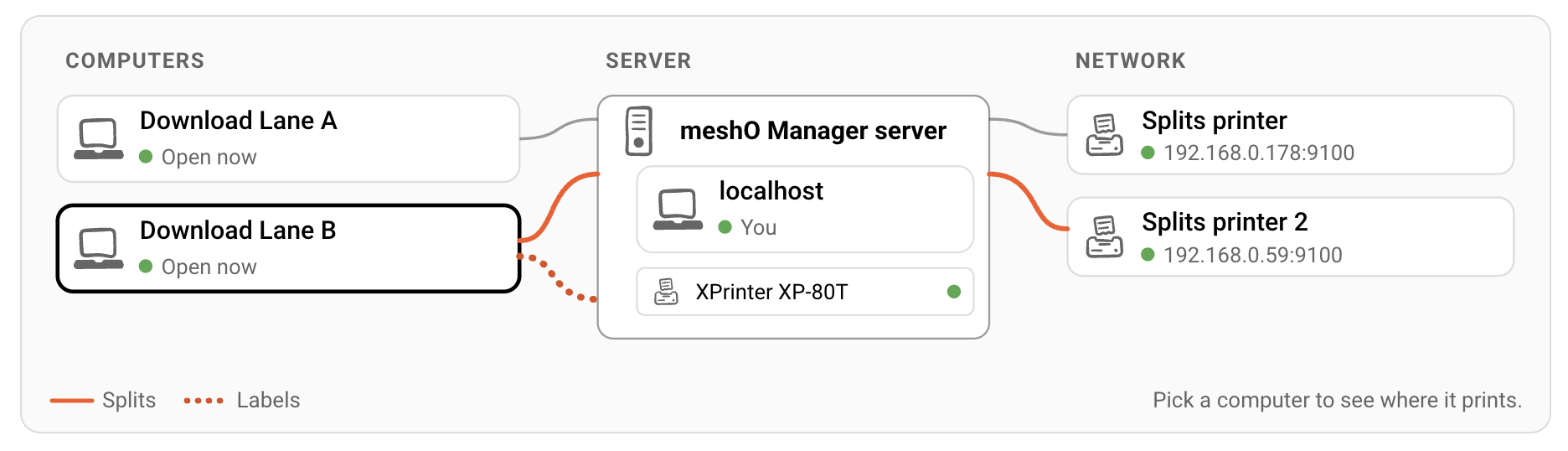
This is the setup most bigger events end up with: each download lane hands its runners their slip on its own printer, and every label, from every lane, comes out of one printer beside the results board.
- Set up each lane’s printer as in Setup 4, each lane’s splits pointed at its own.
- Add the label printer. Where you put it is up to you:
- plugged into the server, if the server sits near the board. It prints with no Manager page open, which makes it the most dependable choice;
- on the network, if the board is somewhere else;
- plugged into a laptop in the results tent, shared with every computer. It prints only while Manager is open on that laptop, but labels wait for it for up to two hours, so a laptop that sleeps for a while loses nothing.
- In Settings → Printing → Result labels, set Label printer to it, and switch on Print a label automatically when a card is read.
- Leave every lane’s labels on The default.
Pick a lane on the Printers map and you should see a solid line to its own printer and a dotted one to the label printer.
Labels on sticky die-cut labels
A label printer with its own driver, the kind that prints onto die-cut sticky labels such as a Brother QL, works as a printer plugged into the server. Install it on the server’s computer, add it Into the server, and choose Draw the page for its driver. The label is laid out on whatever label size the driver reports, and always on one label: a layout too tall for the label, such as three large rows on a narrow label turned sideways, is printed smaller until it fits. The preview on the Result labels page does not know the driver’s label size, so it shows the layout at full size.
A gap above every label?
After each cut, the paper between a thermal printer’s print head and its cutter becomes the top of the next label, typically 10 to 20 mm. No command can take it back. Many thermal printers have a setting of their own for it, usually called top margin reduction or paper reduction, in the maker’s settings utility. Keep the Paper cut on 1 or 2: the older cuts and No cut feed about 21 mm before cutting, and that paper lands at the foot of each label.
Reprinting a label
Open the competitor, choose the Prints tab, switch the view from Splits to Result label, and press Print. It prints where this computer’s labels go, even when labels are switched off: that switch is only about downloads. If a label was still waiting for that runner, it is dropped, so the board gets one, not two.
Cards read over the radio network
At an event with meshO radios, a runner can download at the finish without queuing at a desk: a SportIdent station set to read SIAC cards over the radio reads their card as they finish, and the card reaches Manager over the meshO network. Manager waits until it has the whole card, then scores it like any other download.
Nobody is at a desk for these cards, and no computer read them, so no computer’s choices apply. They have a page of their own, Settings → Printing → Radio downloads, and a box of their own on the Printers map, the Radio network, which appears whenever meshO Prime is switched on.
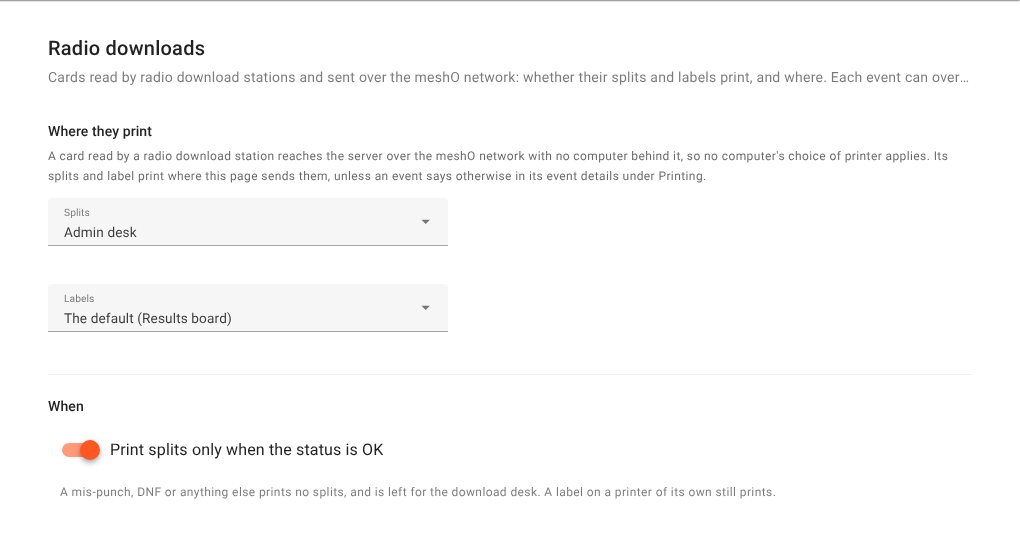
- Splits — The default (the default splits printer), any printer every computer may use, or Don’t print.
- Labels — The default (the label printer), The same printer as its splits, any printer every computer may use, or Don’t print.
- Print splits only when the status is OK — a mis-punch, DNF or anything else prints no slip at the finish, and is left for the download desk to look at with the runner. A label on a printer of its own still prints.
These say only where. Whether a radio download prints a slip or a label at all is still decided by the same two switches as every other download: Automatic print splits on download and Print a label automatically when a card is read. The page says so under a choice when its switch is off.
A self-download printer. A network printer at the finish, chosen for Splits here, gives runners their slip as they come through the chute, with nothing to read at a desk.
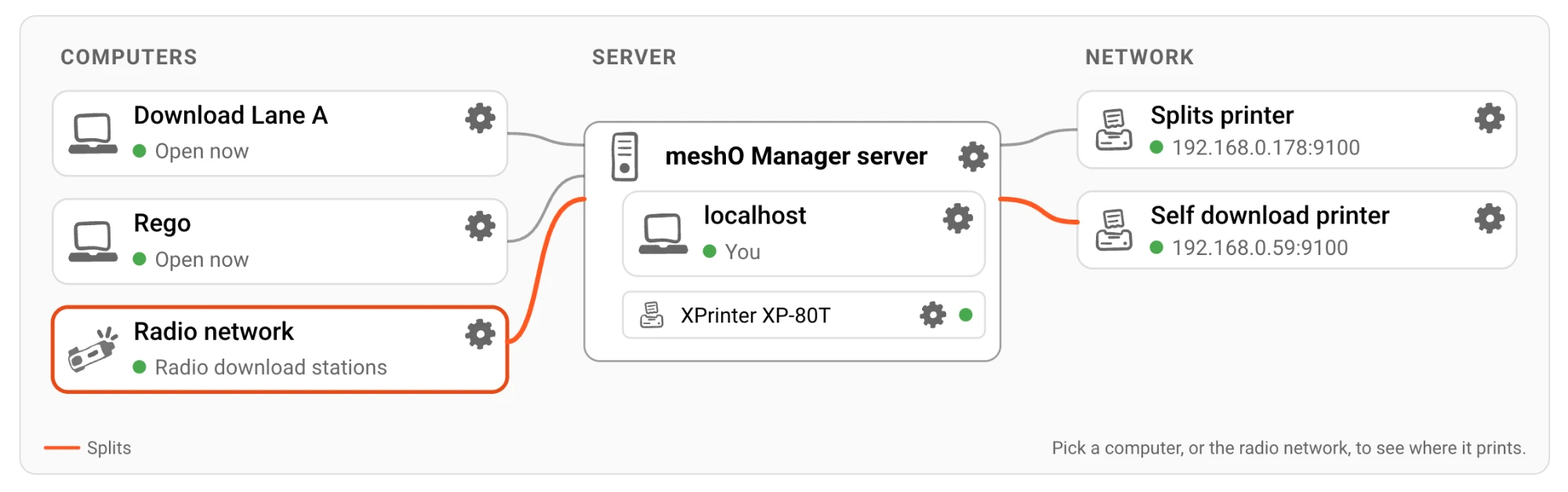
Choose a printer the server prints on by itself for radio downloads: one on the network, or one plugged into the server. A laptop’s shared USB printer can be chosen, but it prints only while Manager is open on that laptop, and nobody is standing at the finish to notice when it is not.
Nobody to tell. A print for a radio download that can’t be printed has no desk to report to, so it raises an alert in the event instead: at once when a print fails, or after half a minute when it is waiting for a laptop that is not open.
One slip per card. A radio station reads a card again and again while the runner stands near it, and several radios can hear it. Manager puts the readouts together into one download per card. If a fuller read arrives later and the result has not changed, nothing more prints.
An event can take its own line on all three, in Event details → Printing → Cards read over the radio network.
Setup 7: a carnival
A big carnival puts everything above together. Here is one worked example: a three-day event with a rego desk, three download lanes, an enquiries desk for fixing problems, a results board, a prize-giving table and radio download stations at the finish. Yours will differ, but the plan works the same way.
The printers
| Printer | Where it is | Connected | For |
|---|---|---|---|
| Lane A printer | download lane A | USB into lane A’s Windows laptop | lane A’s splits |
| Lane B printer | download lane B | USB into lane B’s MacBook | lane B’s splits |
| Lane C printer | download lane C | network | lane C’s splits |
| Enquiries printer | enquiries desk | network | reprints, rego and enquiries |
| Label printer | beside the results board, next to the server | plugged into the server | every result label |
| Prize table | prize-giving table | network | results sheets |
| Finish printer | finish chute | network | slips for cards read over the radio |
The computers
| Computer | Splits print on | Labels print on |
|---|---|---|
| Results desk (the server) | The default (Enquiries printer) | The default (Label printer) |
| Rego | Enquiries printer | Don’t print |
| Download lane A | Lane A printer | The default (Label printer) |
| Download lane B | Lane B printer | The default (Label printer) |
| Download lane C | Lane C printer | The default (Label printer) |
| Enquiries | Enquiries printer | The default (Label printer) |
| Radio network | Finish printer, OK runs only | The default (Label printer) |
The installation’s defaults are Default splits printer: Enquiries printer and Label printer: Label printer. Any computer nobody planned for, a spare laptop brought out at lunchtime, prints its slips at enquiries and its labels on the board without anyone setting it up.
Why it is laid out like this
- The lanes hand over the slip. Each lane has its own printer, so a runner leaves the desk with their slip and a jam takes out one lane, not three.
- Lanes A and B use USB printers, lane C a network printer. Mixing is fine. Lane A’s Windows laptop needs the one-off driver change; lane B’s MacBook needs nothing. Lane C can be any laptop at all, because the server does its printing.
- Every label goes to one printer, next to the board, plugged into the server so it prints even if nobody has Manager open at the results desk.
- Enquiries prints where the conversation is. The enquiries desk corrects classes, re-reads cards and reprints slips. Its own reads and reprints come out in front of the runner it is talking to.
- Rego prints no labels. The rego desk prints only by hand, from a competitor’s Prints tab: a slip for a runner who lost theirs, say. It has no reason to send labels to the board. Its splits go to the enquiries printer rather than nowhere, because a computer whose splits go nowhere has its print buttons greyed out.
- The finish prints only clean runs. A runner with a mis-punch gets no slip at the finish; the download desk deals with them in person.
- Results sheets are chosen each time. The prize table printer is nobody’s default. A results sheet asks which printer it is for (see Every place that prints), so a sheet for the prize table never comes out at a download desk by accident.
Setting it up, in order
- Install the server and the printers plugged into it. Install the label printer on the server’s computer, as in Setup 1, step 1.
- Fix the addresses. Give the server and every network printer a fixed address or a DHCP reservation on the event router.
- Turn on HTTPS on the server, and trust meshO’s certificate on every laptop that reads cards or has a USB printer.
- Open Manager on every computer and name it. Rego opens the rego desk at
/rego; it registers itself as a computer like the rest. - Add the network printers and the server’s printers, from any computer, and print the setup test on each.
- Add each USB printer on its own laptop, with Print the splits of cards read here on it ticked. On Windows laptops, run Zadig first.
- Set the defaults: Default splits printer on the Splits print page, Label printer on the Result labels page.
- Set each computer’s choices that differ from the defaults, in the Each computer tables, and save.
- Set Radio downloads: splits on the finish printer, Print splits only when the status is OK on.
- Turn on the switches: Automatic print splits on download, and Print a label automatically when a card is read.
- Check the map. Open Settings → Printing → Printers and pick each computer, and the radio network, in turn. The lines should match your plan.
- Test every route with a card. Read a test card at each lane and at enquiries, and one at a radio download station. Each slip should come out at its lane and each label at the board.
Overrides for one event
Printers, and where each computer prints, belong to the printers and the computers, not to an event, so they carry over from one event to the next. What an event can change is when and what it prints, under Event details → Printing: whether downloads print splits by themselves, whether a mis-punch waits, the logo, the top 3, mistakes, strong legs and the splits language, whether it prints result labels and on which label printer, and where its radio downloads print.
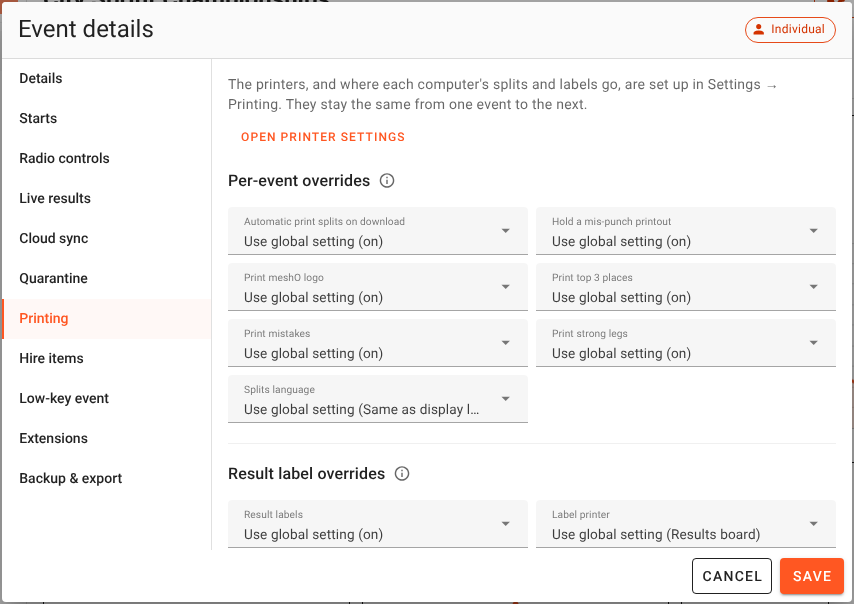
A club night that hands slips across the counter can turn the mis-punch hold off for that event. A school carnival can turn off the mistakes section. An international event can print its slips in another language. None of it touches any other event.
Windows, Mac and Linux together
Plenty of events run a Mac server with Windows download laptops, or the other way round, and it works. The slip is laid out by the server, so it is the same slip whatever the computer that printed it runs. The operating system matters in exactly two places:
- A printer plugged into the server is printed through the server’s own print system: the Windows print spooler on Windows, and CUPS on a Mac or Linux.
- A USB printer plugged into a laptop is printed by that laptop’s browser, and what stops a browser opening a USB printer depends on the laptop’s system.
A network printer doesn’t care about either: the server sends it its prints directly, the same way from Windows, a Mac or Linux.
| Windows | macOS | Linux | |
|---|---|---|---|
| A printer plugged into the server | Install it in Windows and keep Windows’ own driver | Add it in System Settings → Printers & Scanners | Add it to CUPS; CUPS must be installed |
| A network printer | Nothing to do | Nothing to do | Nothing to do |
| A USB printer on a laptop | Chrome or Edge over https, and switch its driver to WinUSB with Zadig, once | Chrome or Edge over https; nothing else | Not tested with meshO |
| Printing on someone else’s printer | Any browser | Any browser | Any browser |
| Trusting meshO’s certificate | Trusted Root Certification Authorities | Keychain Access, Always Trust | The system store, and Chrome’s own |
A USB printer on a Windows laptop: the Zadig step
When a USB printer is plugged into a Windows computer, Windows attaches its own driver, USB Printing Support, before anything else gets a look, whether or not you ever install the printer. On Windows, a browser can open only a USB device whose driver is WinUSB, so it is refused with “Access denied”, and Manager says Windows has its own driver on this USB printer. It is not the printer’s fault, nor the browser’s, nor the https link’s. It happens to almost every USB printer.
Do this once per laptop, with the printer plugged in and switched on:
- If Windows has installed the printer, remove it in Settings → Bluetooth & devices → Printers & scanners.
- Download Zadig from zadig.akeo.ie and run it. There is nothing to install.
- Choose Options → List All Devices, and pick the printer in the list. If it appears twice, choose the one marked (Interface 0).
- Set the driver on the right to WinUSB and click Replace Driver.
- Unplug the printer and plug it back in, close the browser completely, and open Manager again at its https link.
- Run Test print. If Manager says the printer isn’t plugged in, open it and Choose the USB printer again: the browser sees it as a new device now.
Removing the printer from Windows’ printers is not enough on its own; the driver change is the step that matters. Afterwards, only browsers can print on that printer, and Windows remembers the change for that printer on that USB port. The documentation page USB printers on Windows has the full steps, including how to undo it.
Never do this to a printer plugged into the server. The server prints through Windows’ own driver, and switching it to WinUSB stops the server printing on it.
Common combinations
A Mac server with Windows download laptops. The server’s own printer goes through CUPS: add it in System Settings → Printers & Scanners and then Into the server. Each Windows laptop with a USB printer needs the Zadig step once and Chrome or Edge. Or give the Windows lanes network printers, and skip it. Each laptop trusts the Mac’s certificate in Windows’ Trusted Root Certification Authorities.
A Windows server with Mac download laptops. The server’s printer stays on Windows’ own driver. A Mac laptop’s USB printer opens in Chrome or Edge with nothing more to do; if a print ever fails with The USB printer could not print it, another program on the Mac has the printer open. Each Mac trusts the server’s certificate in Keychain Access, set to Always Trust.
iPads and iPhones. Safari has no WebUSB, so an iPad can’t host a USB printer. It can print on every other printer, so an iPad makes a good rego desk.
Firefox. Firefox 151 and later reads SportIdent cards, but cannot drive a USB printer. A Firefox download laptop prints happily on network printers and on the server’s.
Drawn for a driver. Draw the page for its driver is offered only for printers plugged into the server. On Windows the slip is drawn straight onto the printer’s page, the way MeOS does it, so it comes out sharp at the print head’s own resolution. On a Mac or Linux it is drawn as a PDF the size of the slip and handed to CUPS. Either way the driver cuts the paper, so turn on cutting at the end of each document in the printer’s own settings if slips come out uncut.
Every place that prints
Automatic printing covers most of the day. Here is everything in meshO Manager that can put something on paper, and where each one goes.
| Where | What prints | On which printer | By itself? |
|---|---|---|---|
| Card downloads: a card read on a SportIdent or EMIT reader | The splits, and a label | Where this computer’s splits and labels go | Yes, when the switches are on |
| Card downloads: assigning an unknown card to a competitor | The splits, and a label | Where this computer’s splits and labels go | Yes, when the switches are on |
| Card downloads: the printer button on a download’s row | The splits | Where this computer’s splits go | By hand |
| A radio download station | The splits, and a label | Settings → Printing → Radio downloads | Yes, when the switches are on |
| A competitor’s Prints tab, in Manager and at the rego desk | The splits, or the label | Where this computer’s splits, or labels, go | By hand |
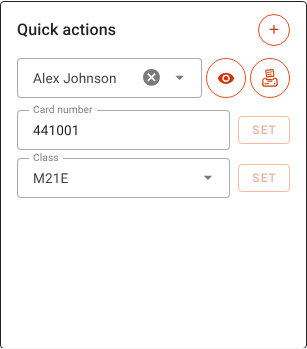
| Dashboard → Quick actions: the printer button | The splits | Where this computer’s splits go | By hand |
| Results → Publish → Print to splits printer… | A results sheet | The printer you choose in the dialog | By hand |
| Settings → Printing → Printers: Test print, Printer setup test | A test | That printer | By hand |
| Settings → Printing → Result labels: Test print | A sample label | The label printer chosen on the page | By hand |
Some downloads print nothing by themselves, on purpose: a card nobody owns, a card read twice, a card whose owner already has a result, a competitor with no class, a run with no start time at all (its slip would carry no times), a run typed in by hand at a console (the runner left long ago), and a fuller radio read that didn’t change the result. Every other verdict prints, mis-punches, DNFs and disqualifications included: a runner with a problem is exactly the one who wants their slip.
The results sheet
On the Results page, choose Publish → Print to splits printer…. Choose how many places per class to Show (Top 3 to begin with, or All), which classes, and which printer. The printer list holds every printer this computer may print on, a laptop’s shared USB printer included, and opens on the one this computer’s splits go to. The preview beside the settings is the sheet itself, so you can get it right before spending any paper.
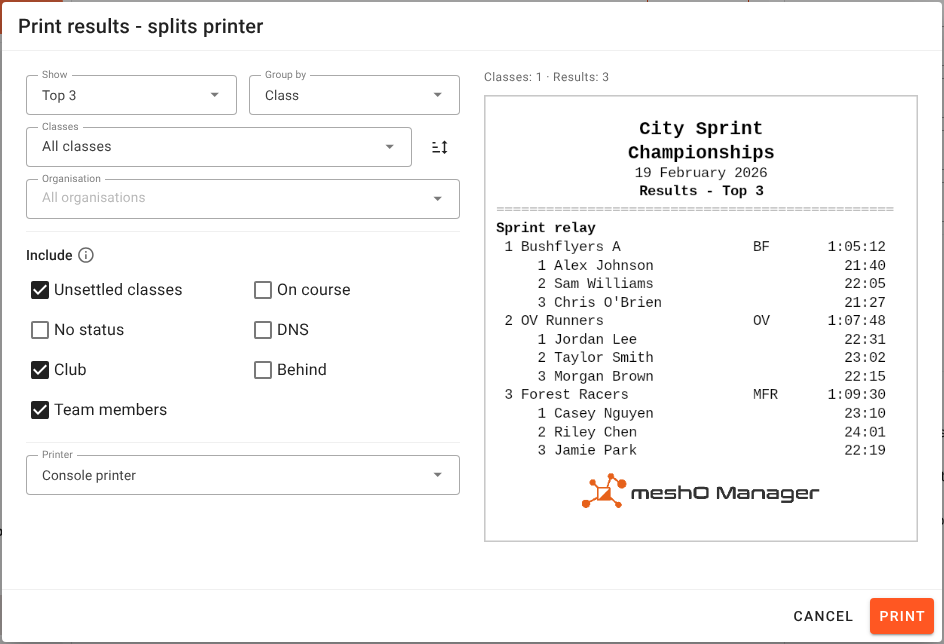
A class where somebody could still change the places is marked with an asterisk, explained once at the foot of the sheet. Turn off Unsettled classes to leave those classes off a sheet that is about to be read out. If the printer you chose is removed while the dialog is open, the sheet is not printed somewhere else instead: Manager tells you, and you choose again.
Mis-punches wait before they print
Most mis-punches at a download desk are not mis-punches. The runner ran a different course from the one they entered, the operator changes their class, and the download is scored again. A mis-punch slip printed the instant the card was read only ever goes in the bin. Over a weekend, that is a lot of paper.
So a mis-punch slip waits, 20 seconds by default and up to a minute. While it waits, the result banner on the download page draws the time as an arc around a small printer icon, emptying as it runs out.
| Inside the window, you… | and what comes out is… |
|---|---|
| change the class, or anything else that scores the download again | the corrected slip, straight away |
| press the ✕ beside the countdown, or open a dialog about that runner | nothing |
| unassign or delete the download | nothing |
| print the slip by hand | your slip, once |
| do nothing | the mis-punch slip, when the window closes |
Changing the class to another one the punches don’t fit either starts the window again: you haven’t finished correcting yet. Only mis-punches wait; every other result prints straight away. The wait is per runner, so cards keep arriving and printing while you deal with one. Labels have a hold of their own, on the Result labels page. How long the wait is, is set once for the installation. Whether there is a wait at all can be set for each event, because a club night handing slips across the counter may not want twenty seconds of nothing between the beep and the paper.
Getting the slip right
Its own font, a picture, or drawn for a driver
Every printer is printed in one of three ways, chosen when you add or change it.
- Send it ESC/POS (thermal printers). The slip is sent as the printer’s own commands and printed in its built-in font. It is the fastest, and the right place to start. Set its Characters per line and Paper cut from the setup test.
- Draw the slip and send it as a picture (thermal printers). Manager draws the slip itself and sends it as one black-and-white picture. You choose the text size, line spacing and boldness, and no driver is needed, so it works for any thermal printer: on the network, plugged into the server, or on a laptop. Characters per line still matters here, because it tells Manager how wide the print head is, and Manager still sends the cut.
- Draw the page for its driver. For a printer plugged into the server only. The slip is drawn onto the driver’s own page at the print head’s resolution, so it comes out sharp on a thermal printer, a label printer or an office printer alike. The driver fits the slip to its paper and cuts it, so characters per line and paper cut don’t apply.
A drawn slip, as a picture or for a driver, has three more settings:
- Text size: 100%, 115%, 130% or 150%. Bigger text prints more clearly on a tired printer; long names in a table are shortened to make room.
- Line spacing: Spacious, Medium, Compact (the default) or Extra compact, for the shortest slip.
- Print everything in bold: thicker strokes throughout, worth trying on a worn print head or cheap paper.
On a drawn printer, the Printer setup test prints a sample at every size, plain and bold, so you can compare them on one slip. On a printer sent a picture, it prints the usual rulers and cuts first, because that printer still needs its characters per line and its cut. A picture is a bigger job than text, and a cheap printer prints it more slowly: if slips start backing up at a busy finish, switch that printer back to ESC/POS. Result labels are always drawn, whichever way a printer is set.
What goes on the slip
Settings → Printing → Splits print, under Layout, decides what goes on every slip, on whichever printer prints it: Print meshO logo, Print top 3 places on splits, Print mistakes on splits, Print strong legs on splits, the Splits language, and Print QR code. Every section appears only when there is something to say: a runner with no class, or whose card hasn’t been read, has nothing to print.
The language of the slip is independent of the language the operator’s screen is in. An international event can print its slips in another language for itself.
The QR code is off on a new installation. Switch on Print QR code and press Use this server’s spectator URL, and each slip ends with a code that opens that runner’s own result on a phone, as long as the phone can reach the server: on the event’s Wi-Fi, say. If your results are published somewhere else, type that address instead.
Mistakes and strong legs
Mistakes lists the legs where the runner lost time, and the total lost. Strong legs is the same analysis run the other way round: the legs where they gained the most, at most five, measured against the runner’s own pace over the rest of their course rather than against the fastest split. Somebody half way down the field never has the fastest split on anything, so measured against themselves they still get told which control they nailed. The two are separate switches: a beginners’ club night may want the encouragement without the criticism.
When a print does not come out
A print that can’t be printed is shown on the computer that asked for it, the one that read the card or where someone pressed Print, whatever page it is on. It names the runner and the printer and says why, and stays until you deal with it, or for 12 hours, so a laptop that was closed when it happened still shows it when it opens.
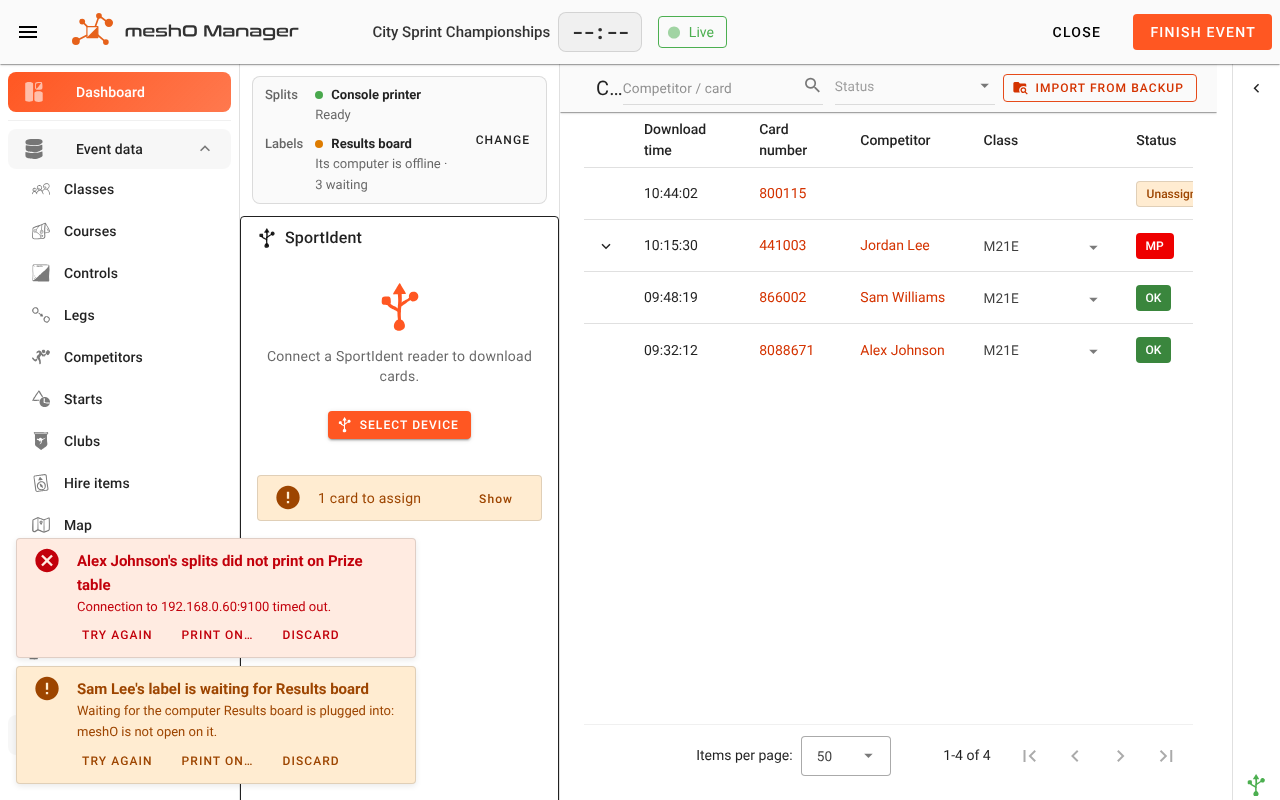
- Try again, once the printer is back: the roll changed, the laptop opened, the cable plugged in.
- Print on…, to print it on another printer now. Use this when the runner is standing in front of you.
- Discard, when it is not wanted any more.
A print waiting for a laptop’s printer prints by itself the moment that laptop has Manager open with its printer plugged in: within 5 minutes for a slip or a test print, after which the runner has walked away and it is dropped, and within 2 hours for a label or a results sheet. A printer that stops part way through a print, out of paper or with its cover open, fails that print after a short wait, rather than holding up everything queued behind it.
What the message usually means
| What you see | What it usually is |
|---|---|
| The print buttons are greyed out | This computer’s splits go nowhere: its choice is Don’t print, or it uses the default and the default is Not printed |
| Nothing prints on download, but printing by hand works | Automatic print splits on download is off, in Settings or for this event |
| Slips come out in the wrong tent | That computer’s splits go to another printer. The strip on its Card downloads page says where; Change puts it right |
| Connection to … timed out | A network printer: check its address and port, and that it’s on the same network. Did its address change overnight? |
| … stopped taking the print part way through | A network printer answered, then stopped: out of paper, cover open or jammed |
| …‘s print system did not answer in time, or refused the print | A printer plugged into the server: Windows or CUPS is stuck, or has the printer paused |
| The server’s print system is not answering. | The server’s computer can’t list its printers at all; restart its print service, or the computer |
| Waiting for the computer … is plugged into | The laptop with that USB printer doesn’t have Manager open, or has gone to sleep |
| Waiting for … to be plugged in | The USB printer is unplugged or switched off |
| This browser can’t use a USB printer | Use Chrome or Edge on the laptop with the printer |
| Needs the secure (https://) link | Open Manager on that laptop through its https link |
| Windows has its own driver on this USB printer | Switch the printer’s driver to WinUSB with Zadig |
| There was no printer to print it on. | Its printer was removed, and that computer’s prints now go nowhere. Print on…, then choose a printer for that computer |
| An alert in the event about a printer it prints on | A printer this event chose, for labels or radio downloads, was removed. Prints go to the default meanwhile |
| Long lines wrap; slips aren’t cut | Characters per line or Paper cut don’t match the printer. Print the setup test again |
The documentation’s Printing splits page covers each of these, and every setting, in full.
A checklist for setup day
Most printing problems on the day are a setup step that was skipped the evening before. Do these at the venue, on the event network, with the computers you will use.
- Paper. A spare roll beside every printer, and spare paper in the box.
- Power. Every printer and laptop plugged in, laptops set not to sleep.
- Addresses. The server and every network printer on a fixed address or a DHCP reservation.
- The server’s printers installed in Windows, macOS or CUPS, and added Into the server.
- Every printer set up with its setup test: characters per line and cut.
- Every computer opened and named, at the address it will use on the day, over https where it reads cards or has a USB printer.
- USB printers on Windows laptops switched to WinUSB with Zadig.
- The defaults chosen: Default splits printer, and Label printer if you print labels.
- The switches on: Automatic print splits on download, and Print a label automatically when a card is read.
- The map checked: pick every computer, and the radio network, and follow its lines.
- A test card read at every desk, and at a radio download station if you have one. Every slip and every label where you expected it.
- The event’s own printing checked in Event details → Printing, for any override left over from last time.
Screens are from meshO Manager with demonstration data, apart from the ones of the XPrinter XP-80T and the self-download printer, which are from a real installation. The maps of each setup are drawn in the style of Manager’s Printers map. Further reading in the meshO Manager documentation: Printing splits, USB printers on Windows, HTTPS and certificates and Reaching the server: name or IP. meshO Manager is free to download and use.