
Software
Morning race, afternoon chase
A chasing start in the afternoon, seeded by a race run that morning, with the last morning runners still out when the chase begins. Here is how to set the day up in meshO Manager so a late finisher still lands in both races, first without radio controls and then with them.

Tate Needham
meshO · · 11 min read
A sprint in the morning, and a chase over the same terrain in the afternoon: the morning’s winner starts first, and everyone else starts behind them by the time they lost in the morning. Whoever crosses the line first in the afternoon wins the day.
A common way to run this is two separate events. Export the morning’s results, import them into the afternoon event, draw the chase from them and start it. That works until a runner from the morning comes in after the export. Their card is read into an event that has already handed its results on, and the afternoon event never hears about them.
The fix is to make the afternoon read the morning’s results directly instead of a copy of them. In meshO Manager that is a carnival: one multi-stage event with the morning race as stage 1 and the chase as stage 2. Both stages are ordinary events, both can be live at once, and the chase is generated from the standings after stage 1, which are the morning’s results as they stand at that moment.
This guide follows one day, City Sprint and Chase. The first part works without any radio controls. The second part adds what changes when the two races share a radio network.
Part 1: without radio controls
1. One carnival, two stages, one day
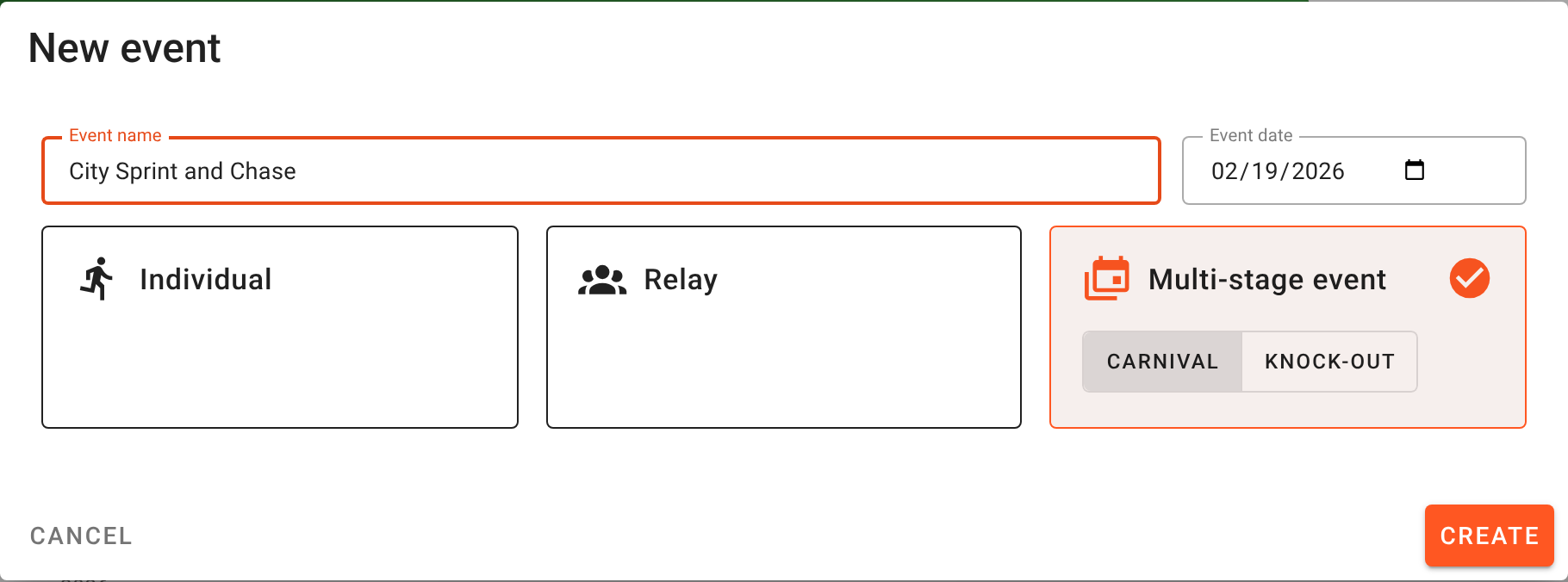
On the Events page choose New, then Multi-stage event and Carnival. Name it, set the date, and click Create, then Continue.
A new carnival has placeholder stages on consecutive days. On the Stages tab, create (or attach) the two events and give both the same date: Morning sprint as stage 1 and Afternoon chase as stage 2. Each stage is a normal event with its own classes, courses, competitors, downloads and results.
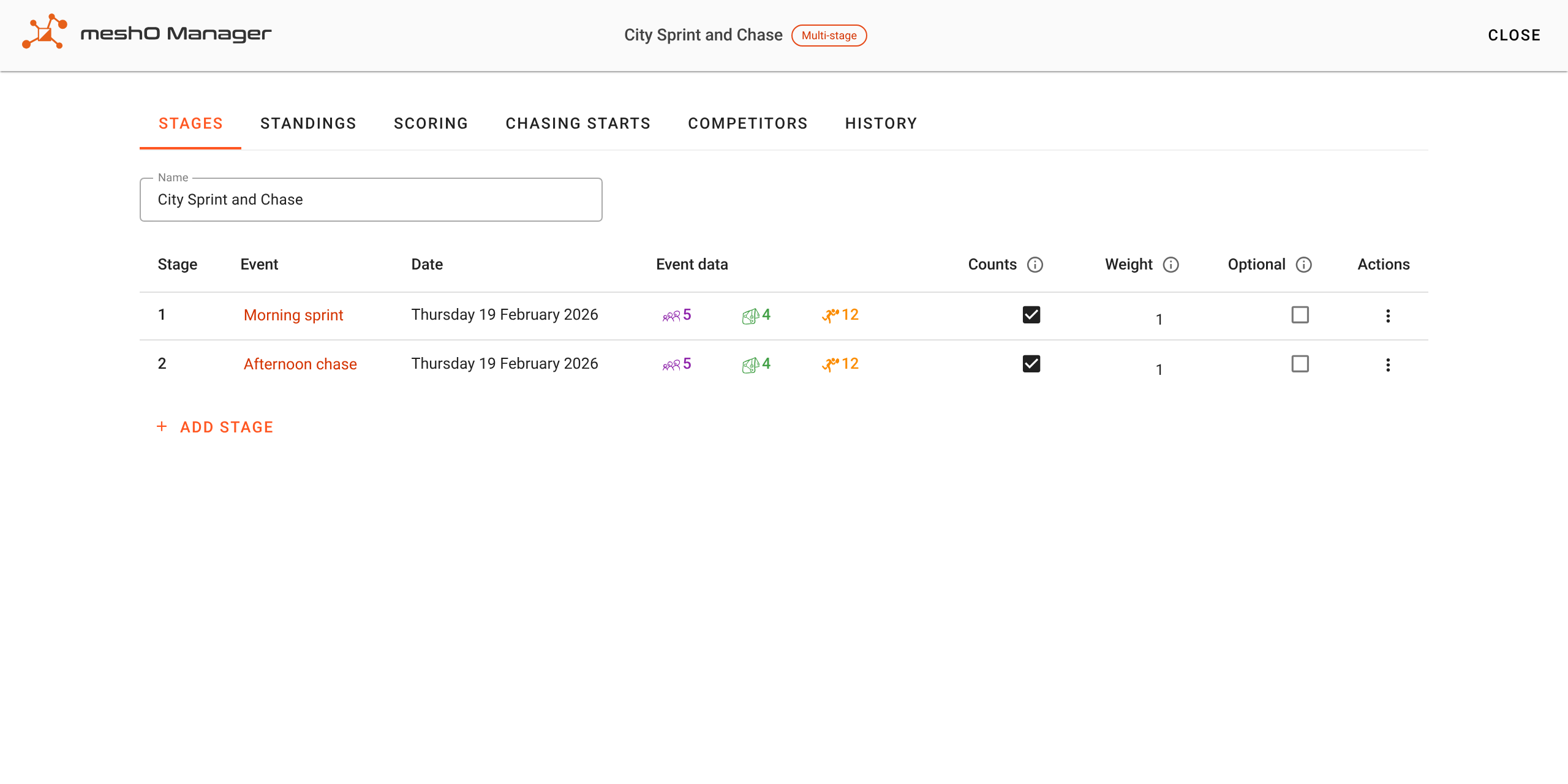
Keep the class names identical in both stages. M21E in the morning and M21 E in the afternoon are two different classes, and everyone in them drops out of the standings and out of the chase.
2. Score it on total time
A chase needs a time gap, so the carnival is scored on Total time (the Scoring tab). After stage 1 the standings are the morning’s results; after stage 2 they are the combined time, and the order across the afternoon finish line is that order.
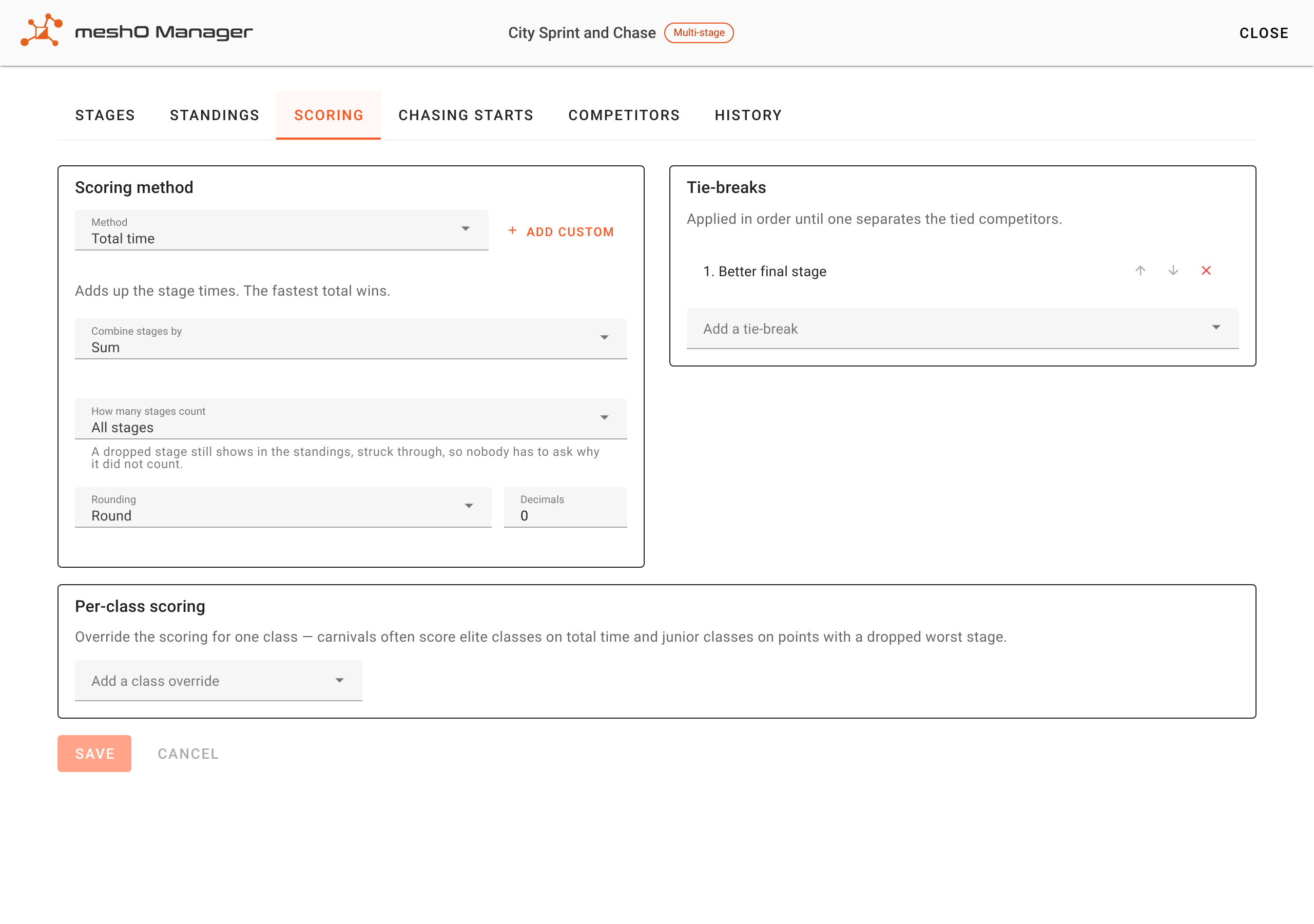
If the morning race only seeds the chase and the afternoon decides the day on its own, untick Counts for stage 1 on the Stages tab. The chase is still generated from the standings after stage 1.
3. Enter the field in the chase
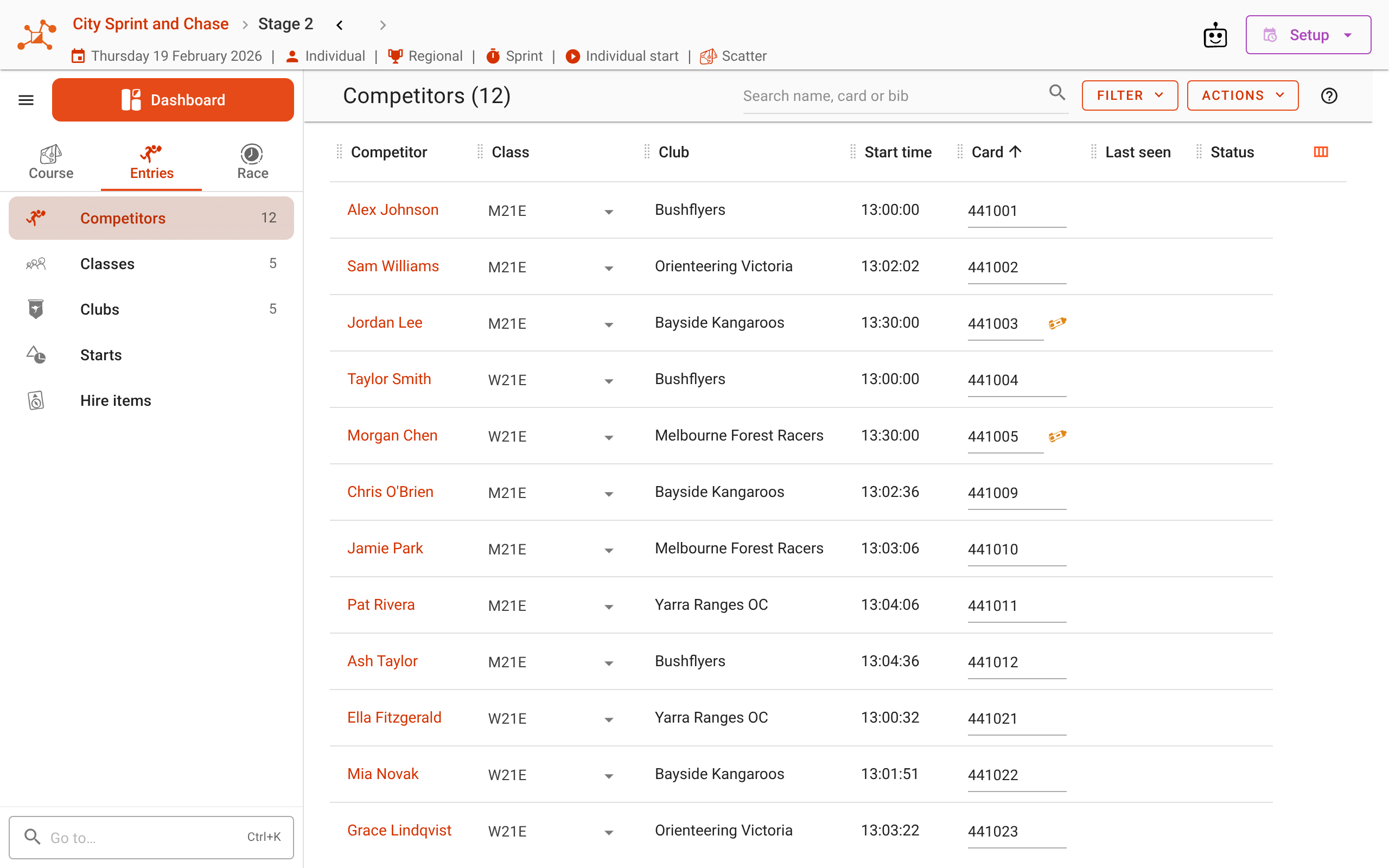
The chase needs its competitors before it can give them start times. Enter them in the afternoon event as you normally would, or let the carnival copy the morning’s field across: the Chasing starts tab offers it when stage 2 is empty.
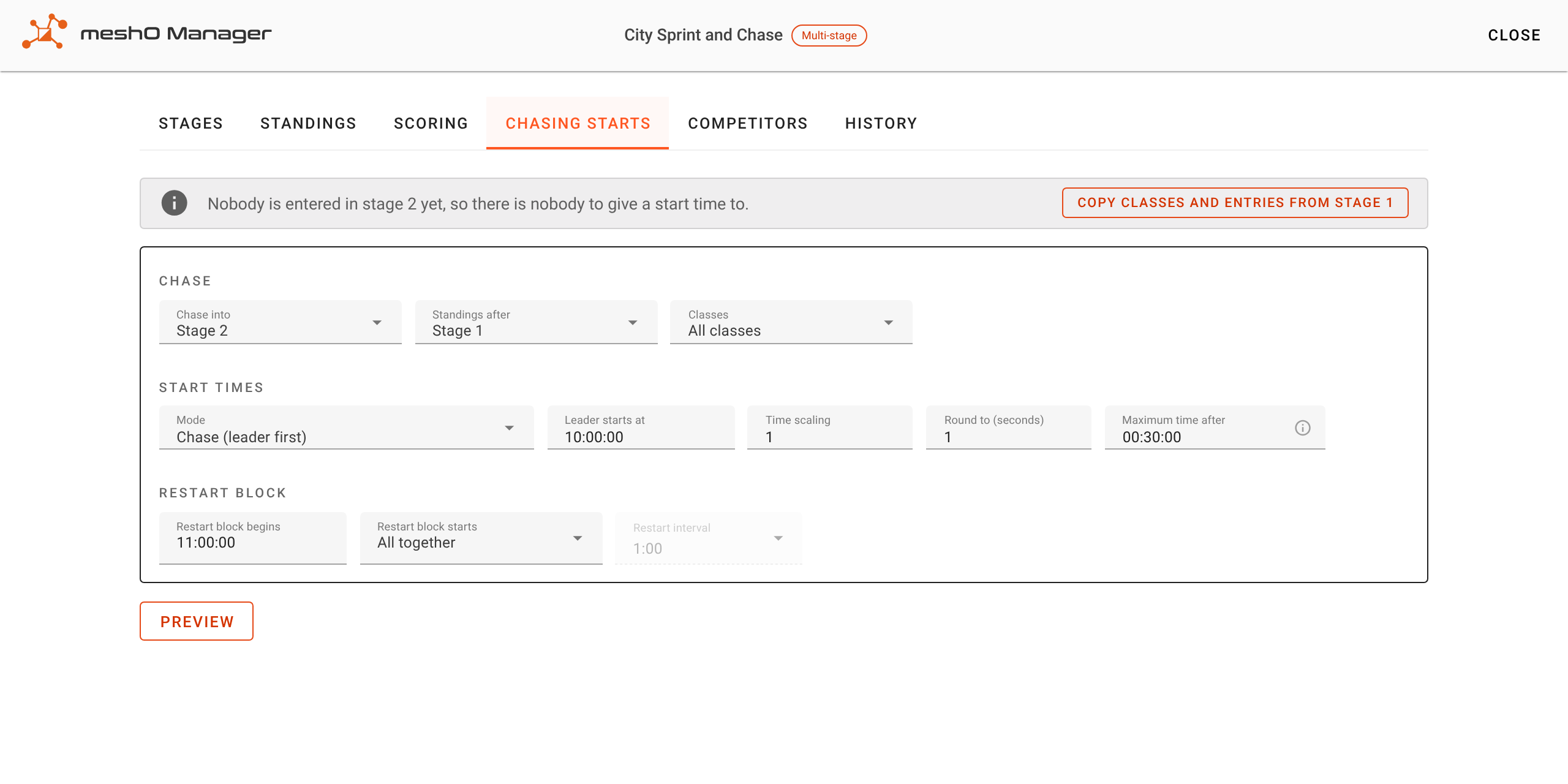
Copying is a merge: anyone already entered in stage 2 is left as they are. Each runner keeps the card they had in the morning, so most people are now entered in both races on the same card. That is normal for a chase, and it matters in part 2.
4. Run the morning race
Start the morning event and run it as you always do. Nothing about it changes because it is a stage.
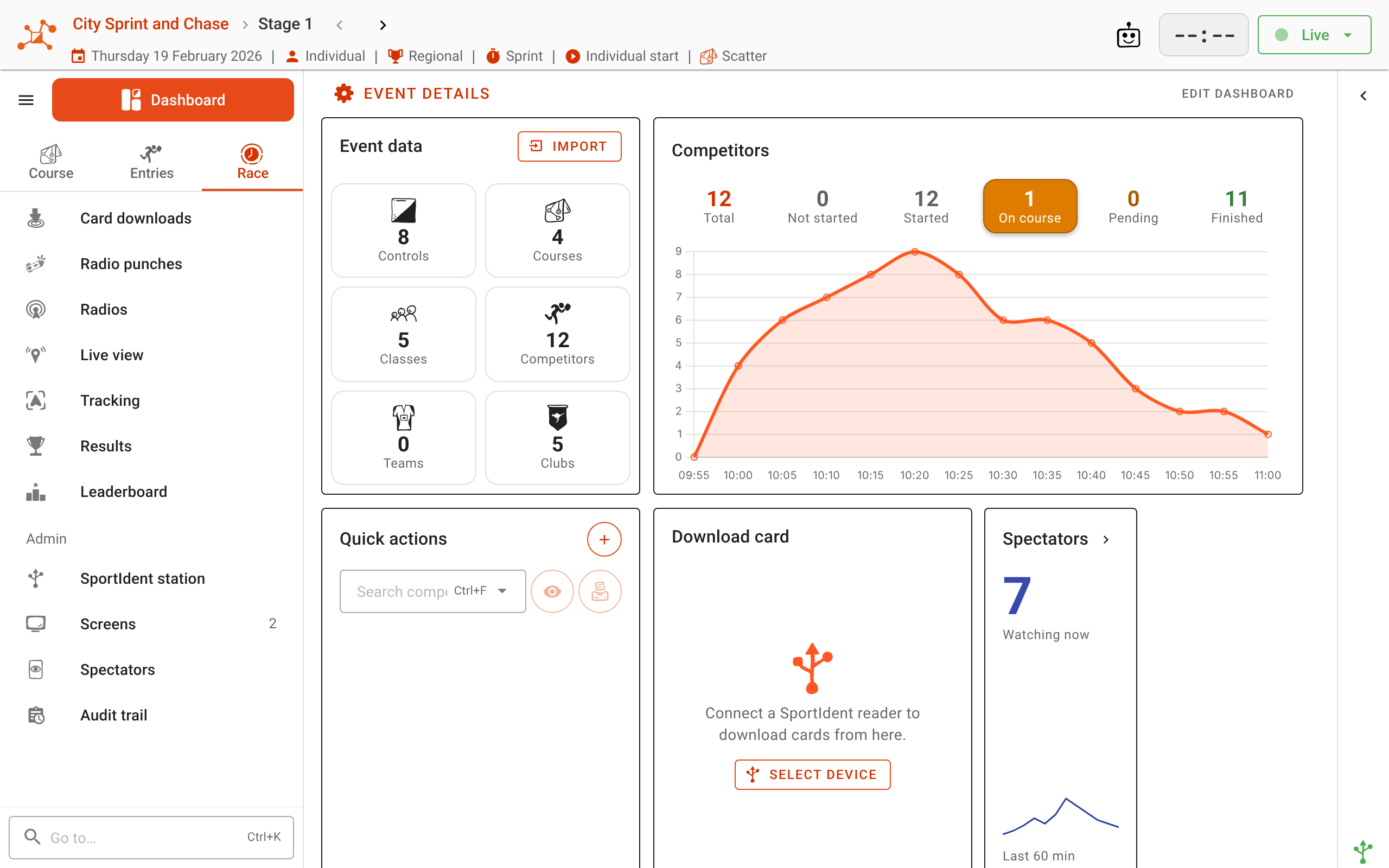
Before you generate the chase, look at the carnival’s Standings tab. It is what the chase will be built from.
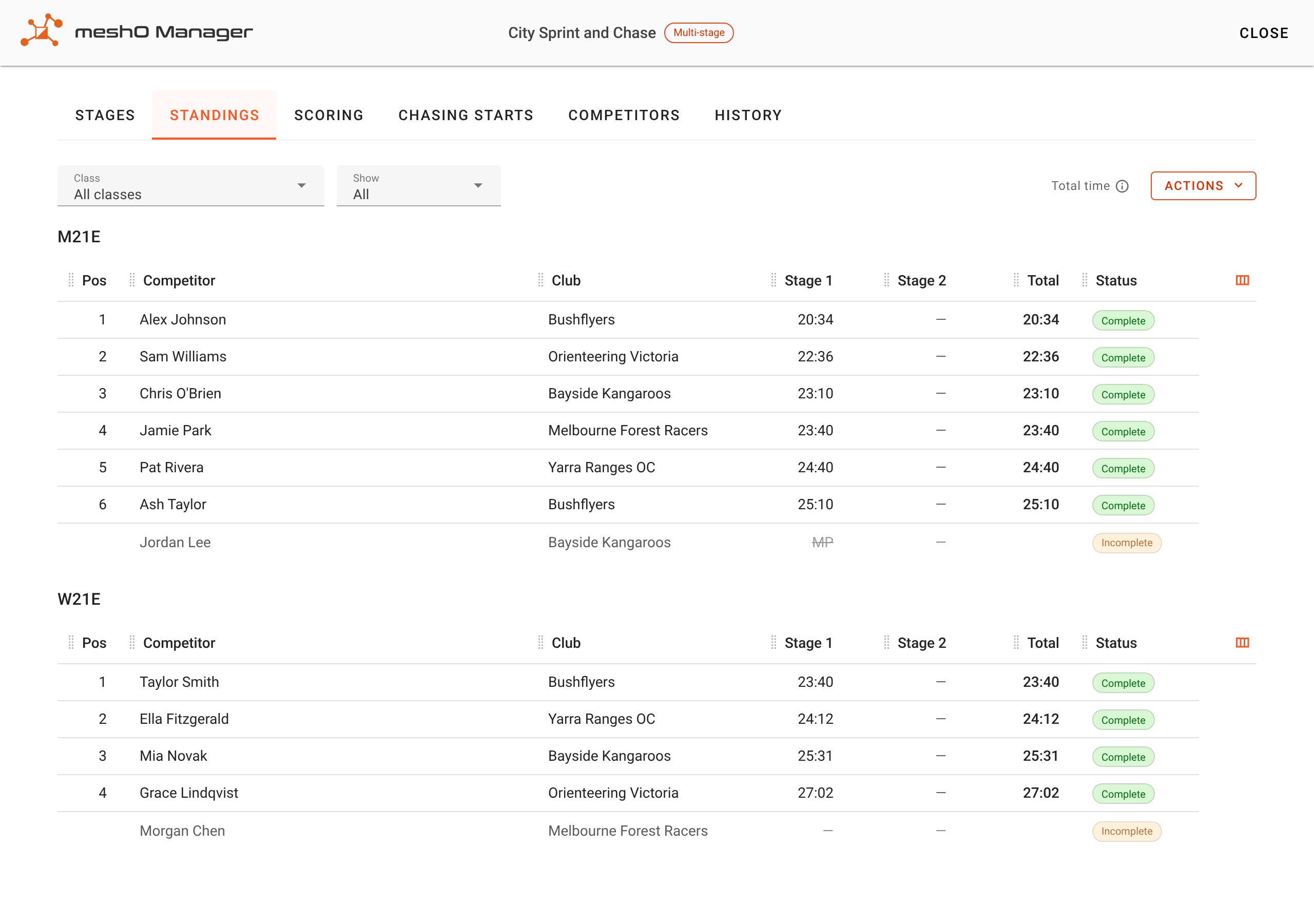
5. Generate the chase
Open the Chasing starts tab.
- Chase into: Stage 2. Standings after: Stage 1. Classes: All classes.
- Mode: Chase (leader first).
- Leader starts at: when the first runner goes. Here, 13:00:00.
- Time scaling: 1 for real gaps. 0.5 halves every gap, for a shorter chase.
- Maximum time after: the cutoff. Anyone further behind than this starts in the restart block instead. Here, 10 minutes.
- Restart block begins: when the restart block goes. Restart block starts: All together, or at intervals.
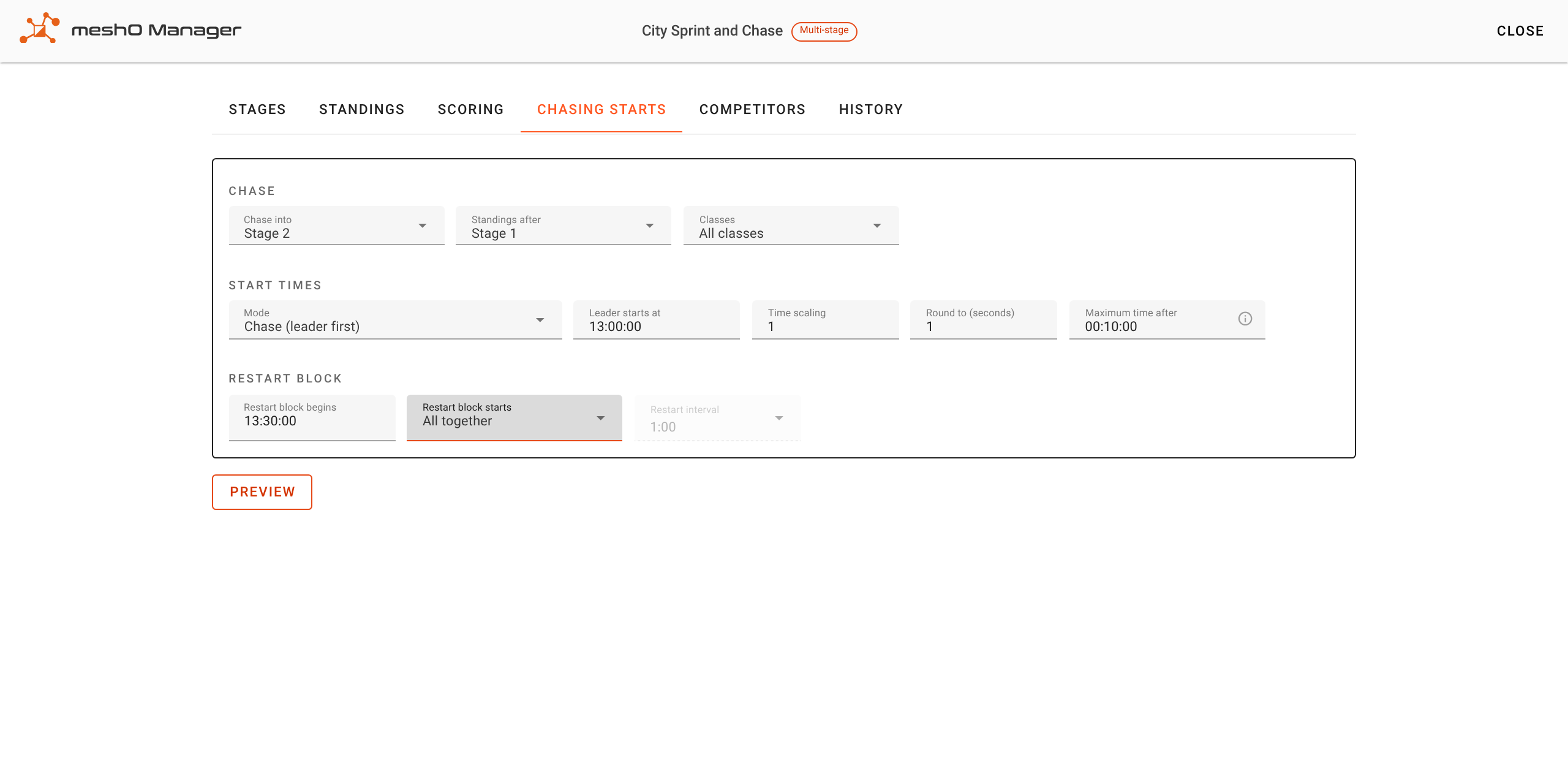
Click Preview. Nothing is written yet: the preview shows each runner’s place, gap, current start and new start, and whether they are in the restart block.
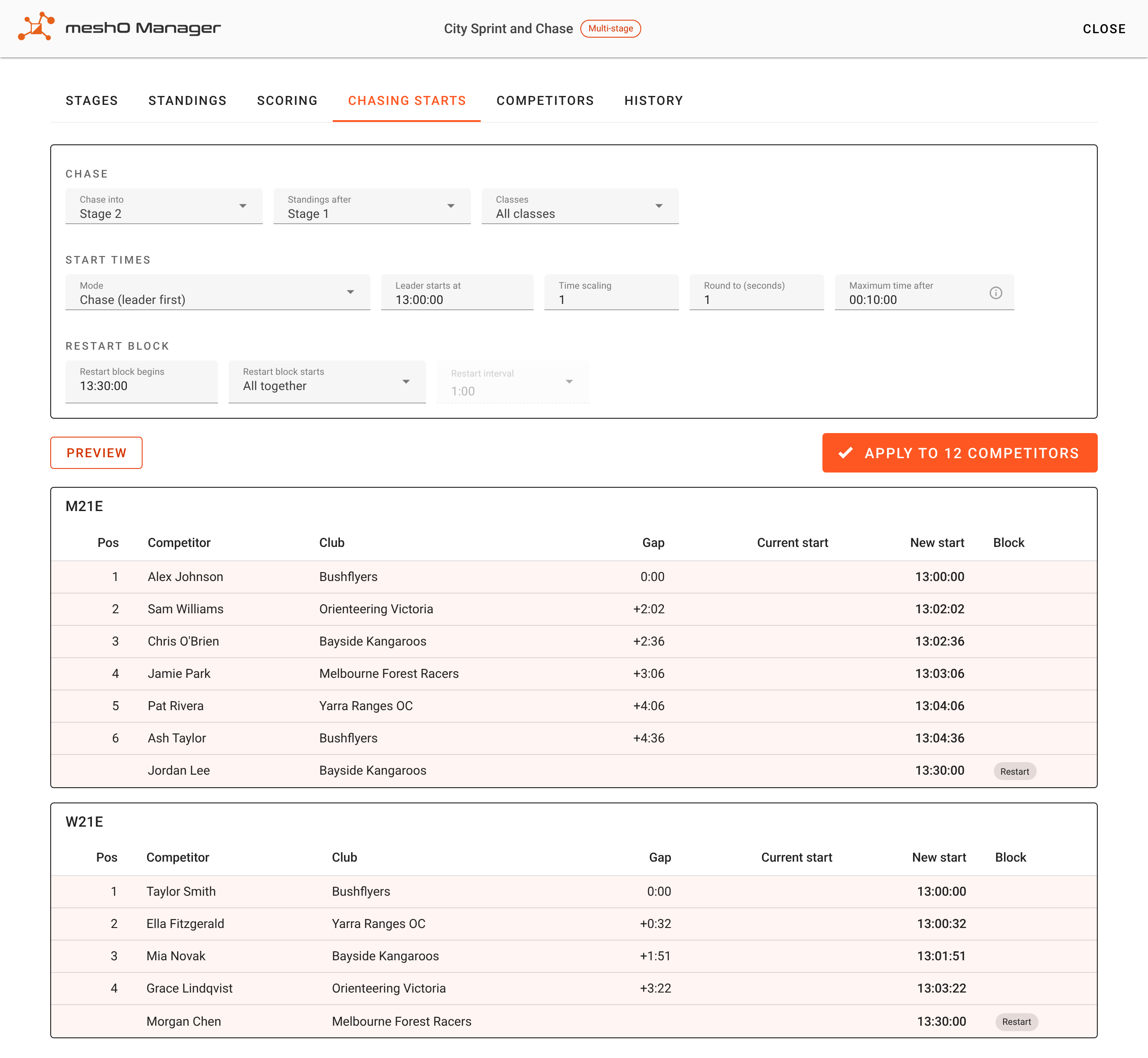
Anyone without a standing goes into the restart block: a mispunch, a runner who has not downloaded yet, or a late entry to the afternoon. Nobody is lost from the start list because their morning result is missing.
When the preview is right, click Apply. The times are written into the chase as ordinary allocated start times, so the start list, the start clock, the screens and the exports all use them.
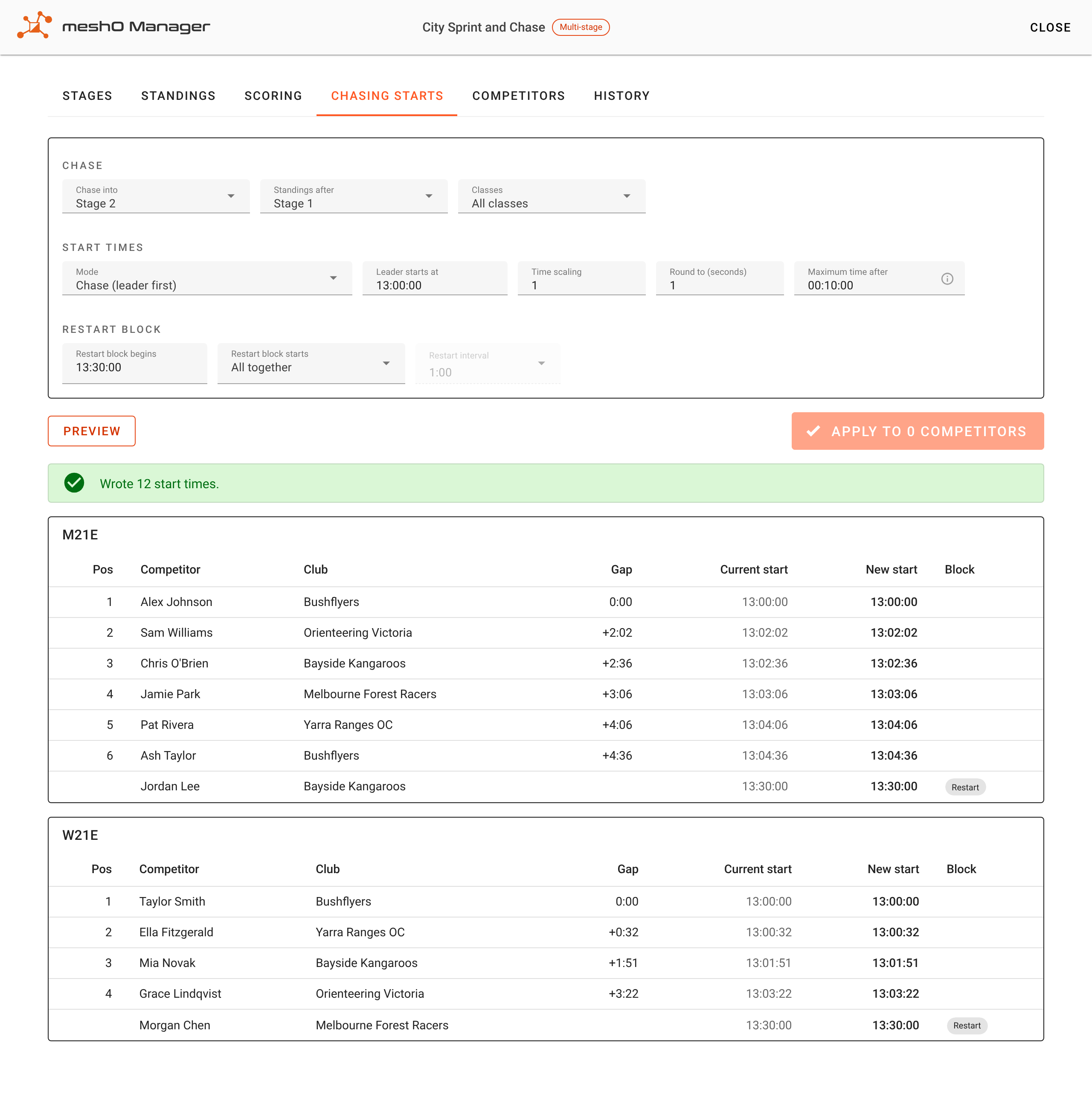
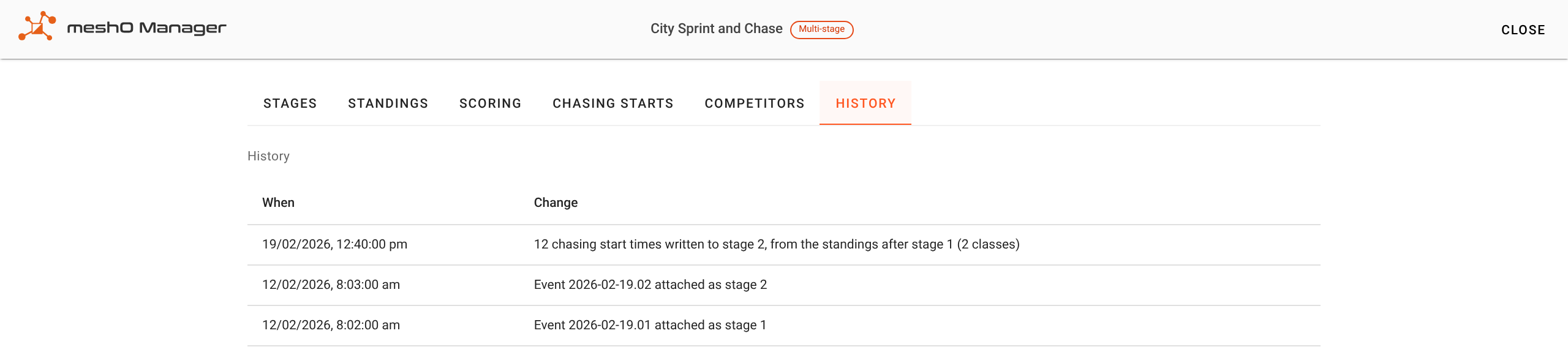
Applying is safe to repeat. With the same standings and settings, a second Apply writes nothing; after a correction it writes only the rows that changed. Each Apply is recorded on the carnival’s History tab, and every start time it writes goes into the chase’s audit trail.
6. Start the chase, and leave the morning running
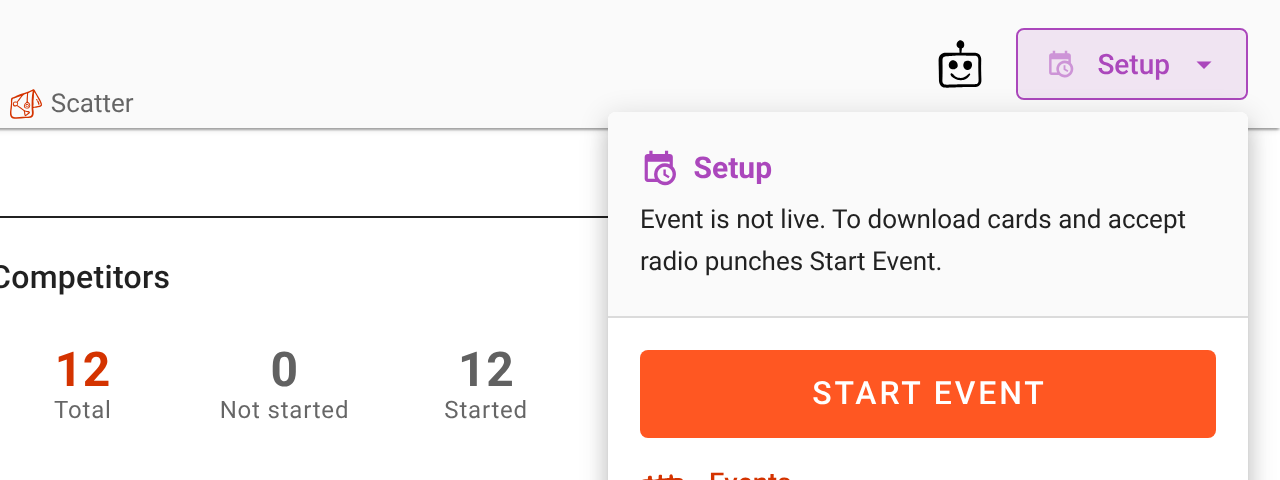
When the chase is due, open its dashboard and choose Start event. Do not finish the morning race first. meshO Manager runs both events live at once, each with its own downloads, results, screens and publishing.
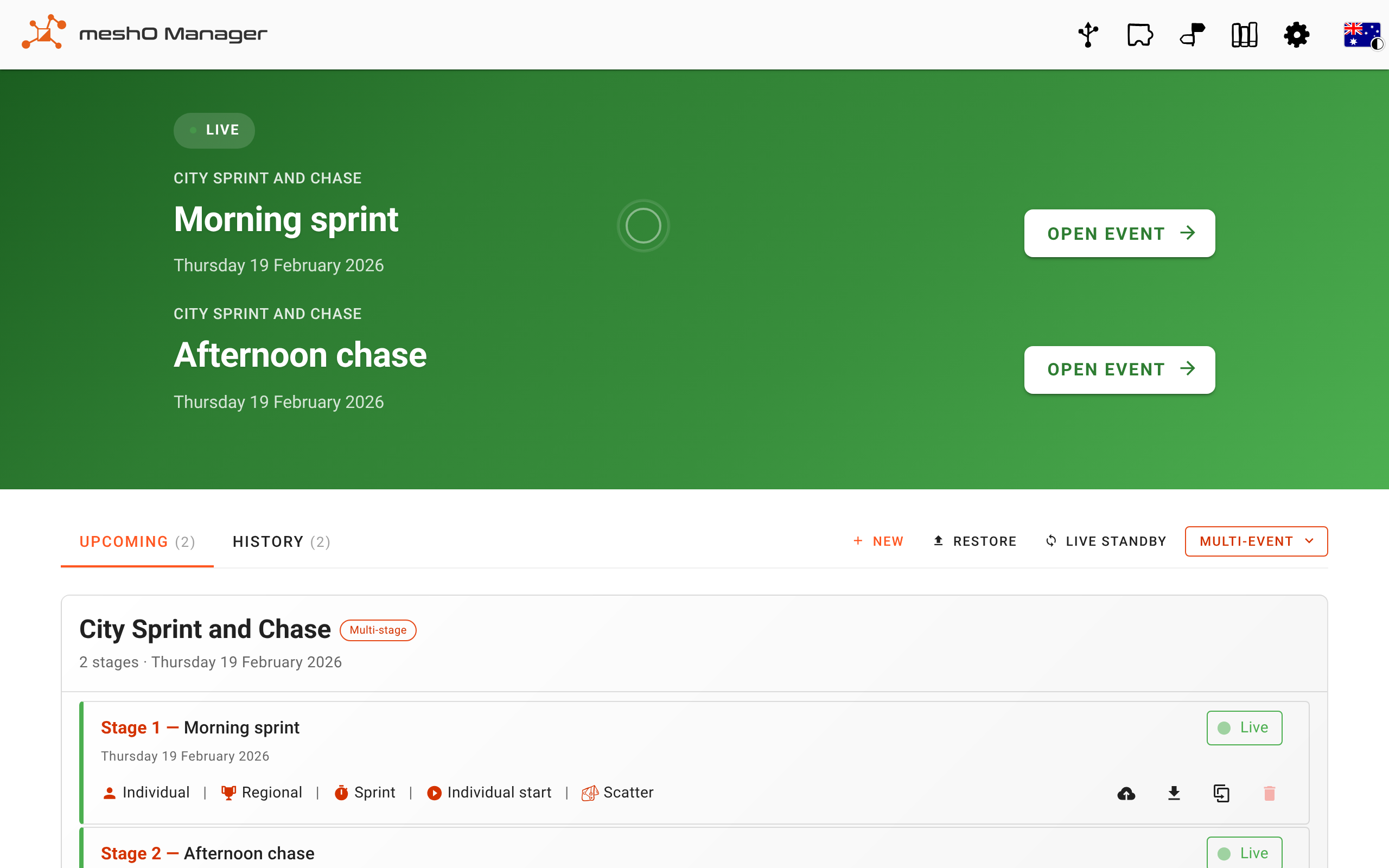
A download desk reads cards into the event it has open. Before a desk starts on the chase, check the event name at the top of its page. Point each results screen at its own event too: a screen that is not set to an event follows the most recently started one, so it moves to the chase the moment the chase starts.
7. The late runner comes in
Morgan Chen finishes the morning course after the chase has been generated.
Read her card at a desk that has the morning race open. Her morning result goes into the morning race, and the standings after stage 1 update with it.
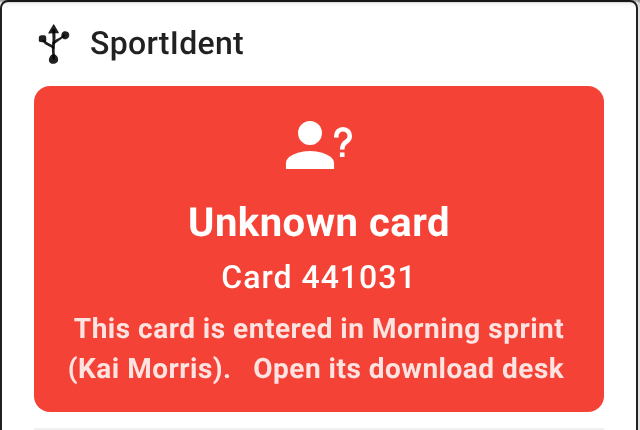
A desk with the chase open would read her card into the chase instead, because she is entered there on the same card. If that happens, delete that download in the chase and read the card again at a desk with the morning race open. A desk also tells you when a card it reads is entered in the other live event, and links to that event’s download page:
Then decide what happens to her afternoon start. Back on Chasing starts, choose her class under Classes and click Preview again.
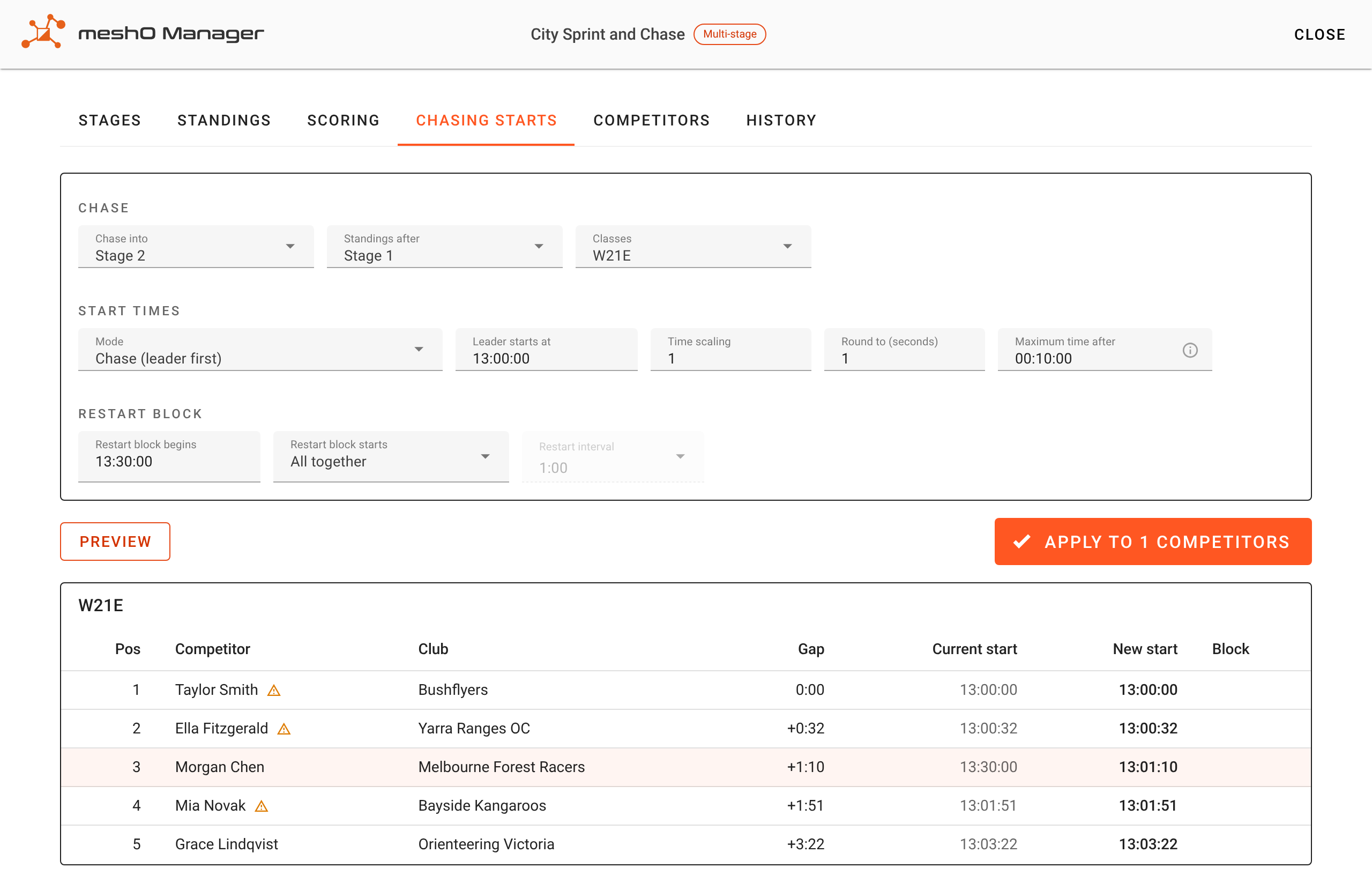
Her 24:50 puts her third, so the chase now wants her off at 13:01:10. The other rows are unchanged, and the warning triangles mark runners who have already punched a start.
- Her new time is still ahead of the clock: click Apply. Only her row is written.
- Her new time has already passed: leave her in the restart block, or give her a start time by hand on her entry in the chase. Applying would give her a start time she can no longer make.
- Her result changes the class leader: every gap in that class changes, so Apply would move runners who have already started. Do not apply once the class is under way. Set her start by hand instead.
Her morning result counts in the standings whichever you choose, so the combined time at the end of the day is right either way.
8. Finish each race on its own
Finish the morning race from its dashboard once everyone in it is back, using the safety check. Finish the chase the same way when its last runner is in. Finishing one leaves the other running.
Part 2: with radio controls
Everything in part 1 still applies. Radio controls add one thing: both live events hear every radio punch. A radio punch carries a card number and a control code, and nothing else to say which event it belongs to.
In most two-race days the card number settles it, because each card is entered in one race. A chase is the opposite case: nearly every runner is entered in both races on the same card. So meshO Manager decides each run by how it began. The event that a run’s Start or Check punch belongs to owns the whole run, up to its finish.
Tell the two starts apart
There are two ways, and either is enough.
Start windows. Each event’s start window runs from its first start to its last, taken from its start list. The morning race has a start list and the chase has the start times you just applied, so both windows are known without setting anything. A punch inside a window belongs to that event; a punch outside both goes to the nearer one. This works when there is a gap between the morning’s last start and the chase’s first.
Separate start and check codes. If the morning has punching starts, or a late morning start could fall close to the chase’s start, give the chase its own start and check units with codes of their own. Set them under Event details → Radio controls on the chase. The finish can be shared.
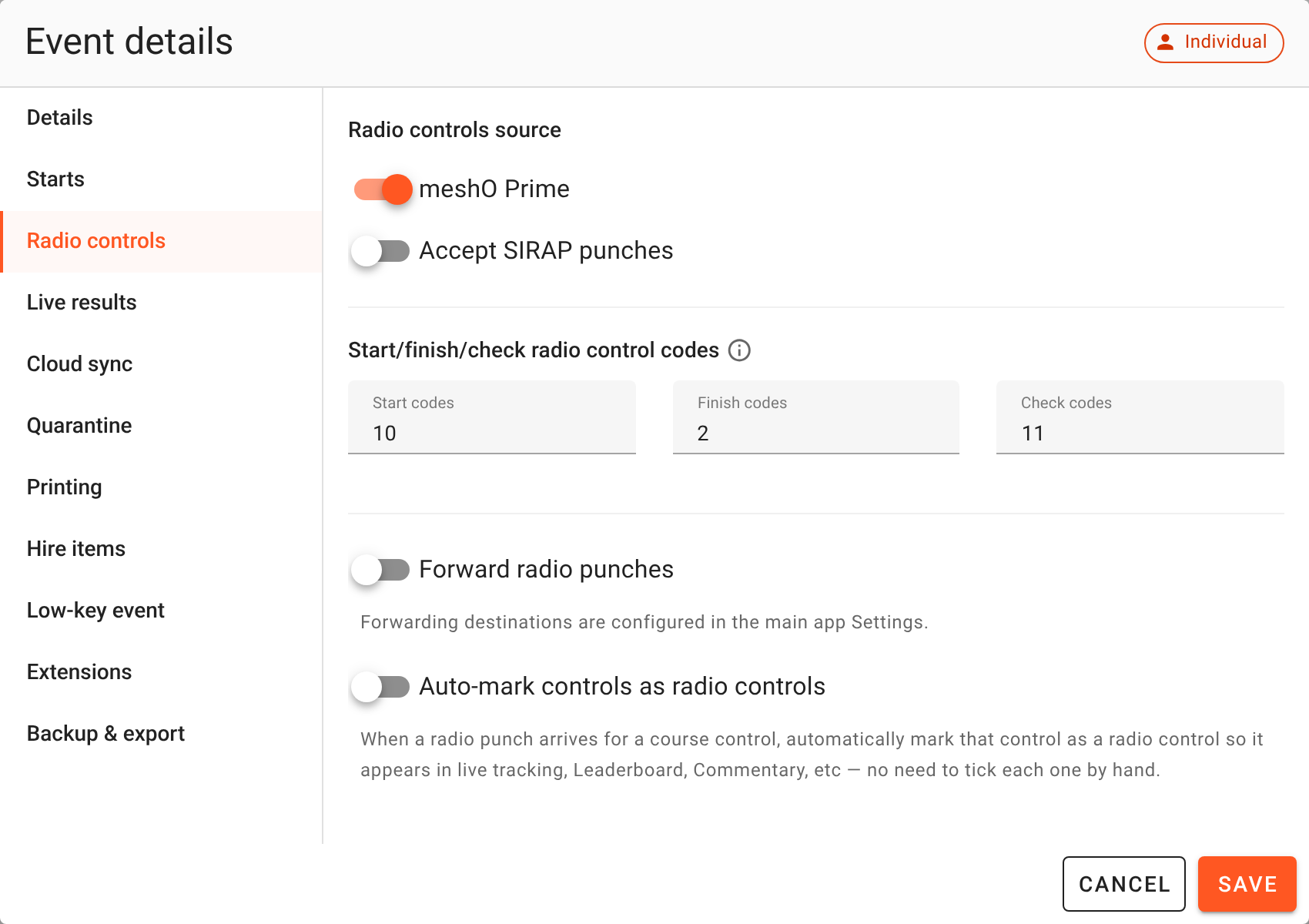
With codes, a punch at 10 belongs to the chase whoever’s card it is, and Morgan Chen’s punches on the morning course stay in the morning race, though she is entered in both.
Each event’s Radio punches list holds every punch the network heard. Under Filter → Show, Other events’ runners too lists the other race’s punches as well, named with their event in grey. They change nothing in this event.
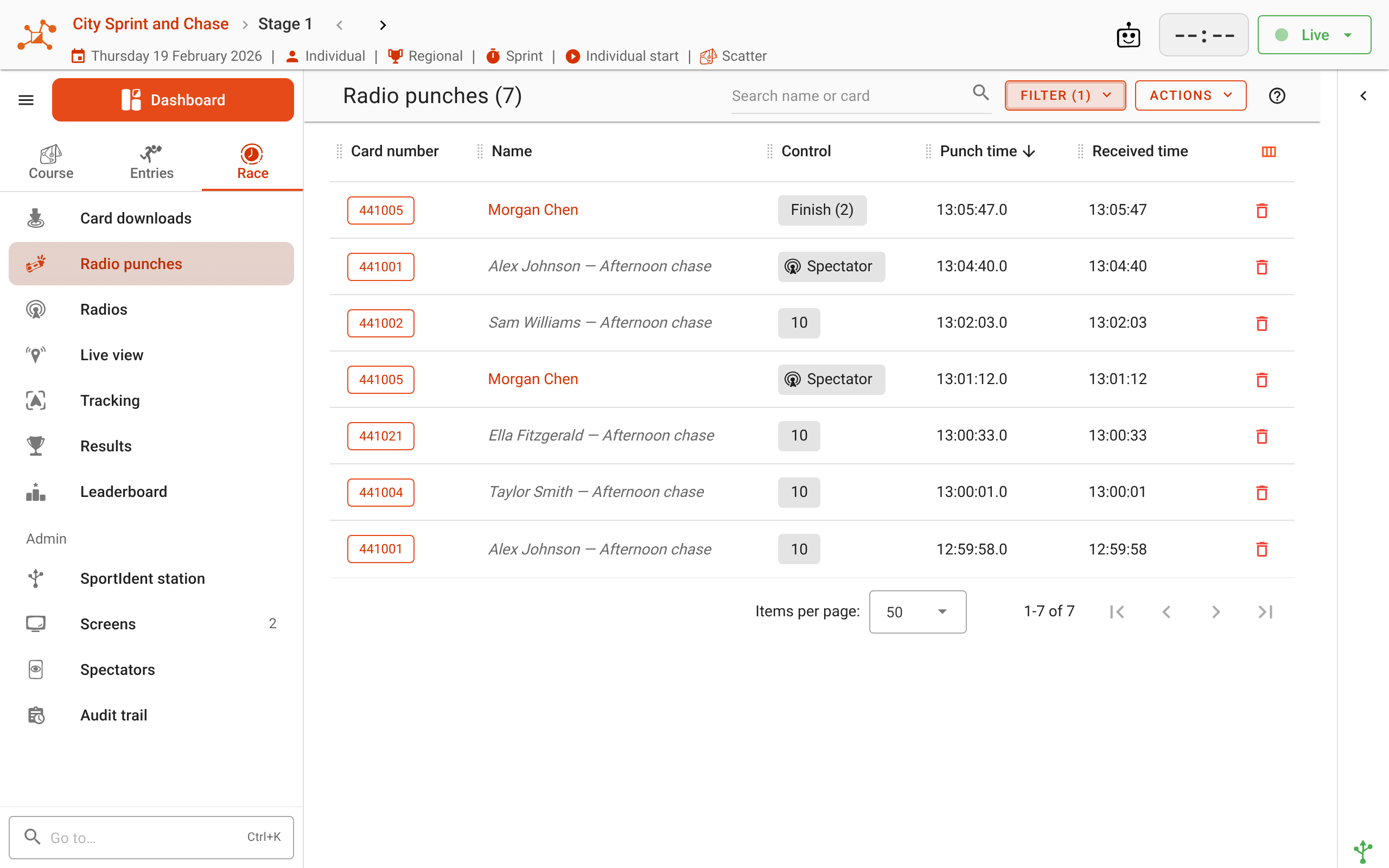
Each event’s On course and Pending lists show only its own runners, so the morning race’s On course list still shows Morgan Chen until she is home, while the chase’s lists show the chase.
What to watch
Keep the morning race live until its last runner is in. A finished event stops taking radio punches. A late runner’s finish punch would then reach only the chase, where it is recorded as another event’s run and changes nothing.
Read late morning runners at a desk, not at the radio card download station. Cards read over the radio at the finish go to the live event where the card is entered and the runner has not downloaded yet. A late morning runner has downloaded in neither race, so both qualify, and the tie goes to the most recently started event: the chase. The radio download station does not yet use the start punch to decide this. Read a late morning runner’s card at a desk with the morning race open. If one has been read into the chase over the radio, delete that download in the chase and read the card again at the morning desk.
Radio commands act on the whole network. Power off, arm, transmit power and resend reach every radio, whichever event’s screen you use.
The screens are from meshO Manager with made-up names. Further reading in the meshO Manager documentation: Multi-stage events, Running two events at once and Radio punches. For more on two live events, see Two live events at once, and why you usually want one. meshO Manager is free to download and use.