
Software
meshO Manager tip 11: don't read it out, just dip it
The eleventh in our series of short videos about running an event with meshO Manager. This one is the card reader at the entry table, which fills in the card number so nobody has to read it out.

Tate Needham
meshO · · 3 min read
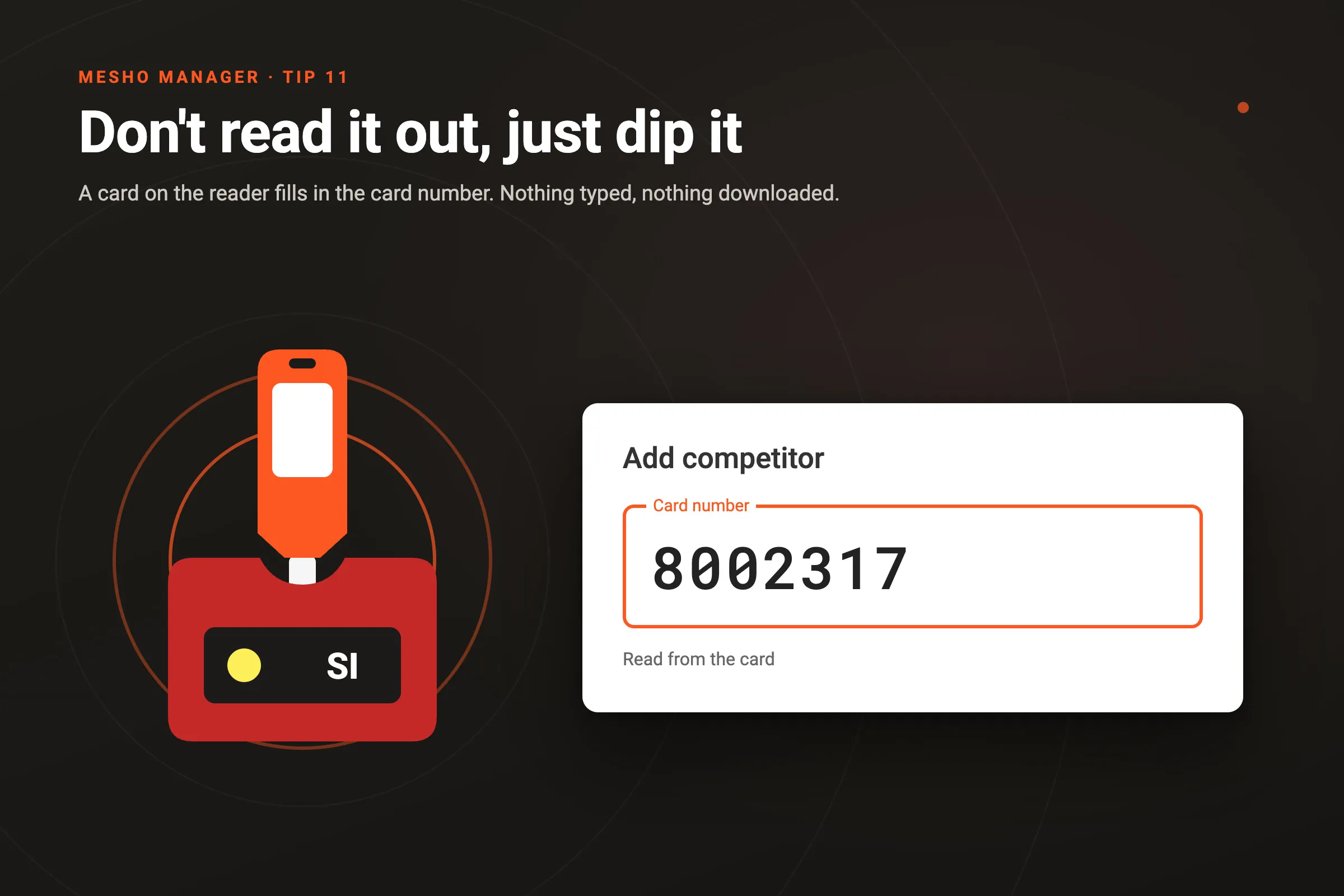
Seven digits read out across a table, in the wind, with a queue behind them. One wrong digit and somebody’s run belongs to somebody else. The card already knows its own number, and so does the reader on your desk. With a reader connected, the runner dips their card and the number is in Card number on the Add competitor or Edit competitor dialog.
How it works
- Connect the reader, once. Plug in a SportIdent reader, click Select device on the Download card tile on the dashboard, and pick it in the browser’s list. It stays connected as you move between screens. If you reload the page, click Select device again; the browser remembers the reader, so there’s no list to pick from.
- Turn it on beside Card number. With a reader connected, a reader icon sits beside Card number on Add competitor and Edit competitor. It starts off, so the reader keeps downloading cards as usual. Click it, and a dipped card fills in the number instead.
- The card is only read. Its number is taken and nothing else: no download, and no result. Click the icon again to go back to downloading.
- A known card brings its person. On Add competitor, if the Competitor Registry knows whose card it is, their name, club and IDs fill in too, leaving you only the class. If you’ve already typed a name, the name stays yours and only the number changes.
- Edit competitor is for a swap. Somebody changing to a hire card? Turn the icon on and dip the hire card. Manager marks it Hire card, as it would if you’d typed the number.
- It works at the registration desk too. On
/rego, click the reader icon in the top bar the first time. There’s no switch to turn on after that, because the desk’s reader only ever reads numbers: it never downloads a card. Dip a card on the Competitors screen and it goes into Find, opening the competitor if exactly one holds it. With their Edit competitor dialog open, a dipped card goes into their Card number.
The whole process
The short video skips connecting the reader. This one starts at the beginning, and goes through Add competitor, Edit competitor and the registration desk.
Getting it
It’s in the current version of meshO Manager, with a SportIdent reader on a laptop running Chrome, Edge or Firefox 151+. An EMIT reader can’t do this: it hands over a whole card or nothing. The late entries page of the Manager docs covers the reader on Add competitor, and the registration desk page covers where a card goes at the desk.