
Releases
What’s new in meshO Manager 2026.11.6
A card can now carry a second run with one click, the download desk asks for the class when several classes run the same course, and naming a runner at a low-key event is quicker.

Tate Needham
meshO · · 3 min read
meshO Manager 2026.11.6.1 is out. There are three changes you’ll notice at the download desk.
1. Another run on the same card
At a club event people often go round twice on one card: a second course, or a friend borrows it. Manager now treats any punch after a download as a new run. The new run doesn’t touch anybody’s result until you say whose it is.
It’s usually the same person, so that’s one click. A second run shows on the On course list as the card and its run number, with who last used it beside it, and an Another run button. That enters them again in the same class, keeps their first result, and gives them the new run straight away, even while they’re still out.

You don’t have to do it while they’re out. When the card is read, the download desk shows Card reused, with the first run and this one side by side. Choose the class and press Duplicate name if it was the owner, or give the card to whoever ran. A read that came in over the radio has Another run by name on it, and so does the Assign dialog behind the tile’s “cards to assign” alert.
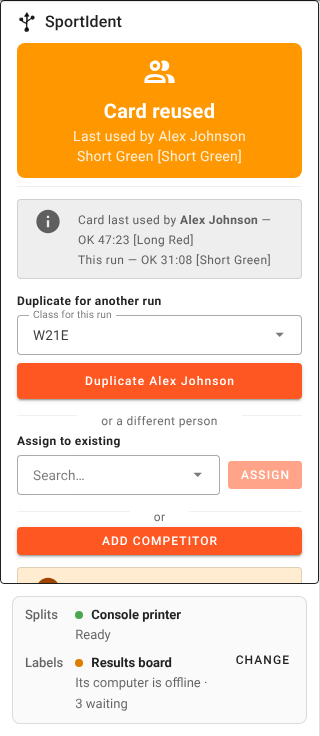
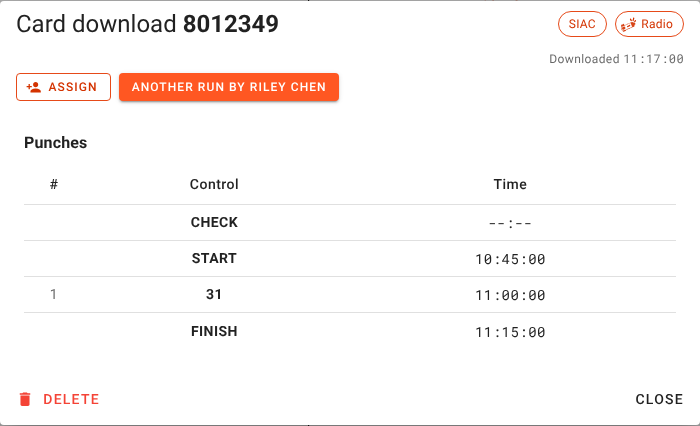
Read cards between runs. A download is what separates one run from the next.
2. The class, asked rather than guessed
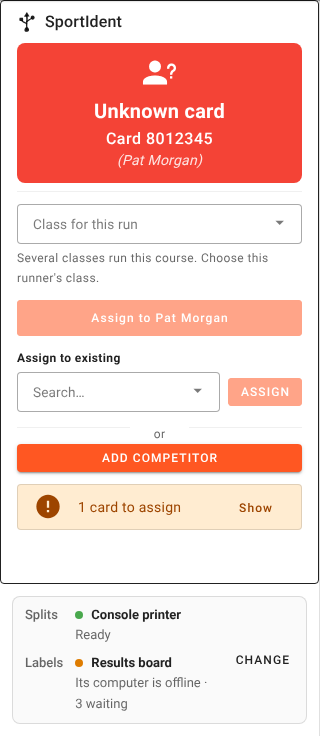
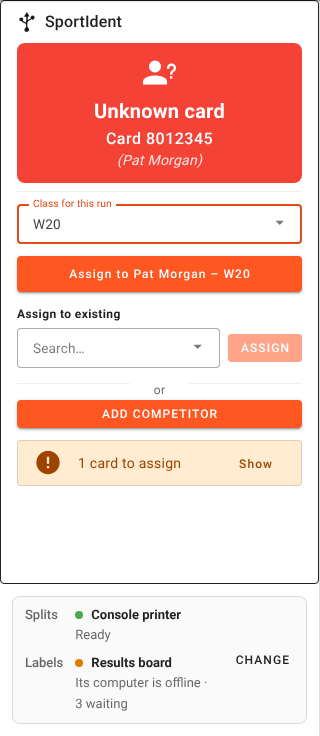
A card tells Manager which course was run, but not which class the runner is in. When Men Long, Women Long, Boys Long and Girls Long all run the same course, Manager used to take the first of them, and the splits printed in that class.
Now the Class for this run box starts empty, says Several classes run this course, and lists those classes first. Assign stays greyed out until you choose one, so the slip prints in the right class the first time. Somebody already entered in a class keeps it. A mis-punch that fits a shared course names the course and leaves the class to you.
3. Quicker name entry at low-key events
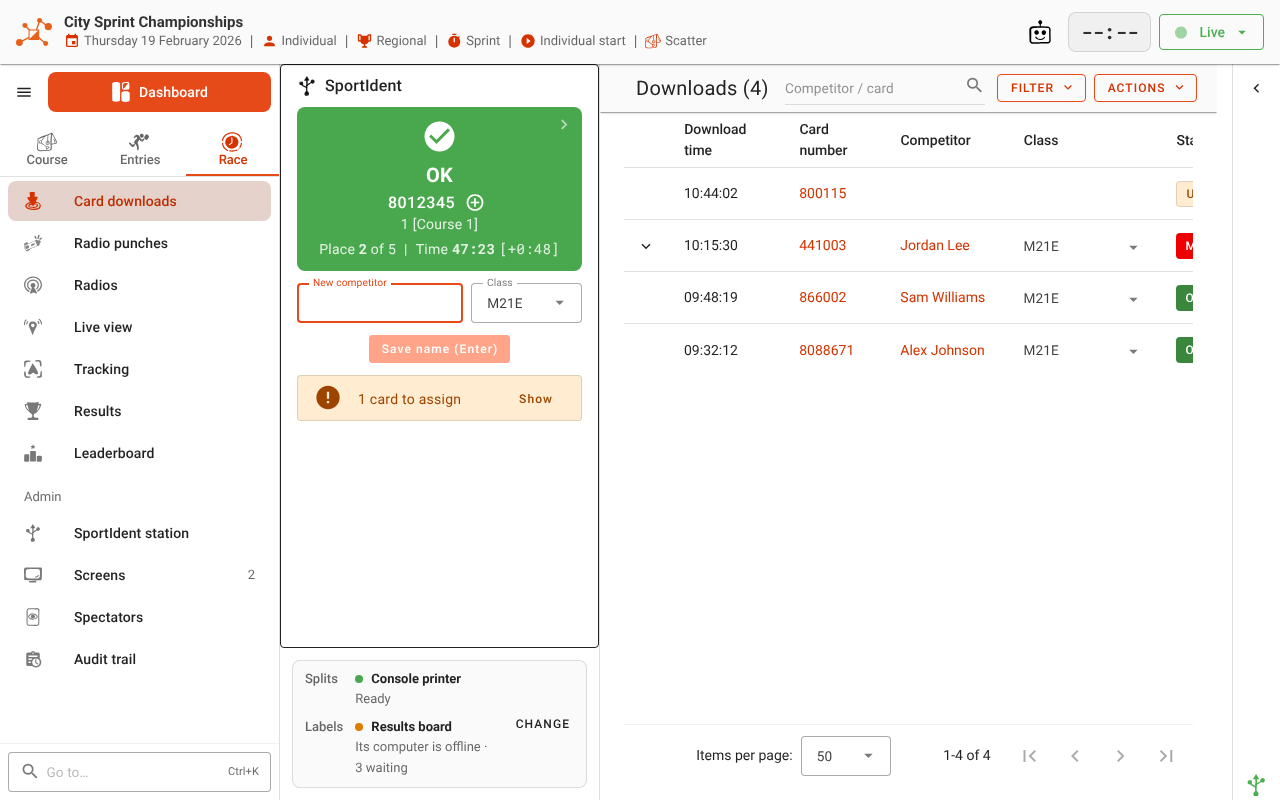
With Quick name entry on download on, a runner nobody has named gets a New competitor field under the result, with the cursor already in it. The button under it says what Enter will do: Add competitor (Enter) for an unknown card, or Save name (Enter) for a runner entered under their card number. If the event has only one class, the Class box is already filled in. Nothing is saved without both a name and a class.
Getting it
Manager tells you when a new version is out: press Update now on the notice in the bottom-right corner. The notice waits while an event is live, so it won’t interrupt a race. If you’re new to Manager, it’s on the downloads page. Updating in the docs covers automatic updates too. The details of each change are in the Manager docs: