

1. Before you start
You will need:
- The computer that runs meshO Manager, on the latest version. Manager offers its own updates; there’s a download on the downloads page if you don’t have it.
- meshO Prime and its USB cable. Prime is updated over USB, and it then sends the update to every Control.
- The Controls, switched on and charged, near Prime. They update over the mesh, so they need to be on the network — a table or the charging case in the same room is ideal.
- The firmware files for your units, from the downloads page. Section 2 says which.
- No live event. The Devices page is only available while no event in Manager is live.
Allow a few minutes for Prime, and about four minutes per Control: the update goes to one Control at a time, and each one restarts and rejoins the network in about a minute afterwards. A case of 20 Controls is a job for an evening before the event, not the morning of it.
How the update gets to each unit
There are three steps, and the second one is done only once:
- Update Prime over USB, with the Prime file.
- Stage the Control file on Prime — load it onto Prime, once. Prime keeps it, even when it’s switched off.
- Send it to the Controls. Prime sends the staged file over the air, to one Control or to many in a batch. You can do some Controls today and the rest at a later session, without staging the file again.
meshO Manager
On your computer
1Update Prime
2Stage the Control file, once
meshO Prime
Staged
Control 4.0.0
Kept when switched off
3Send it to any Control, any time
- Control 21Updated
- Control 22Updated
- Control 23Updating…
- Control 24Next
- More ControlsLater on
Update Prime first, then the Controls. Controls on 4.0.0 send punches in a new format that an older Prime drops, so a Control should never be newer than the Prime it reports to. Updating Prime also clears any Control firmware already loaded onto it (section 7), so doing Prime first saves loading it twice.
2. Which file for which unit
meshO Prime has a single file. meshO Control has two, because there are two generations of Control circuit board: PCB v4 and PCB v6 (and later). A file only installs on the boards it was built for — a Control with the wrong file refuses it and keeps running what it had.
| Unit | Board | File |
|---|---|---|
| meshO Prime | Every Prime | meshO Prime v4.0.0 PCBv4.bin · 87 KB |
| meshO Control | PCB v6 and later | meshO Control v4.0.0 PCBv6+.bin · 110 KB |
| meshO Control | PCB v4 | meshO Control v4.0.0 PCBv4.bin · 111 KB |
The Prime file is named PCBv4 because it runs on PCB v4 and every Prime board since. You don’t need to check which board a Prime has.
3. Finding a Control’s PCB version
There are three ways to tell. Whichever you use, write down the serial numbers of any PCB v4 Controls: the Firmware view in Manager lists Controls by serial number but doesn’t show their board, and you’ll need the list in section 10.
By how it switches on
- PCB v4: switches on with a swipe of the magnet on the left-hand side.
- PCB v6 or later: switches on when the magnet is held still on the right-hand side for 5 seconds.
On the circuit board
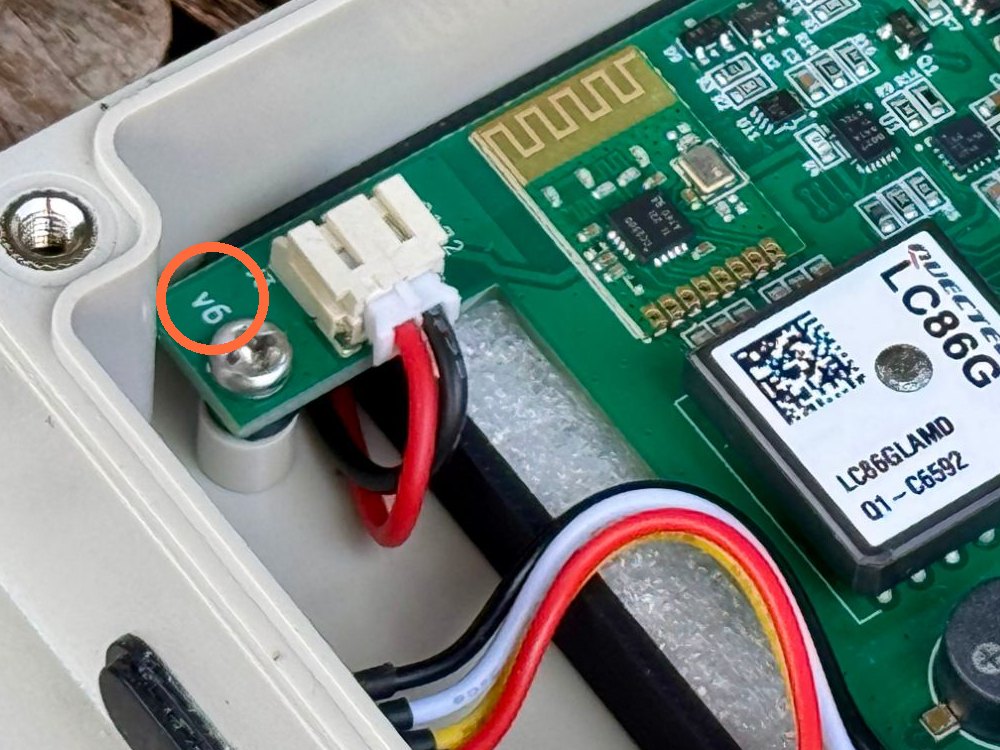
The version is printed on the board in white — v4 or v6 — beside the mounting screw next to the battery connector. The lid is clear, so you can read it through the lid without opening the Control.
In meshO Manager
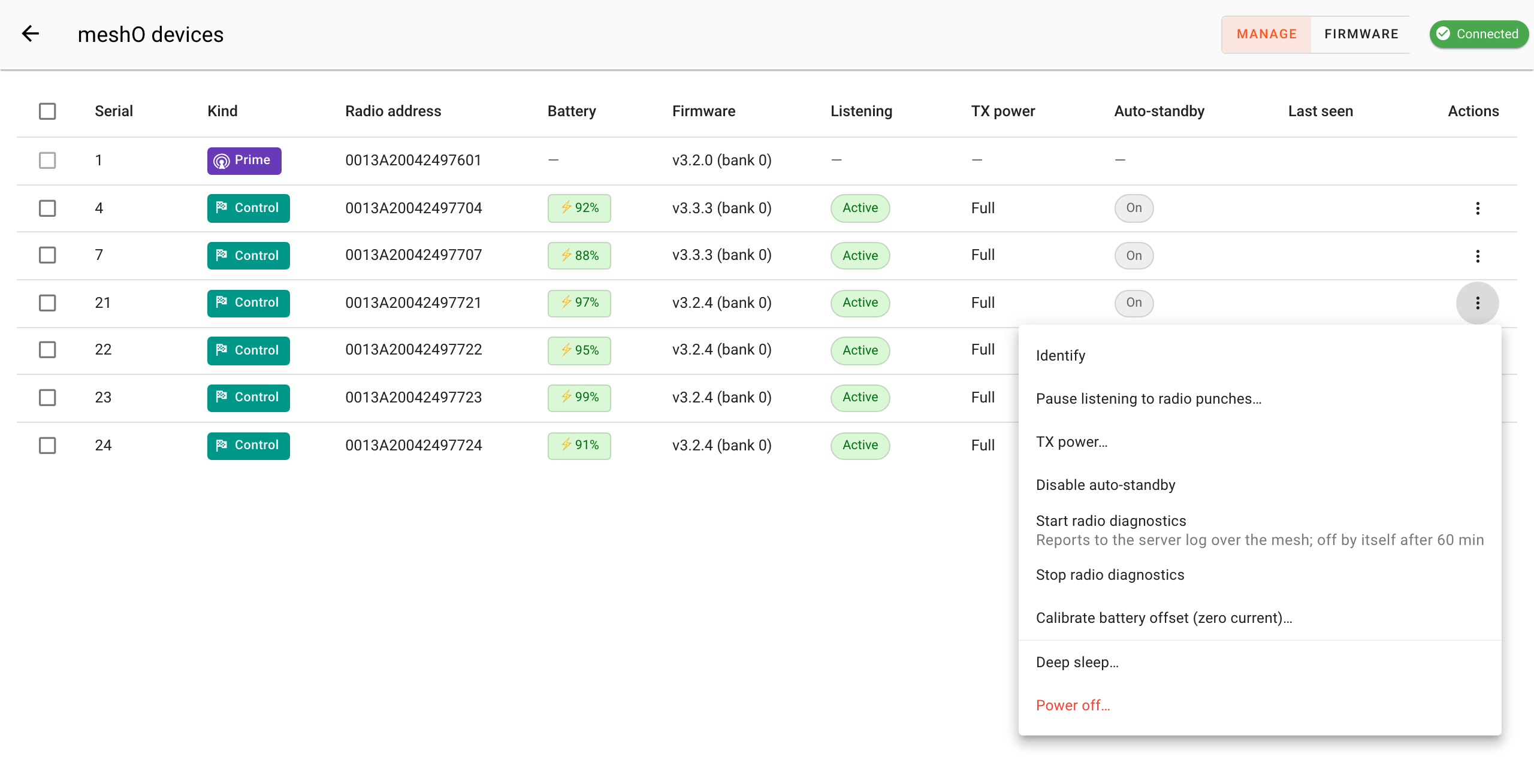
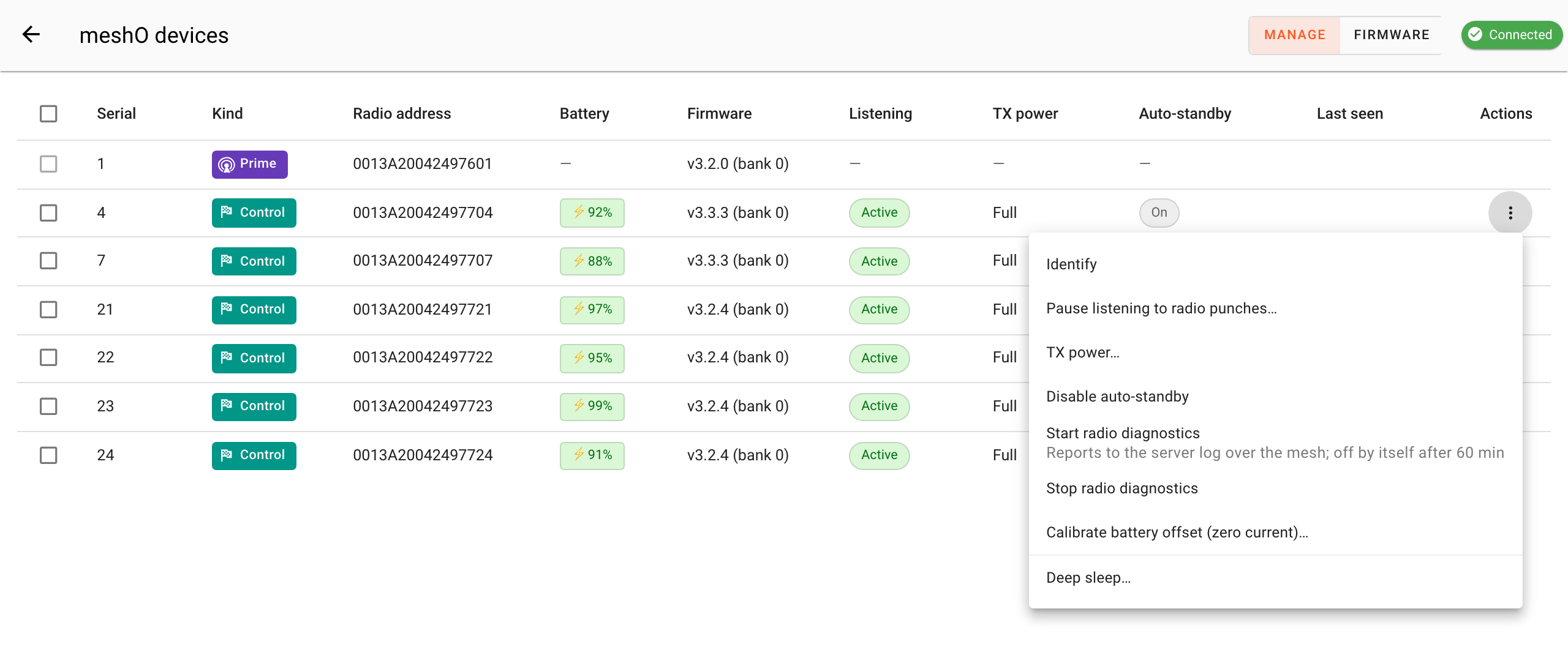
Only PCB v6 and later boards can be powered off remotely, so Manager offers Power off… only for those. Open the Devices page (section 4), stay on Manage, and click the ⋮ at the end of a Control’s row:
- Power off… at the bottom of the menu: PCB v6 or later.
- The menu ends at Deep sleep…: PCB v4.
A Control that hasn’t reported its board yet also has no Power off…, so if a Control you expected to be v6 shows none, give it a minute on the network and look again, or check the board through the lid.
Controls were only ever made on PCB v4 and on v6 and later. If a board says anything else, get in touch before updating it.
4. Open the Devices page
- Plug meshO Prime into the computer running Manager with its USB cable, and switch Prime on.
- Switch on the Controls you’re updating, close to Prime, and give them a minute to join the network.
- In Manager, go to the list of events. Make sure no event is live.
- Click the meshO Radios button at the top right.
If there’s no meshO Radios button, turn on Use meshO Prime for radio punches in Manager’s settings, or check that no event is live.
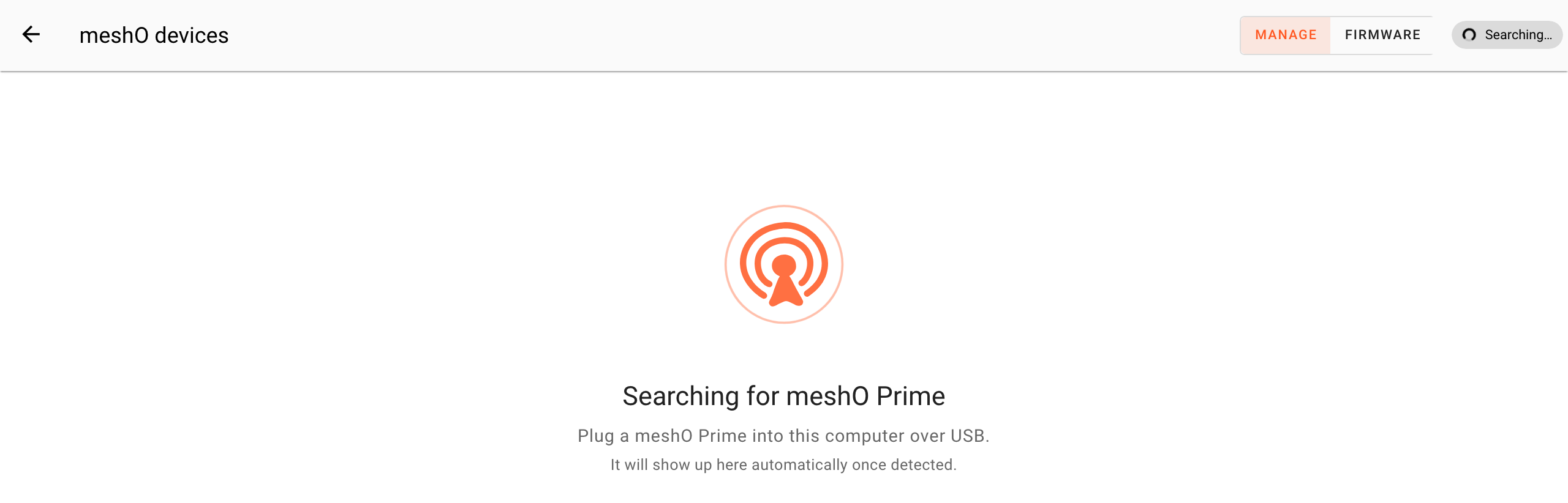
The page opens as meshO devices. Until Prime is found it says Searching for meshO Prime; there’s no port to choose, so if it stays like this, check the cable and that Prime is switched on.
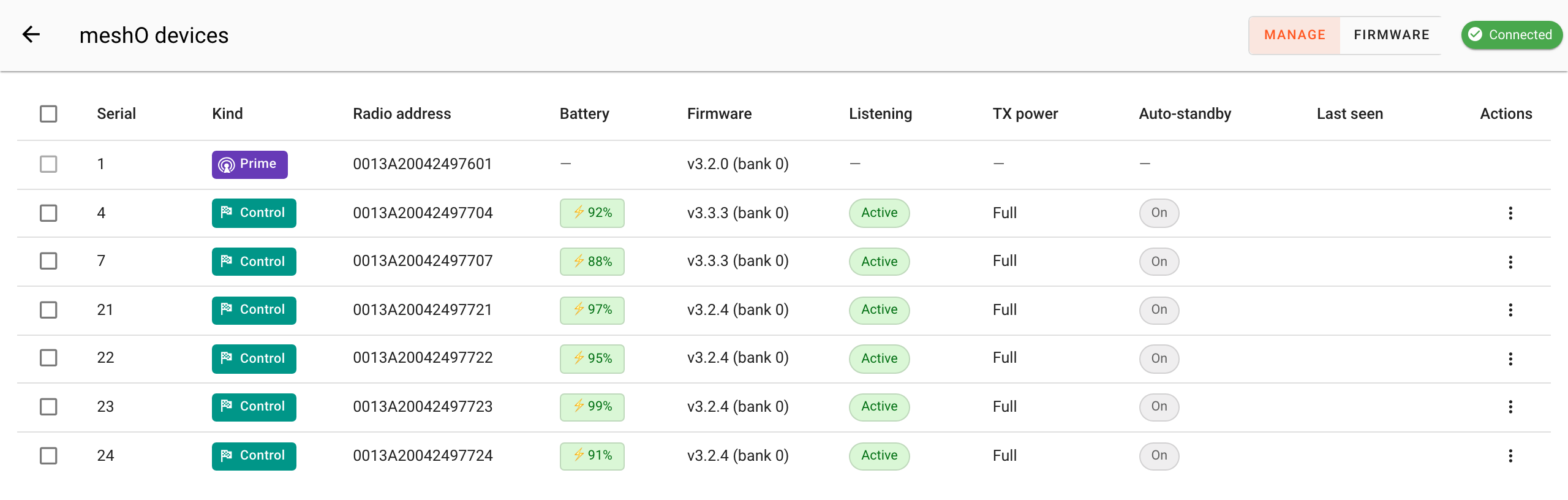
Once Prime is found the chip at the top right turns green and says Connected, and every unit on the network is listed: Prime first, then each Control as it reports in.
5. Check what each unit is running
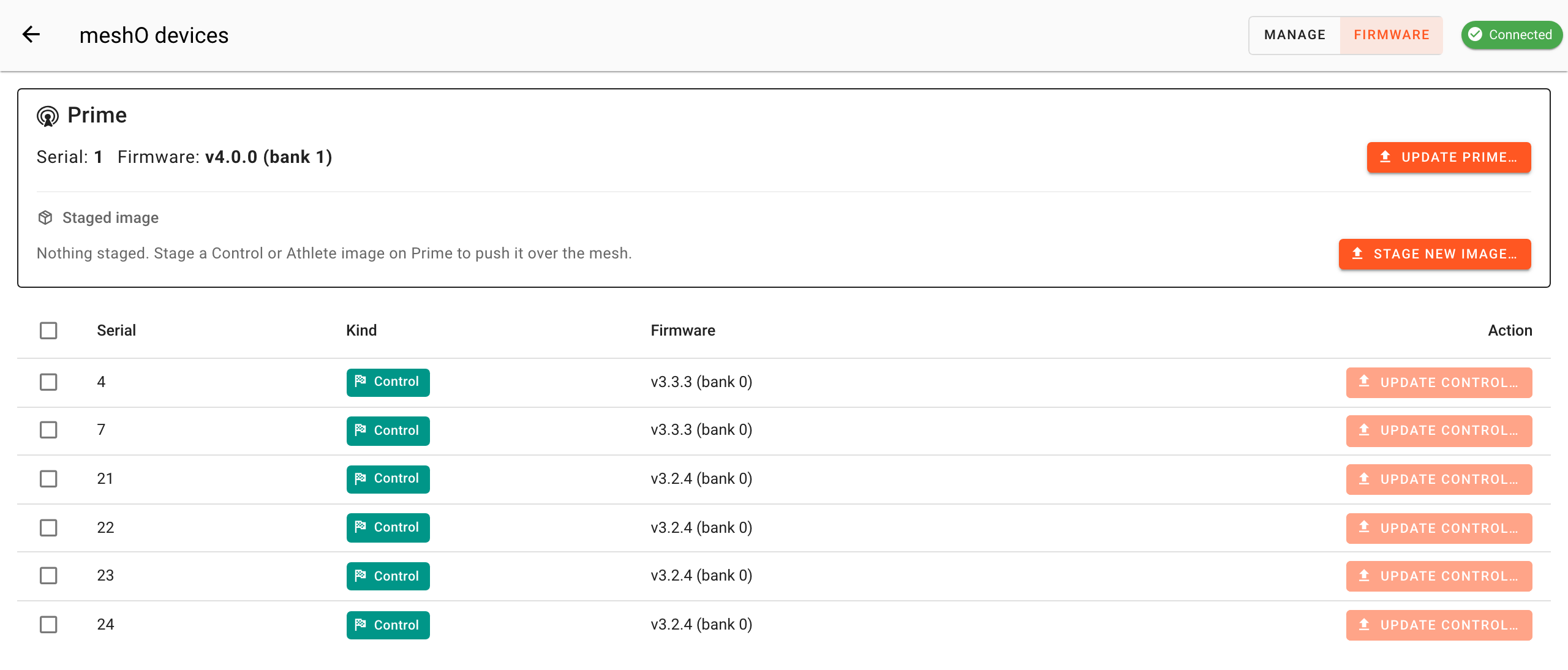
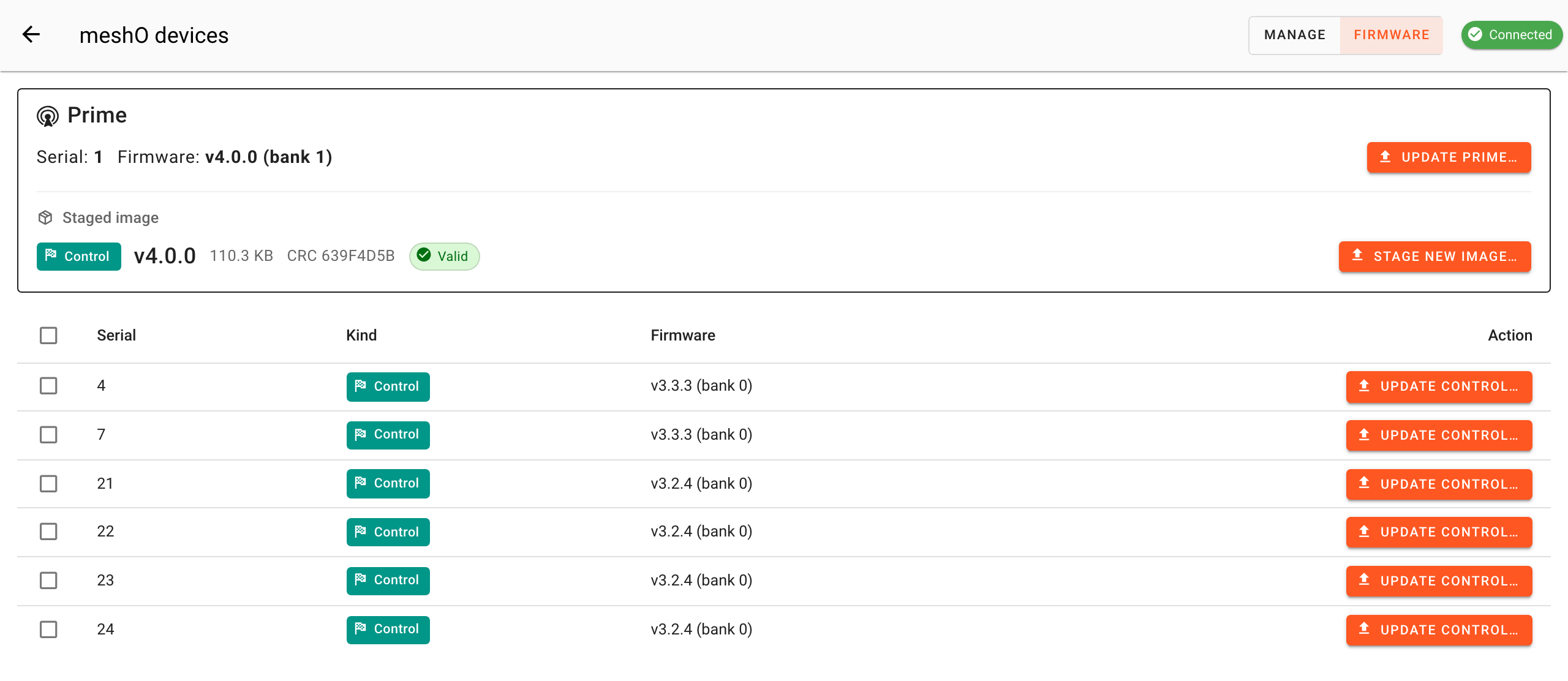
Switch from Manage to Firmware at the top. The card at the top is Prime, with its firmware version; the table lists every Control with its version, and an Update Control… button that stays greyed out until there is Control firmware on Prime to send.
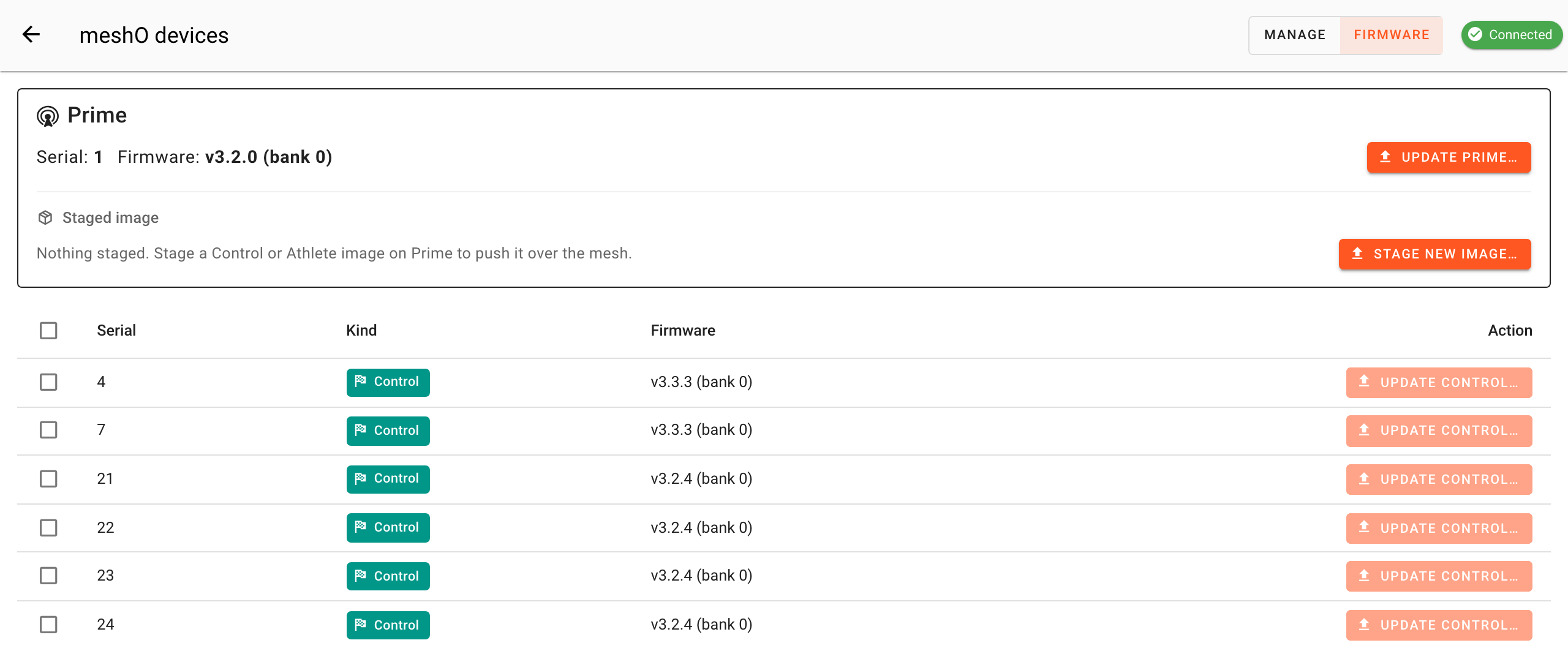
The bank after each version is which of the unit’s two firmware slots it is running from. An update goes into the other slot and the unit switches over, so the bank number changes with each update. The previous firmware stays in the old slot: if the new one doesn’t start up properly, the unit goes back to it by itself.
6. Update meshO Prime
- On the Prime card, click Update Prime….
- Choose
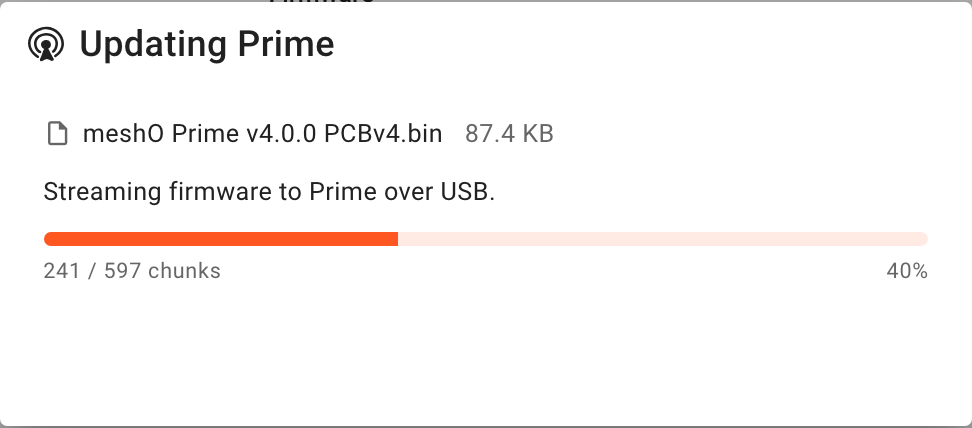
meshO Prime v4.0.0 PCBv4.bin. - Leave Prime plugged in while the progress bar fills. The dialog can’t be closed during this part.
- Prime checks the file, restarts and reconnects by itself. When the dialog says Prime updated, click Done.
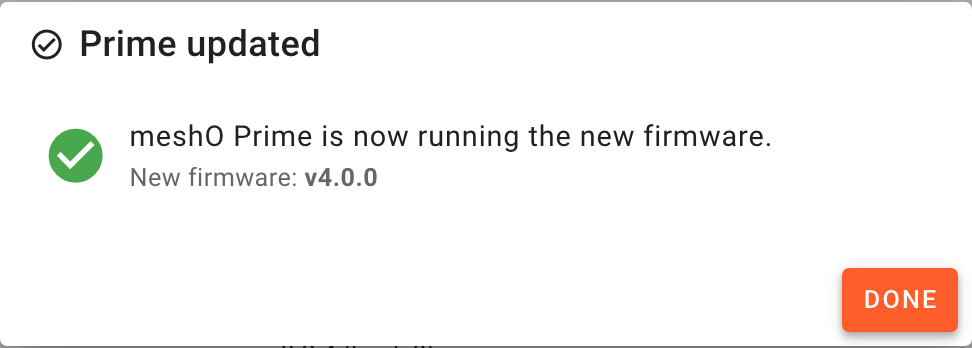
The Prime card should now show v4.0.0. Check it: the dialog reports success as soon as Prime reconnects, so this line is what confirms Prime is actually running the new version.
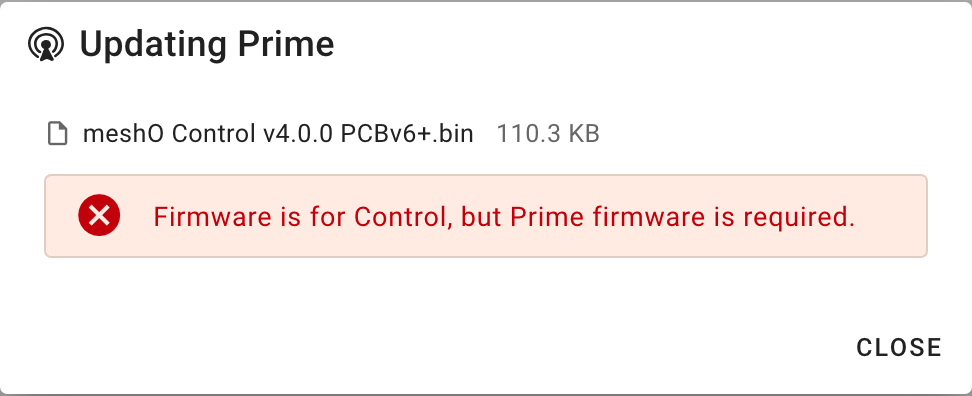
If you choose a Control file here by mistake, Manager stops before anything is sent and Prime is left as it was:
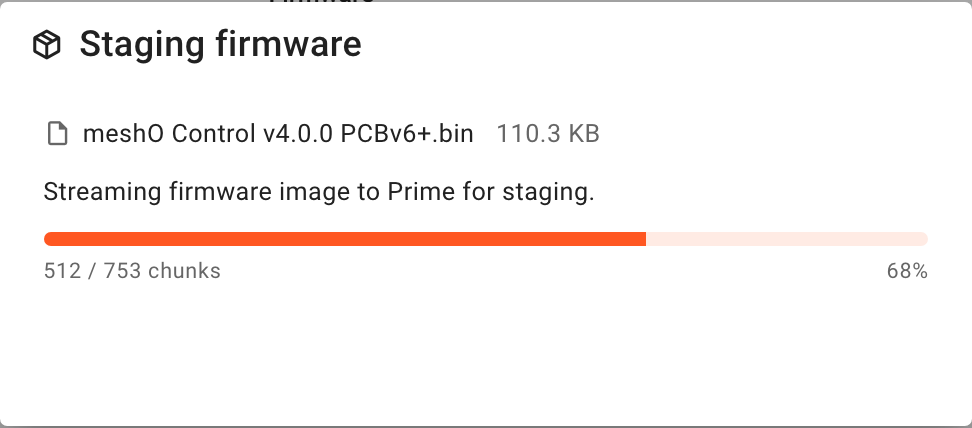
7. Load the Control firmware onto Prime
Controls are updated by Prime, so their firmware is loaded onto Prime first. Manager calls this staging. Prime holds one Control file at a time, so start with the file for most of your Controls — usually PCBv6+ — and do the other board type afterwards.
- Under Staged image, click Stage new image….
- Choose
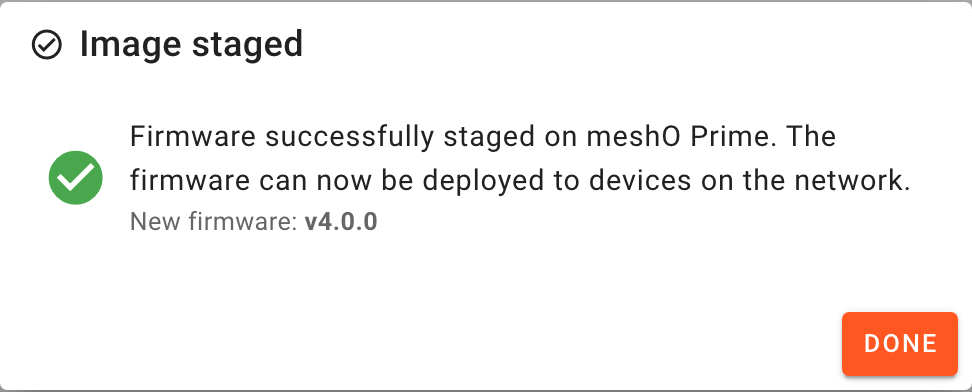
meshO Control v4.0.0 PCBv6+.bin(ormeshO Control v4.0.0 PCBv4.binif you’re doing your PCB v4 Controls). - Wait for Image staged, then click Done.
The Prime card now shows the staged file — Control, v4.0.0, its size and a green Valid — and every Update Control… button lights up.
PCBv6+, 111 KB for PCBv4.Stage it once, use it as often as you like
You only stage a Control file once. It stays on Prime — when Prime is unplugged, switched off, or put away until next month — and every Update Control… from then on sends that same file. Update the Controls on the table now, and any that were flat or missing at your next session, straight from section 8.
Stage again only to change files (the other board type, section 10), or after updating Prime, which clears it. The Prime card always shows what’s staged.
8. Update one Control
With the file staged, check the Prime card shows it, then update Controls as often as you need — no need to stage it again. Try one Control on its own first. It shows the whole process, and confirms the Controls can hear Prime before you start on the rest.
- Click Update Control… on the row of a Control with the right board for the staged file.
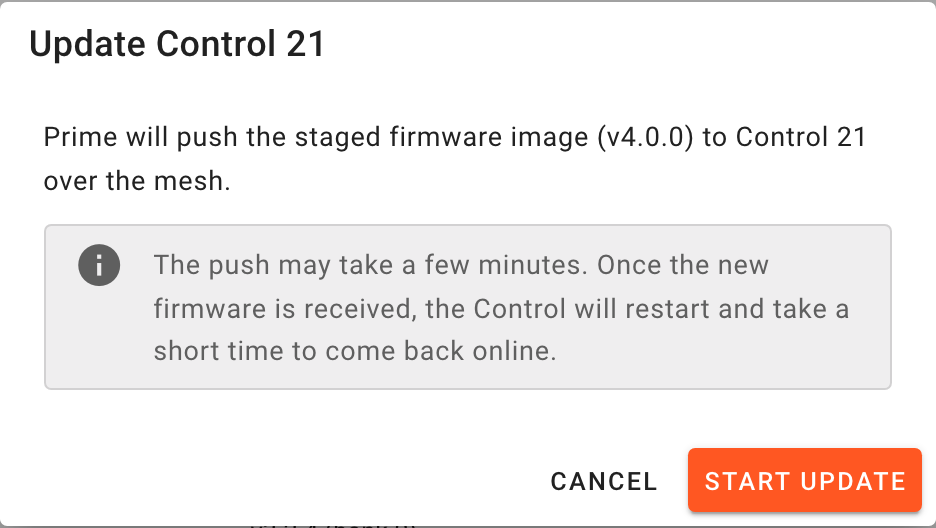
- Check the version and the serial number, and click Start update.
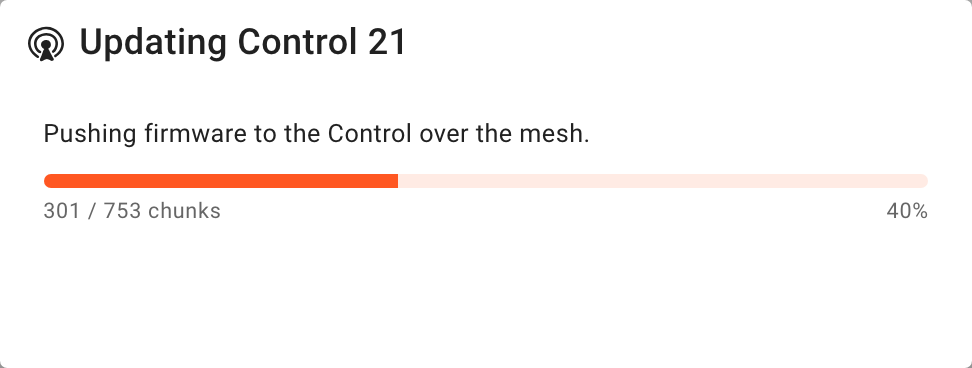
- Prime sends the firmware over the mesh; the progress bar shows how far it has got.
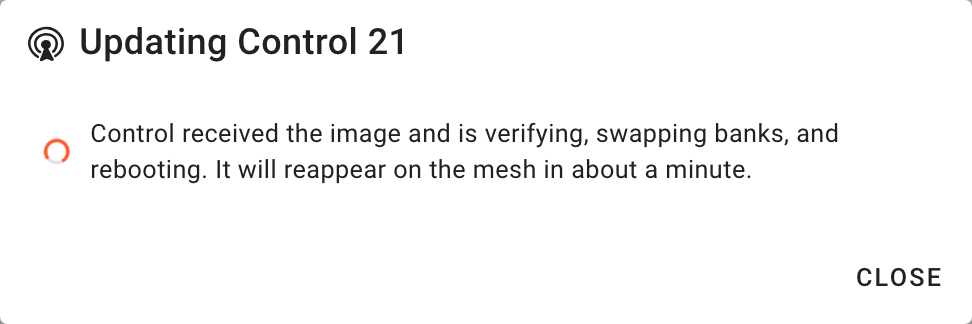
- The Control checks the firmware, switches to it and restarts. It drops off the list for a moment and comes back about a minute later.
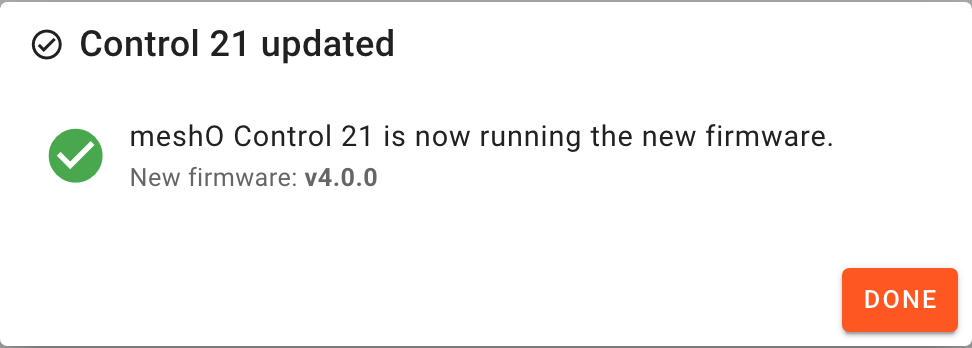
- When it reports the new version the dialog says Control … updated. Click Done.
9. Update several Controls at once
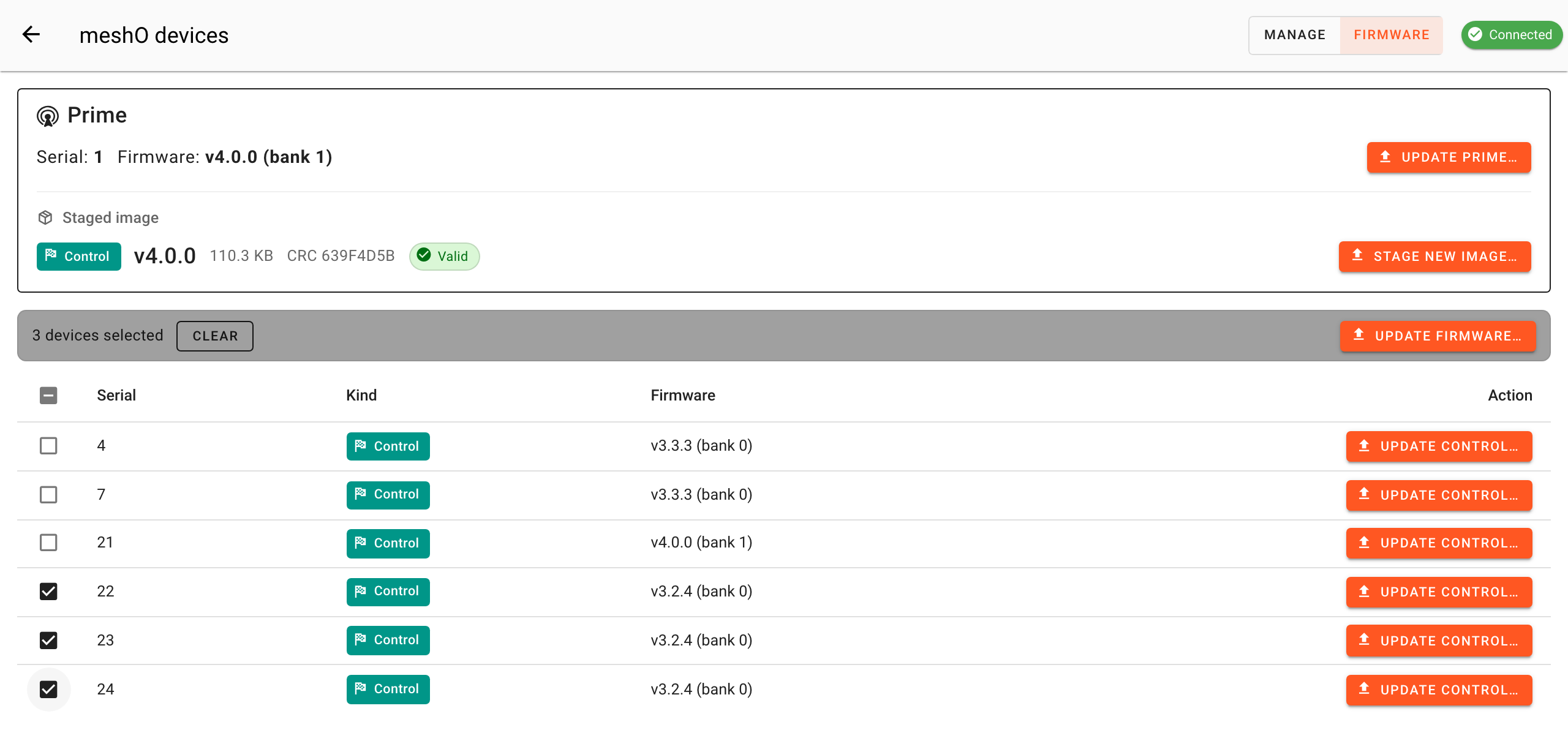
- Tick the box at the start of each Control’s row — only Controls with the board the staged file is for.
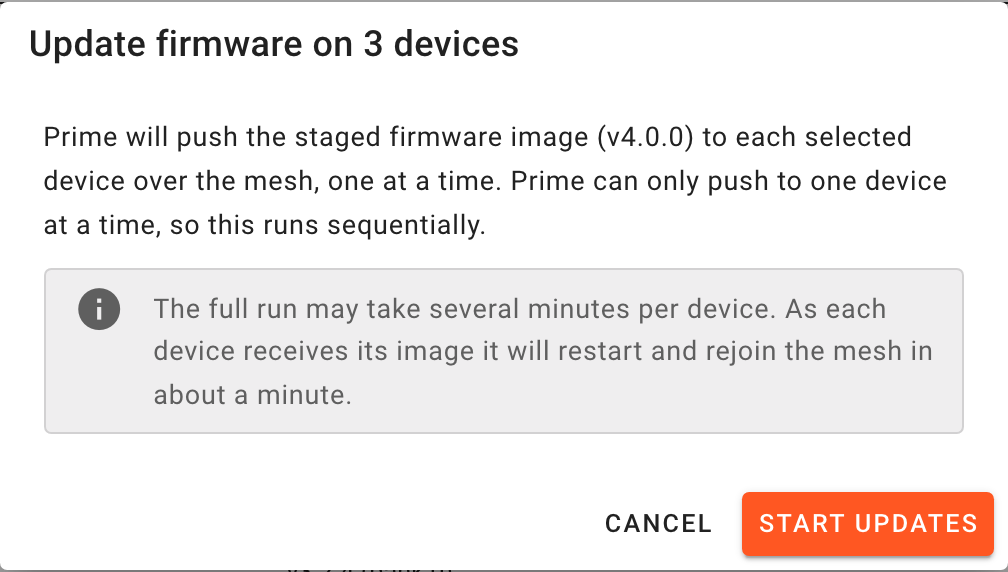
- In the bar that appears, click Update firmware…, then Start updates.
- Prime updates them one after another. Leave Prime plugged in and the page open until the run finishes; Stop after current ends the run once the Control in progress is done.
- When it says Bulk firmware update complete, click Done.
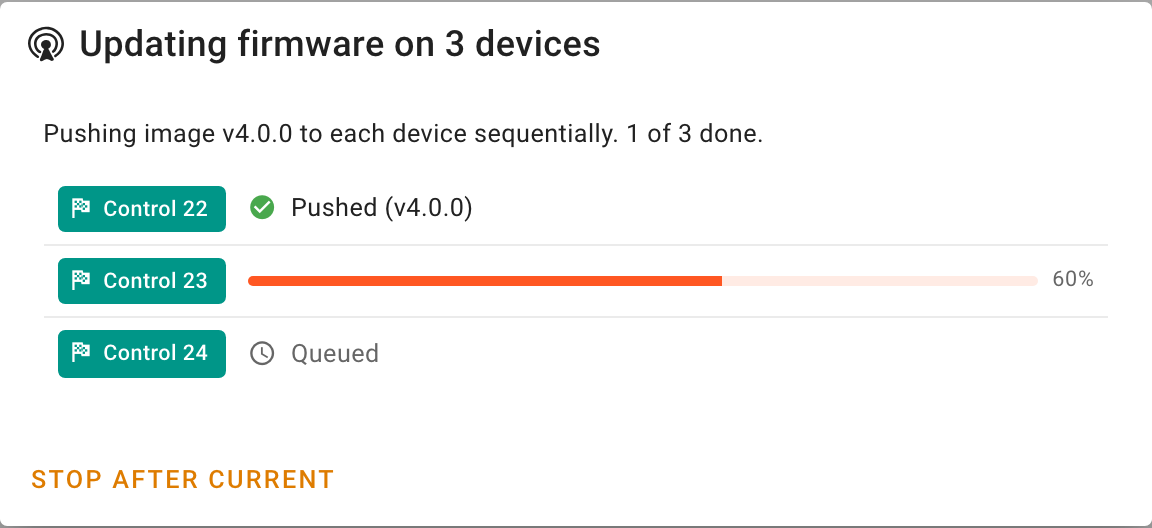
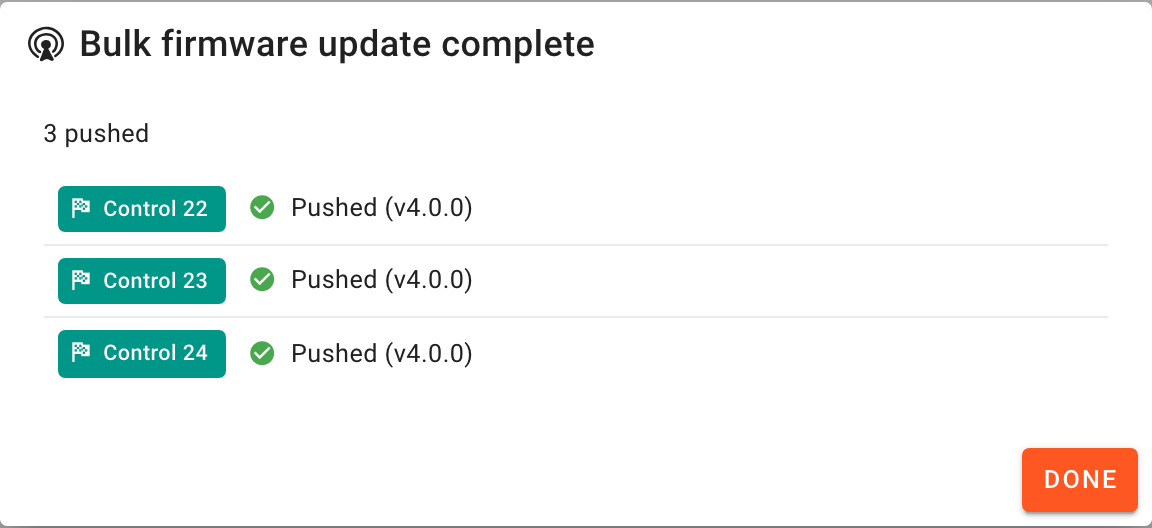
Pushed means the Control received the firmware; it then restarts onto it. Give the last one a minute, then check that every Control shows v4.0.0 in the table. A Control that failed stays ticked when you click Done, so you can try just those again.
10. The second board type
If you have both kinds of Control, repeat sections 7 to 9 with the other file: stage meshO Control v4.0.0 PCBv4.bin, then update the PCB v4 Controls on the list you wrote down.
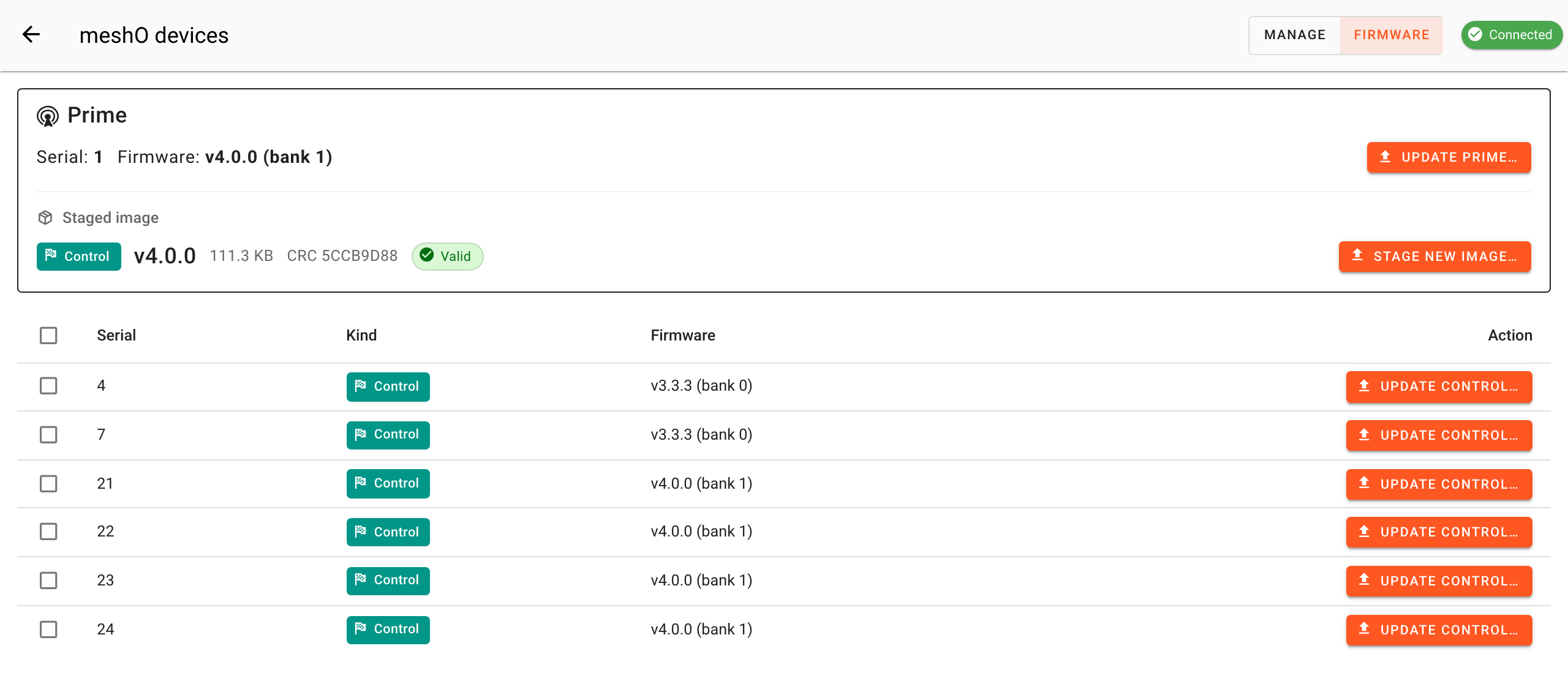
PCBv4 file staged (111 KB). Controls 4 and 7 are the ones left.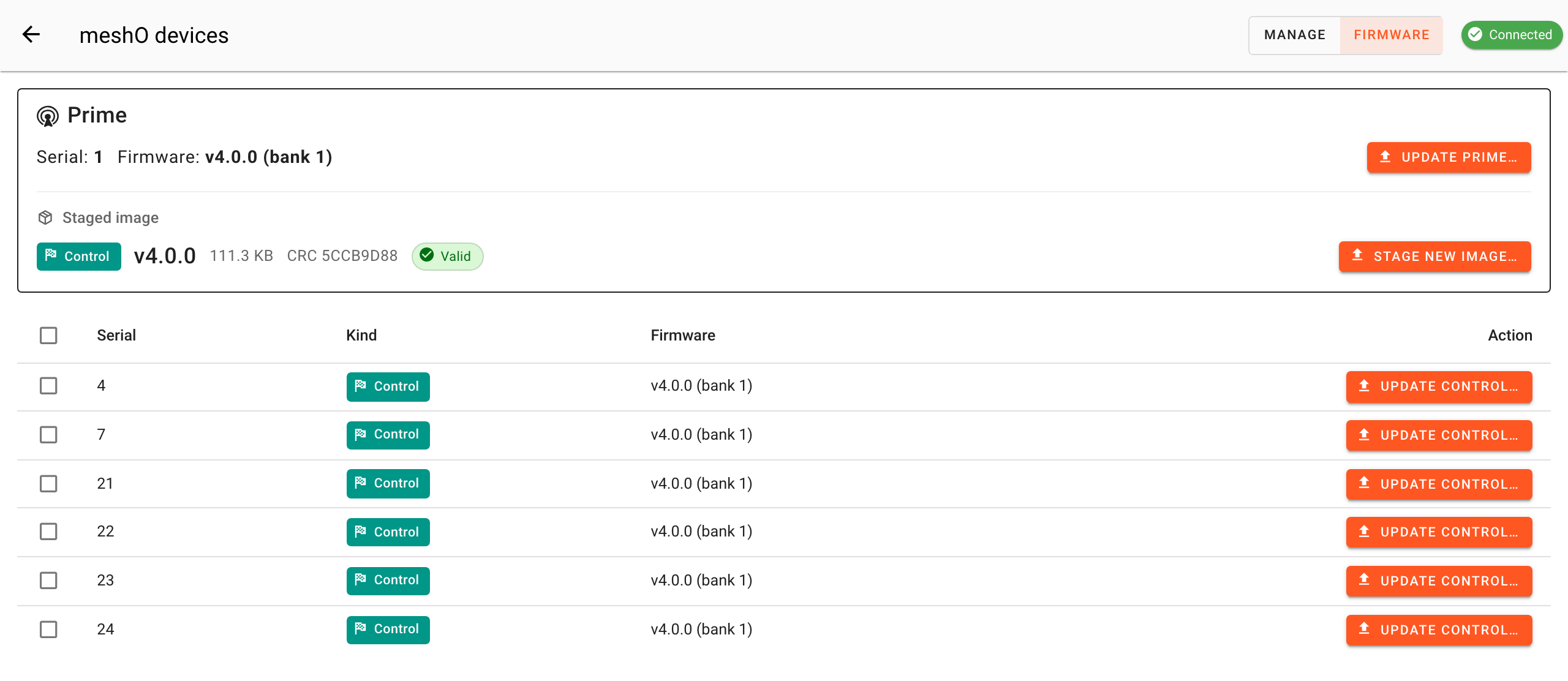
Manager doesn’t know which board each Control has, so it will let you send a file to the wrong one. Nothing breaks if you do: the Control refuses a file that isn’t for its board before it changes anything, and keeps running its old firmware. In Manager it looks like an update that never finishes — after three minutes the dialog says the Control has not come back on the mesh with the new firmware, and its version in the table doesn’t change. Stage the other file and try that Control again.
11. If something goes wrong
- The page says Searching for meshO Prime
- Prime isn’t connected. Check the USB cable and that Prime is on; it’s found automatically.
- A Control isn’t in the list
- It isn’t on the network. Check it’s switched on and charged, and move it closer to Prime.
- Update Control… stays greyed out
- There’s no valid Control file staged on Prime, or another update is still running. Stage the file (section 7) and wait for any run in progress to finish.
- “Firmware is for Control, but Prime firmware is required”
- A Control file was chosen for Update Prime…. Choose
meshO Prime v4.0.0 PCBv4.bin. - “This is a Prime firmware image. Use “Update Prime” instead.”
- The Prime file was chosen for Stage new image…. Stage a Control file instead.
- “Invalid firmware file.”
- The file isn’t meshO firmware, or the download is incomplete. Download it again; the checksums are on the downloads page.
- “PCB v… outside image range”
- Prime’s board isn’t one this file is for. Nothing was changed; get in touch.
- A Control “has not come back on the mesh with the new firmware”
- If its version in the table hasn’t changed after a couple of minutes, it most likely has the other board type: stage the other file and try again. If it has dropped off the list, it may be slow to restart, out of range or flat.
- Prime was unplugged or the computer slept during an update
- Plug Prime back in, open the Devices page and check the version on the Prime card. If it shows the old version, update again. Prime keeps its previous firmware until the new one is safely in place.
- A unit went back to its old version
- If new firmware doesn’t start up properly, the unit returns to its previous firmware by itself, and the version and bank go back to what they were. Try the update once more; if it happens again, let us know the unit and serial number.
- A PCB v4 Control on firmware older than 3.3.0
- It can’t take the
PCBv4file over the air. Get in touch and we’ll sort it out.
For anything else, email sales@mesho.live with the unit’s serial number and what Manager showed. What’s new in 4.0.0 →